
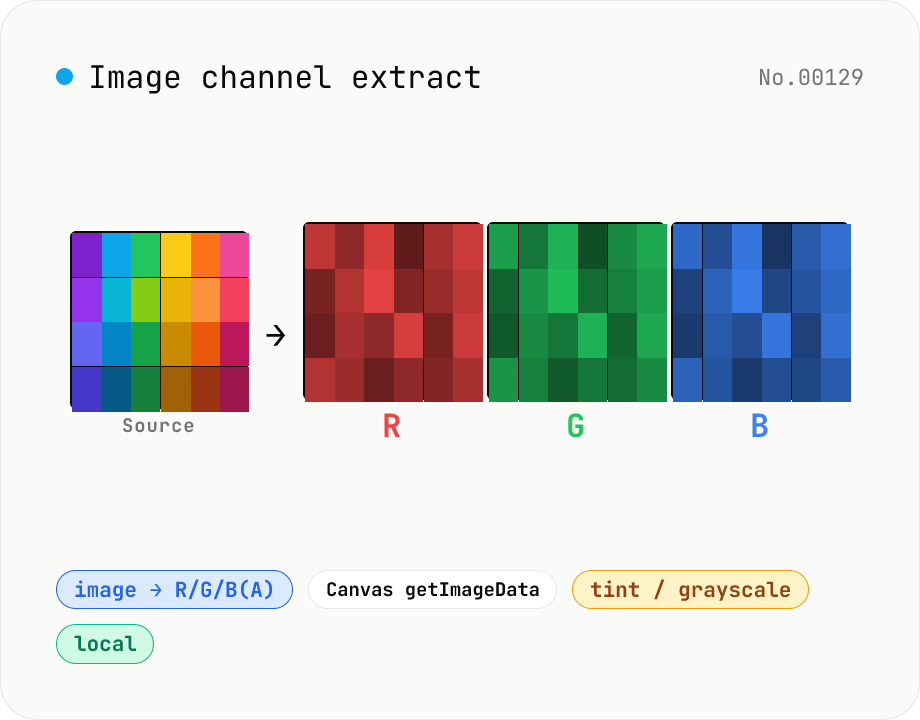
Image channel extract — split RGB(A) into per-channel PNGs
Drop an image (PNG / JPEG / WebP) to split it into individual R / G / B / A channel PNGs via Canvas getImageData. Mode toggle: grayscale (each channel's intensity as monochrome 0–255) or tint (R as red-only, G as green-only, B as blue-only, others zeroed). Alpha is exported automatically for RGBA inputs. Great for AI dataset preprocessing, RGB-instead-of-CMYK colour separation, contrast analysis, white-balance debugging, and compositing / mask creation. Batch multiple images with per-channel save + ZIP all. Runs entirely in your browser.
How to use
Drop or pick one or more images (PNG / JPEG / WebP). Pick the output mode: grayscale (channel intensity rendered as monochrome) or tint (red / green / blue tinted). Each file shows thumbnails and per-channel download buttons for R / G / B (+ A). Use 'Download ZIP' to grab the whole set as one archive.
In depth
The images that need channel extraction often carry sensitive content
RGB channel extraction comes up in image-processing research, retouching analysis, medical or scientific image evaluation, and game / CG texture mask verification. In each of those contexts, the source image may be research data, non-public medical imagery, or an in-development game asset.
Channel extraction is ‘making the internals visible.’ If the source image is sensitive, the extracted R / G / B channels are sensitive as well — they are derivatives of the original. In some cases, individual grayscale channels carry enough information to reconstruct or partially recover the source. The extracted files warrant the same care as the original.
What uploading to a channel-extraction service sends
Online services that offer channel extraction upload the source image to a server and return the separated channels. Every pixel of the original travels to the operator’s infrastructure before any splitting happens. ‘I just want the red channel’ is the intent, but the full image is what gets transmitted.
Medical scans, satellite imagery, original photographs of identifiable subjects — passing any of these to a third-party service for channel analysis means the pixel data leaves the device. The output channels are in your hands; the original is on their server.
Canvas getImageData / putImageData for per-channel separation
The tool reads pixel data with getImageData(), which returns a flat array of [R, G, B, A, R, G, B, A, …] values. For each channel, a new ImageData is constructed: grayscale mode copies the channel’s value into all three RGB channels, producing a monochrome representation; tint mode keeps the channel value in its own slot and zeros the other two. The result is written back via putImageData() and exported as PNG via canvas.toBlob().
Every step stays in browser memory. No network request is made. Canvas re-encoding strips EXIF, GPS, and ICC profiles from the output — location data from the source doesn’t survive into the channel images. When the goal is to complement the channel breakdown with a dominant-color histogram, the extracted PNGs feed cleanly into image-palette, which surfaces the per-channel colour distribution from the same browser-side pipeline.
Working with the extracted channels
Extracted channels are saved as lossless PNG, preserving full channel intensity. For scientific or medical work where quantitative precision matters, PNG’s lossless encoding ensures the luminance values match the original channel data exactly. Note that ICC color profile information is stripped by Canvas; if the source color space matters downstream, keep the original file alongside and run the extraction tool for the derived output only.
RGB / RGBA / CMYK / HSL and what channel extraction actually does
getImageData() returns an sRGB-space 8-bit RGBA buffer (Uint8ClampedArray) in which every pixel takes four bytes: [R, G, B, A]. The alpha channel runs from 0 (fully transparent) to 255 (fully opaque) and is supported by PNG, WebP, and GIF. JPEG has no alpha channel, so loading a JPEG produces A = 255 everywhere. The R, G, B channels are the additive primaries used by displays.
Print workflows use CMYK (Cyan / Magenta / Yellow / Key=Black) subtractive primaries, and the RGB → CMYK conversion typically passes through an ICC-profile transform via Adobe Color or CIE-standard pipelines. Canvas 2D cannot represent CMYK directly, so this tool is RGB-only. HSL and HSV (Hue / Saturation / Lightness or Value) are perceptual representations — for HEX-to-HSL conversion see color-converter. If you need print-grade colour separation, Adobe Photoshop or Affinity Photo with CMYK support is the right tool. For web asset R / G / B visualisation, texture mask creation, and selecting medical-imaging wavelength bands, this tool’s RGB(A) split is sufficient.
Channel extraction in game graphics, medical imaging, and astrophotography
Game graphics pipelines often pack PBR (Physically Based Rendering) material maps into a single PNG using multiple channels — for example RGB = Albedo (base color) with A = Roughness, conserving VRAM bandwidth. Unity HDRP and Unreal Engine’s Material Editor commonly use ORM (Occlusion-Roughness-Metallic) textures with Metallic / Roughness / Occlusion / Height mapped to RGBA. Splitting an ORM texture with this tool lets you inspect and edit each channel separately.
In medical imaging, CT and MRI data is typically 12–16 bit grayscale (DICOM), but composite RGB images that fuse multiple modalities (e.g. T1-weighted on R, T2-weighted on G, FLAIR on B) are produced for at-a-glance comparison. Channel extraction lets clinicians inspect each modality’s contribution separately. Astrophotography uses narrow-band filter sets like SHO (Hα = R, OIII = G, SII = B) for capture; channel-splitting reveals the distribution of each gas species in the composite. The grayscale-extract mode preserves the per-channel intensity values losslessly, which is what makes it appropriate for these scientific and industrial use cases. If a single luminance map is the actual goal, image-grayscale reaches the same output in one fewer step while sharing the same in-browser Canvas pipeline.
FAQ
- What if the image has no alpha?
- Alpha-less formats (e.g. JPEG) only emit R / G / B (3 PNGs). RGBA inputs add an A channel (grayscale transparency map).
- Grayscale vs. tint — what's the difference?
- Grayscale copies one channel's intensity across three monochrome channels. Tint paints the same channel using its own colour (red / green / blue) and zeros the others. Grayscale is better for contrast analysis; tint reads naturally as a colour separation.
- Are EXIF / ICC preserved?
- No — Canvas re-encoding strips EXIF, GPS, ICC. From a privacy standpoint this is usually a win (no leaking location data through your channels).
- Will giant images crash memory?
- 4K (3840×2160) typically peaks around ~100 MB and finishes fine. 8K+ depends on the browser. If you hit OOM, run image-resize first.
- Is anything uploaded?
- No. We only use the built-in Image + Canvas APIs in your browser.
How to verify nothing is uploaded
This tool never sends your input outside your browser. The pages below explain how it works, how to audit it, and how the site is run.
Related tools
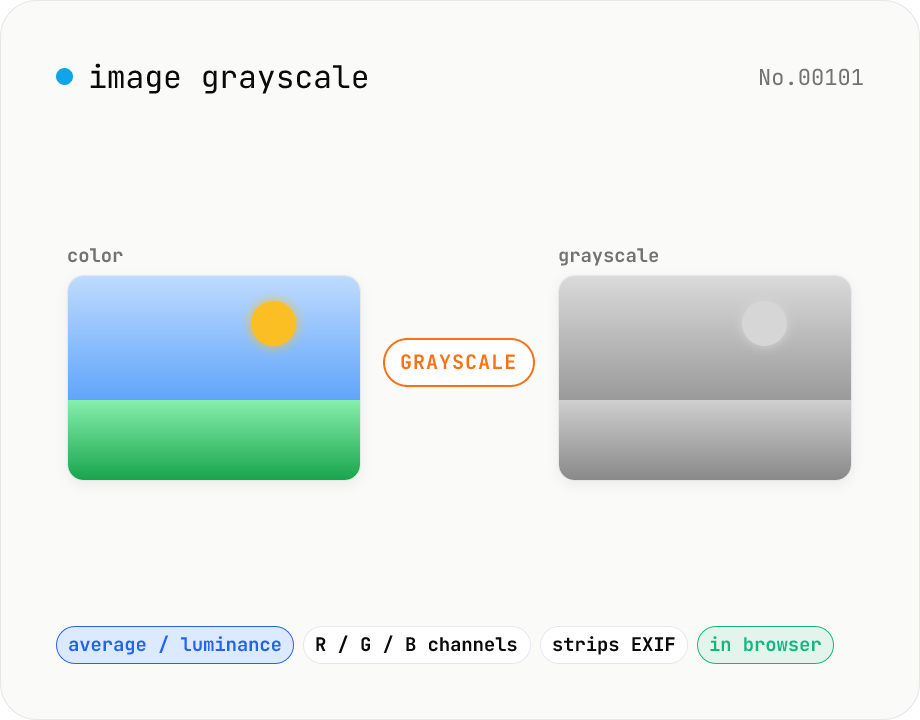
Image grayscale — 5 methods (average / BT.601 / R / G / B)
Convert JPEG / PNG / WebP images to grayscale inside your browser. Pick from five methods: average, luminance (BT.601), or any single channel (red / green / blue). Choose the output format (PNG / JPEG / WebP) and tweak the quality for the lossy formats. Your image is processed via canvas locally — nothing is uploaded.
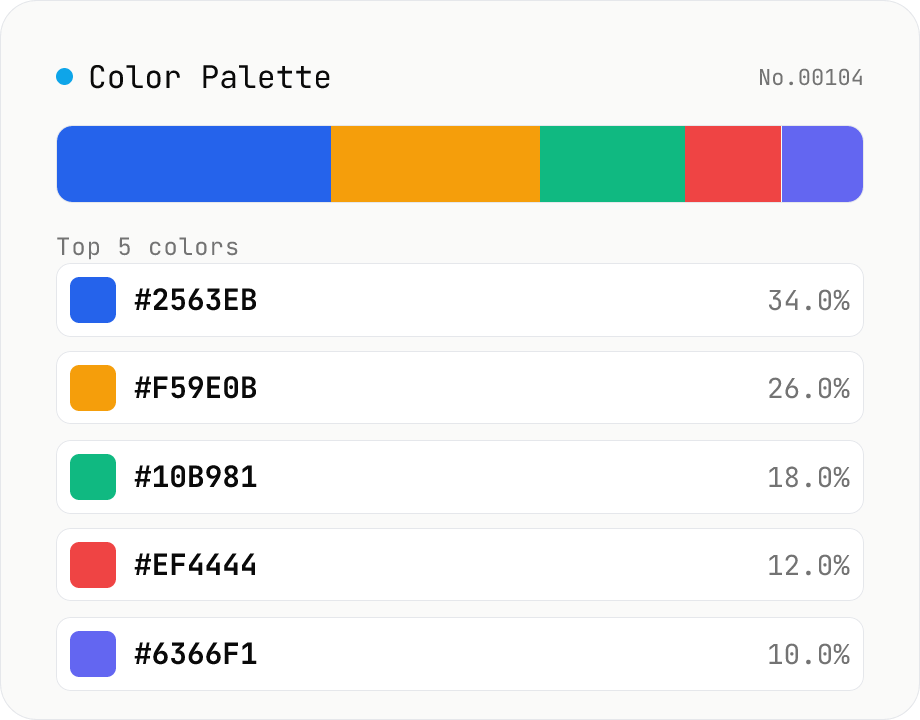
Image Color Palette Extractor
Drop an image to extract its dominant colors via median-cut quantization, with each color's HEX / RGB value and share. Choose how many colors (4–16) and see the balance in a proportional bar. Click a color to copy its HEX, or copy the whole palette as a HEX list, CSS variables, or JSON. Images are analyzed entirely in your browser and never uploaded.
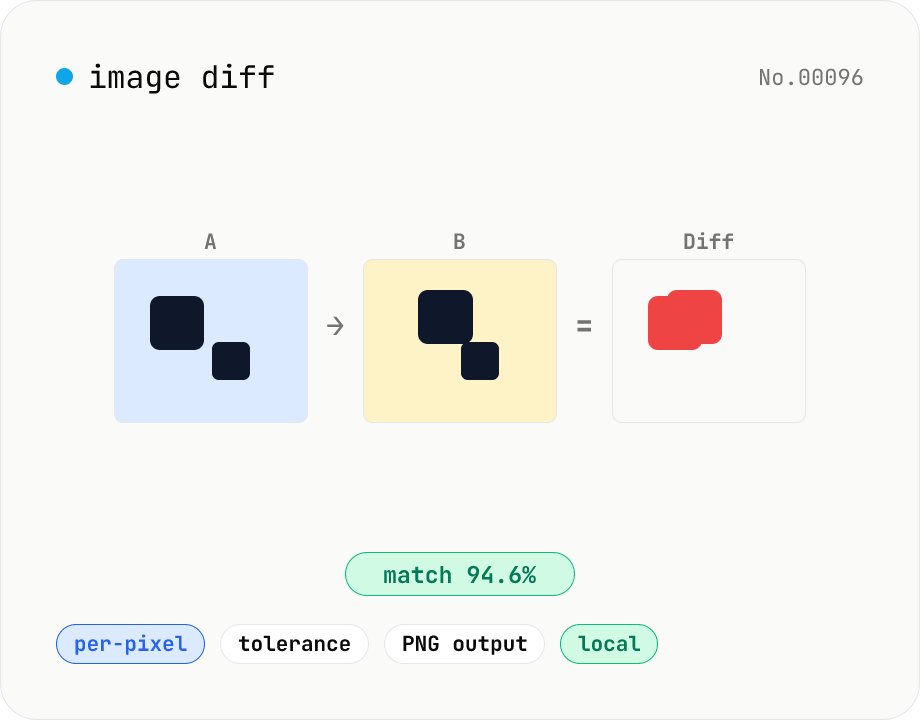
Image difference — highlight pixel diffs between two images
Compare two images (JPEG / PNG / WebP / GIF) pixel-by-pixel on a canvas and produce a diff image that highlights only the changed pixels in your chosen color. Great for design QA, plagiarism checks, regression testing, or screenshot diffing. Tunable threshold lets you ignore near-identical pixels and shows the match percentage. Two display modes (diff only / overlay on top of the original). Everything runs in the browser — your images are never uploaded.
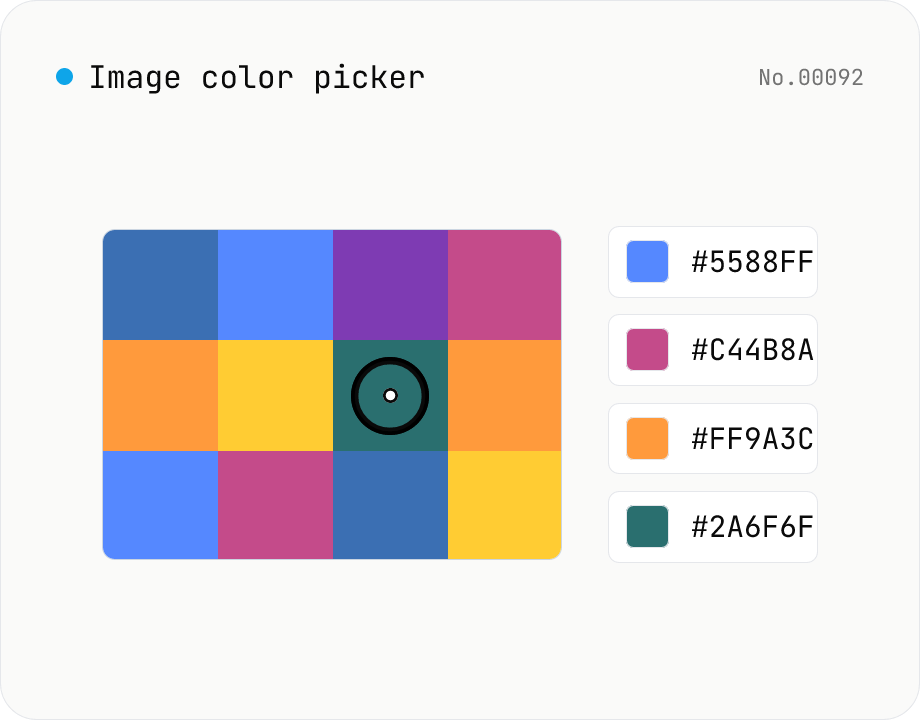
Image color picker — read pixel HEX / RGB / HSL values
Upload a JPEG / PNG / WebP and click any pixel to read its color as HEX / RGB / HSL. Hover to inspect the value with a magnifier loupe, then click to add it to a history list. Copy any format with a single click. Your image never leaves the browser — everything runs locally.