
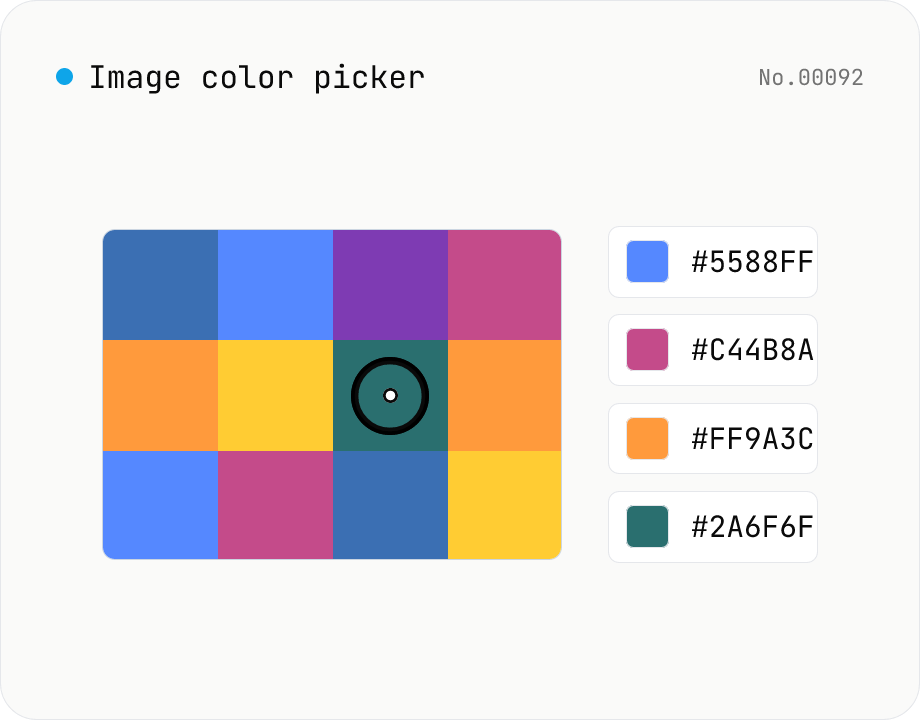
Image color picker — read pixel HEX / RGB / HSL values
Upload a JPEG / PNG / WebP and click any pixel to read its color as HEX / RGB / HSL. Hover to inspect the value with a magnifier loupe, then click to add it to a history list. Copy any format with a single click. Your image never leaves the browser — everything runs locally.
How to use
Drop or pick an image to load it. Hover over the canvas to inspect each pixel with a magnifier loupe — HEX / RGB / HSL values update in real time. Click to add the color to the history list, then copy any of the three values with the dedicated button on each row. Remove individual entries with the per-row Remove button, or clear the whole list at once. Your image stays in the browser — everything is read via Canvas locally.
FAQ
- Is my image uploaded to a server?
- No. Files are read locally with FileReader, drawn into an HTMLCanvasElement, and inspected via getImageData. No network requests are made at any step.
- Which value (HEX / RGB / HSL) should I copy?
- Depends on the use case. HEX (#RRGGBB) is the safest for design tools (Figma, Sketch, Procreate), RGB works directly in CSS / Tailwind, and HSL is handy when you want to nudge saturation or lightness on a base color.
- How are transparent pixels handled in PNG / WebP?
- Pixels with alpha < 255 are returned as if composited on a white background, so the displayed HEX matches what you see on screen. Fully transparent pixels (alpha 0) read as #FFFFFF (white).
- Is the magnifier zoom level configurable?
- No, the loupe uses a fixed zoom in this version (a few pixels per actual pixel). The central square shows the exact pixel that will be picked. Adjustable zoom is not on the roadmap (we keep the tool single-purpose).
- Which image formats are supported?
- Any format your browser can natively decode — JPEG, PNG, and WebP in practice. For HEIC photos from iPhone, convert them with the HEIC → JPEG tool first.
- Does it work for very large images?
- Yes. The display canvas is scaled down for rendering, but a hidden full-resolution canvas backs getImageData so pixel reads stay accurate. 4K / 8K images work fine; only extreme sizes (e.g. 10000×10000) may hit per-tab memory limits.
Related tools
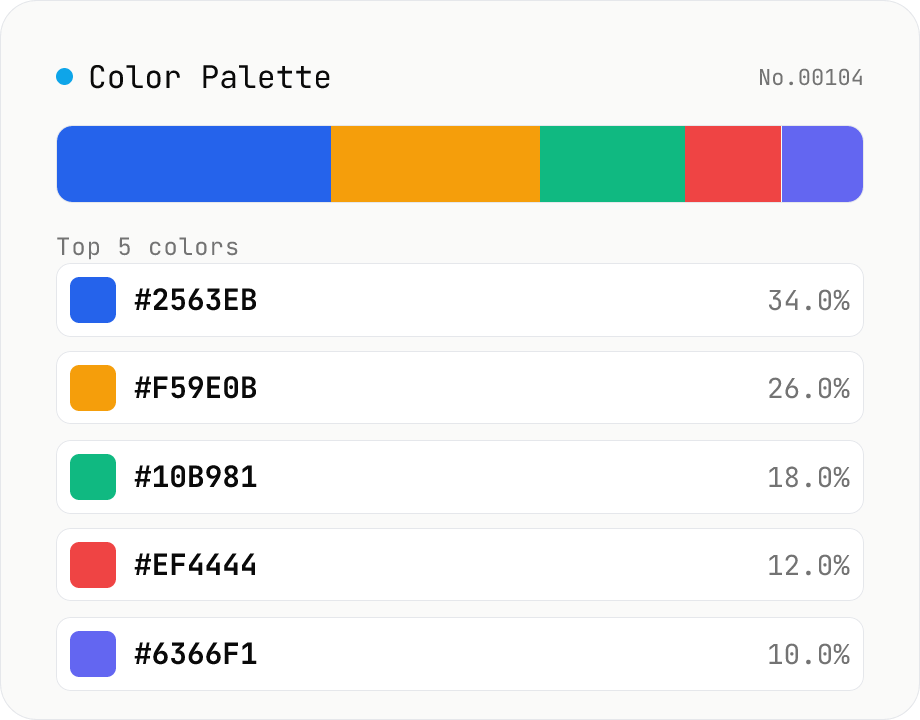
Image Color Palette Extractor
Drop an image to extract its dominant colors via median-cut quantization, with each color's HEX / RGB value and share. Choose how many colors (4–16) and see the balance in a proportional bar. Click a color to copy its HEX, or copy the whole palette as a HEX list, CSS variables, or JSON. Images are analyzed entirely in your browser and never uploaded.
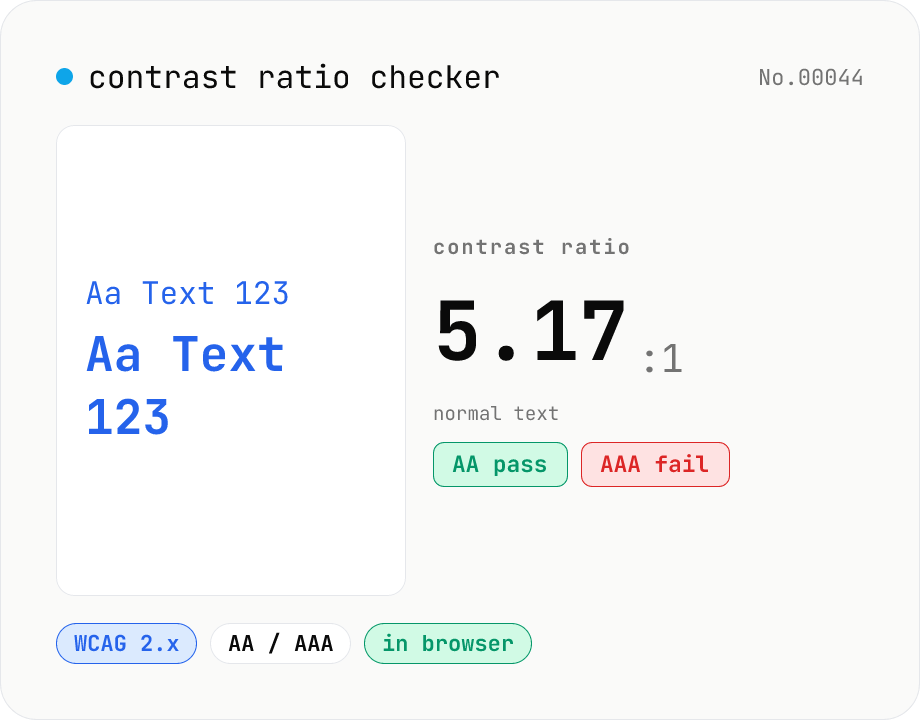
Contrast ratio checker — WCAG AA / AAA
Pick a foreground (text) and background color to compute the WCAG 2.x contrast ratio and instantly see whether it passes AA / AAA for normal text, large text, and UI components. Accepts HEX and rgb(), with a color picker and live preview. Everything runs in your browser — your colors never leave the page.
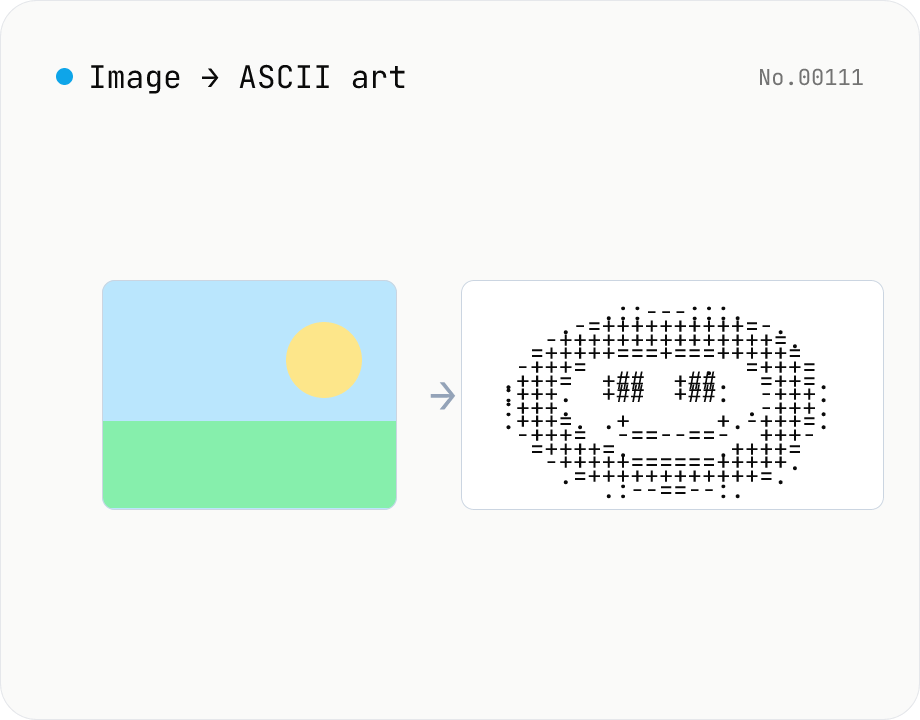
Image to ASCII art — render photos as text characters
Convert JPEG / PNG / WebP images into ASCII art entirely in the browser. Map each pixel's luminance to a character ramp, tweak the output width, choose a charset (detailed / standard / simple / blocks), or invert the mapping — all with a live preview. Copy the result or download it as a .txt file. Your image never leaves the browser.
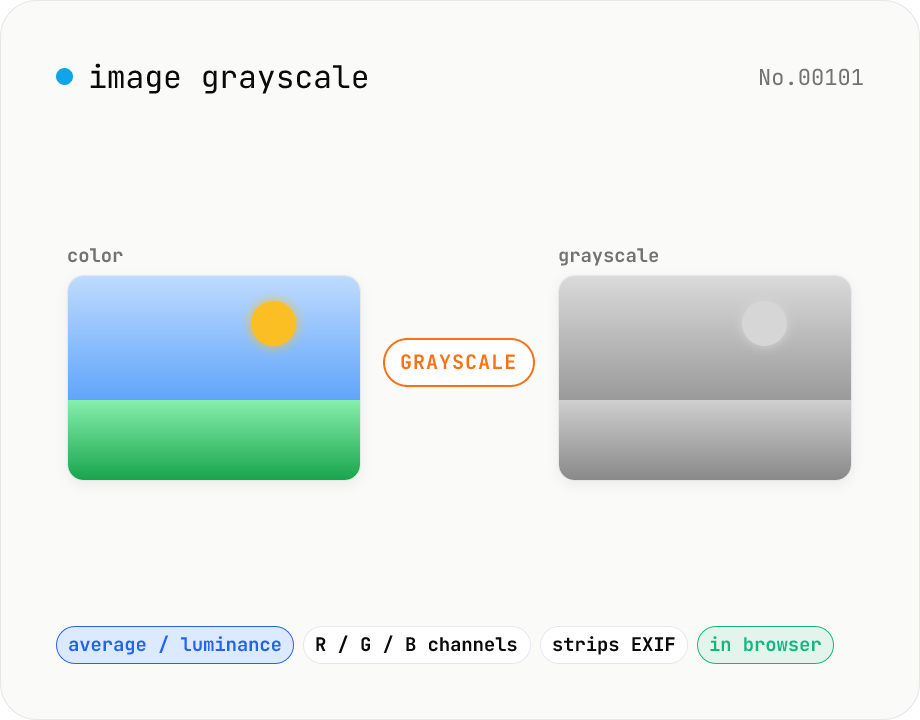
Image grayscale — 5 methods (average / BT.601 / R / G / B)
Convert JPEG / PNG / WebP images to grayscale inside your browser. Pick from five methods: average, luminance (BT.601), or any single channel (red / green / blue). Choose the output format (PNG / JPEG / WebP) and tweak the quality for the lossy formats. Your image is processed via canvas locally — nothing is uploaded.