
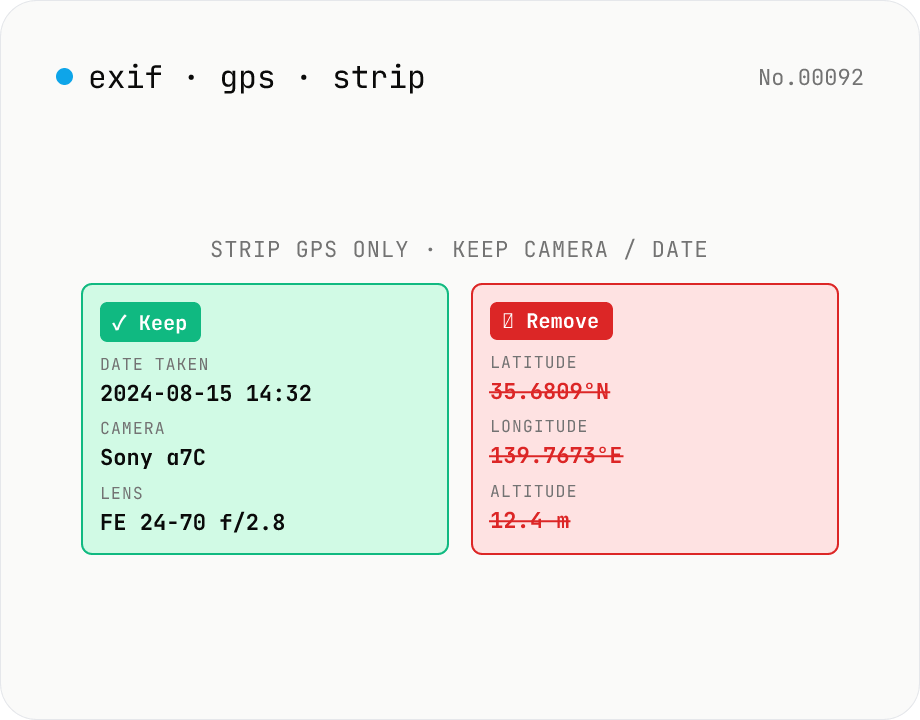
Strip only GPS tags from JPEG — keep date, camera, lens
Surgical removal of **GPS location tags only** from JPEG EXIF. Other metadata (date taken, camera, lens, aperture, ISO, etc.) **stays intact** — useful when you want to publish photos on social media / blog / portfolio without revealing your home address but still keep the shoot info for your records. `image-exif-strip` removes *all* EXIF; this tool removes *only* GPS. Batch process multiple JPEGs, individual or ZIP download. Everything runs in your browser — your photos never leave your device.
How to use
Drop **JPEG photos** and the tool: (1) parses EXIF to show camera, lens, date, *and* the GPS coordinates it found, (2) deletes **only the GPS tags** (GPSLatitude / GPSLongitude / GPSAltitude / GPSDateStamp / GPSTimeStamp — 30+ entries in the GPS IFD) from the EXIF, (3) **keeps everything else** (DateTimeOriginal, Make/Model, LensModel, Software, Orientation, ISO, aperture). The image data isn't re-encoded so there's **zero quality loss**. Batch process multiple files; individual or ZIP download. Compare to `image-exif-strip` which removes *all* EXIF; this is for the case where you want to publish a photo without revealing your address but still keep the shoot metadata.
In depth
Why GPS tags carry a different kind of risk than the rest of EXIF
EXIF stores a lot — capture date, camera body, lens, ISO, shutter speed — but those fields describe the equipment and settings used. The GPS IFD is different: it records where. Latitude and longitude are stored to six decimal places, placing the shot within tens of centimetres. Sharing a photo taken at home, school drop-off, or a regular café means that location travels with the file.
At the same time, shoot metadata is legitimately useful. Photographers building portfolios, photojournalists supplying publication records, stock submitters preserving camera-body attribution — all have good reasons to keep capture date, camera, and lens. This tool exists at that intersection: remove the location, keep everything else.
The fundamental contradiction in upload-based GPS strip tools
The reason to strip GPS is that you don’t want a location transmitted to someone else. But uploading a GPS-tagged photo to an online service transmits that location to the operator’s server before any stripping happens. The deletion promise applies after receipt — not to the transfer, the logs, or the backups.
If the service’s terms allow internal use for quality improvement, the original file — GPS intact — may be processed in ways you didn’t agree to explicitly. Seeking privacy protection through a method that requires giving up the protected data first is structurally the wrong approach.
piexifjs editing the GPS IFD without touching the image bytes
The tool uses piexifjs (MIT) to parse and edit the JPEG APP1 segment — the marker where EXIF data lives — entirely in the browser. EXIF is organized into IFDs (Image File Directories): IFD0 holds general image info, ExifIFD holds shooting parameters, and GPS IFD holds location data. The tool removes the GPS IFD wholesale — all 30+ GPS tags including GPSLatitude, GPSLongitude, GPSAltitude, GPSDateStamp, GPSTimeStamp, GPSImgDirection — while leaving IFD0 and ExifIFD unchanged.
Because only the EXIF segment is rewritten and the JPEG DCT data is untouched, quality is bit-for-bit identical to the source. Everything runs in browser memory. Open DevTools Network and process a batch — no requests fire after the page loads.
After stripping: what to check
Stripping the GPS IFD removes EXIF location data, but XMP and IPTC metadata can also carry location independently. This tool only processes EXIF; if an image editing application embedded GPS in XMP or IPTC as well, those copies will remain. For full location removal, use image-exif-strip to clear all metadata, or chain this tool with an XMP-aware editor. For the vast majority of camera-and-phone JPEGs, the GPS IFD is the only location store, and this tool is sufficient.
How the GPS IFD encodes latitude and longitude internally
The GPS IFD (Image File Directory) is a sub-directory inside EXIF defined by EXIF 2.32 (CIPA DC-008), structurally separate from IFD0 (basic image info) and ExifIFD (shooting parameters). It uses the same TIFF (Tag Image File Format) directory layout. GPSLatitude (tag ID 0x0002) and GPSLongitude (0x0004) store coordinates as three RATIONAL values — pairs of 32-bit numerator and 32-bit denominator integers — representing degrees, minutes, and seconds. For example, 35°41′22.2″ N is stored as [(35,1), (41,1), (222,10)].
GPSLatitudeRef (0x0001) and GPSLongitudeRef (0x0003) hold a single ASCII character (N/S or E/W) for hemisphere. Beyond that the IFD defines GPSAltitude (0x0006), GPSAltitudeRef (0x0005, 0 = above sea / 1 = below), GPSTimeStamp (0x0007, UTC time), GPSDateStamp (0x001D), GPSImgDirection (0x0011, where the lens was pointing 0–360°), GPSDestLatitude / GPSDestLongitude (0x0014 / 0x0016, intended destination), and more than 30 tags in total. piexifjs removes the entire IFD in one operation, and the pointer to it (the GPSInfo tag 0x8825 in IFD0) is removed at the same time.
Pairing tag removal with visual location cues
Stripping the GPS IFD doesn’t address the case where location information is visible in the pixels themselves. Street signs, station names, store signage, license plates, and distinctive landmarks (Tokyo Tower, recognisable building logos) are all clues that image-recognition systems — Google Image Search, Apple’s Visual Look Up, generative-AI Vision APIs — can use for reverse geocoding. A reliable pre-share habit combines (a) GPS tag removal, (b) a check for address signs / shop names / license plates in the background, and (c) blurring with image-pixelate where needed.
A frequently missed detail: iOS and Android default camera apps may write location-adjacent hints outside the GPS IFD itself. iPhone HEIC files can include detailed scene info inside the Apple MakerNote block — proprietary fields that may reference nearby Apple Maps landmarks or Significant Locations cues. piexifjs preserves the MakerNote as opaque binary, so this tool does not modify it. For fully anonymised output, use image-exif-strip to clear all EXIF, or run the image through a Canvas re-encode path such as image-resize, which drops every metadata segment — including MakerNote — as a side effect.
FAQ
- Is my input uploaded?
- No — `piexifjs` (MIT) edits the JPEG EXIF locally and the image data bytes are reused untouched. No external API calls.
- How is this different from image-exif-strip?
- `image-exif-strip` removes *all* EXIF (date, camera, lens, GPS, software, thumbnails) for maximum privacy. **This tool** removes *only* the GPS tags so you can still post 'shot 2024-08-15 on Sony α7C with FE 24-70 f/2.8' but not 'at 35.6809°N, 139.7673°E'. For full strip use the other tool; for surgical GPS strip use this one.
- Why would I want to strip only GPS?
- Common cases: (1) Posting photos to social / blog / portfolio without revealing home or work location, but keeping shoot date and gear as portfolio metadata. (2) Editorial photography where the publisher requires shoot metadata but the subject's location should stay private. (3) Real-estate listings where the property is public but precise coordinates aren't. (4) Stock photography submissions where metadata is required but location should stay vague.
- Are you sure only GPS is removed?
- The GPS IFD (Image File Directory) is removed wholesale — 30+ tags including GPSLatitude/Longitude/Altitude/DateStamp/TimeStamp/ImgDirection. IFD0 (general) and ExifIFD (shooting params) are untouched. Run the output through any EXIF viewer to verify. If GPS is also embedded in XMP / IPTC, that needs a separate tool (we only edit EXIF).
- PNG / WebP?
- Not supported. PNG can carry EXIF but GPS tags are very rarely written there. Same for WebP. GPS-tagged photos in the wild are virtually always JPEG (including HEIC-converted JPEGs from phones), which is why this tool is JPEG-only.
- HEIC (iPhone default)?
- Not directly. HEIC stores GPS in a Quicktime-style container, not standard EXIF. iPhones already convert to JPEG on share with the 'Most Compatible' setting; or use `heic-convert` first.
- Does the quality degrade?
- No — **zero loss**. The tool rewrites only the EXIF APP1 segment; the JPEG image DCT data is left byte-for-byte identical.
- What about the EXIF thumbnail?
- Left intact — the IFD1 thumbnail is independent of the GPS IFD. In rare cases where the thumbnail also carries GPS, those copies are cleaned too.
- File format / size limits?
- JPEG / JPG only, 30 MB per file. Phone photos (3–10 MB) and full-frame DSLR JPEGs (15–25 MB) are fine. RAW formats (CR2 / NEF) carry EXIF too but aren't supported here.
How to verify nothing is uploaded
This tool never sends your input outside your browser. The pages below explain how it works, how to audit it, and how the site is run.
Related tools
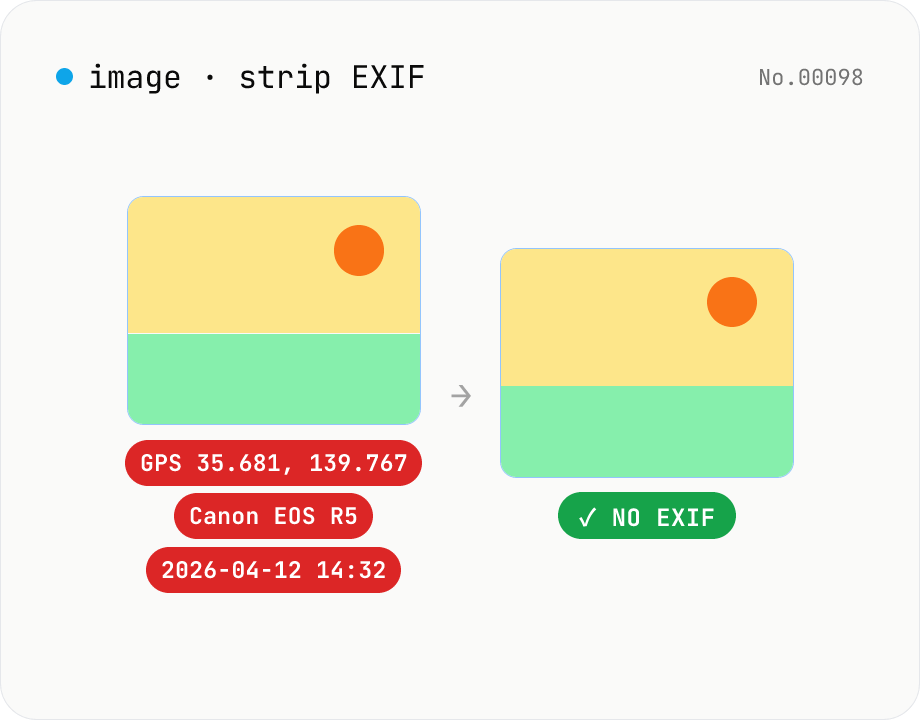
Image EXIF strip — wipe GPS / capture date metadata
Remove EXIF, XMP and other metadata from JPEG / PNG / WebP files. For JPEG, only the metadata bytes are stripped — image quality is preserved exactly. Inspect embedded GPS or capture date before sharing. Runs entirely in your browser.
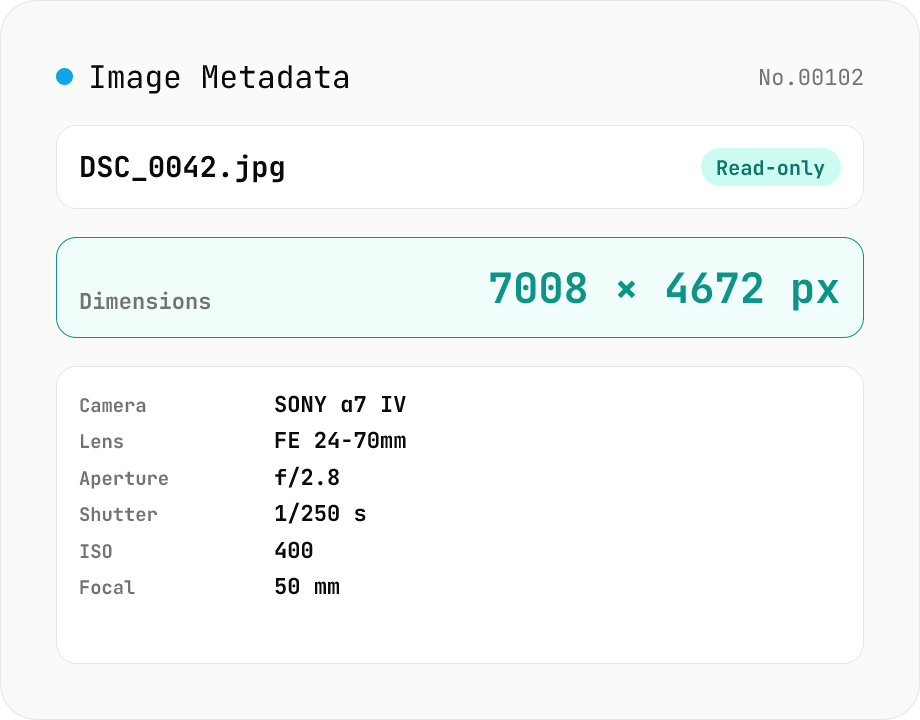
Image Metadata Viewer
Drop an image (JPEG / PNG / WebP / GIF / TIFF / HEIC / AVIF) to see its dimensions, file size, MIME type, aspect ratio, bit depth, color type, and DPI, plus extracted EXIF (capture time, camera make / model, lens, aperture, shutter speed, ISO, focal length, exposure compensation, orientation), GPS coordinates, ICC color profile, IPTC, and XMP. PNG headers (IHDR / pHYs) and JPEG markers (SOF / JFIF) are read by a small built-in parser; EXIF is parsed with exifr (MIT). Read-only — nothing is modified and the image never leaves your browser.
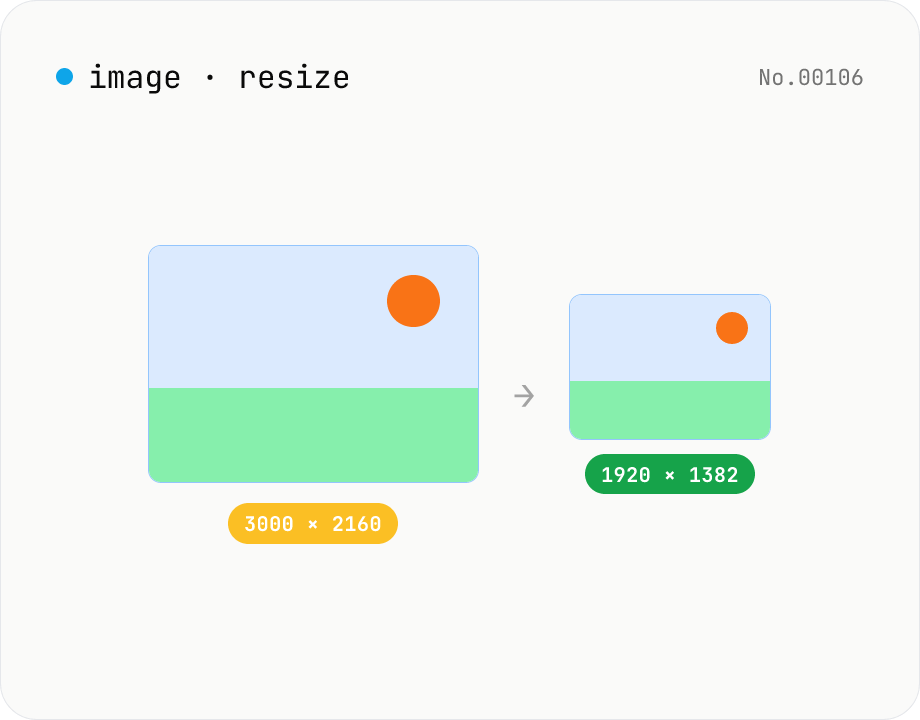
Image resize — by px or %, keep or lock aspect ratio
Resize JPEG / PNG / WebP images by specifying the longer side in pixels — aspect ratio is preserved. Batch process multiple files and download individually or as a ZIP. Runs entirely in your browser.
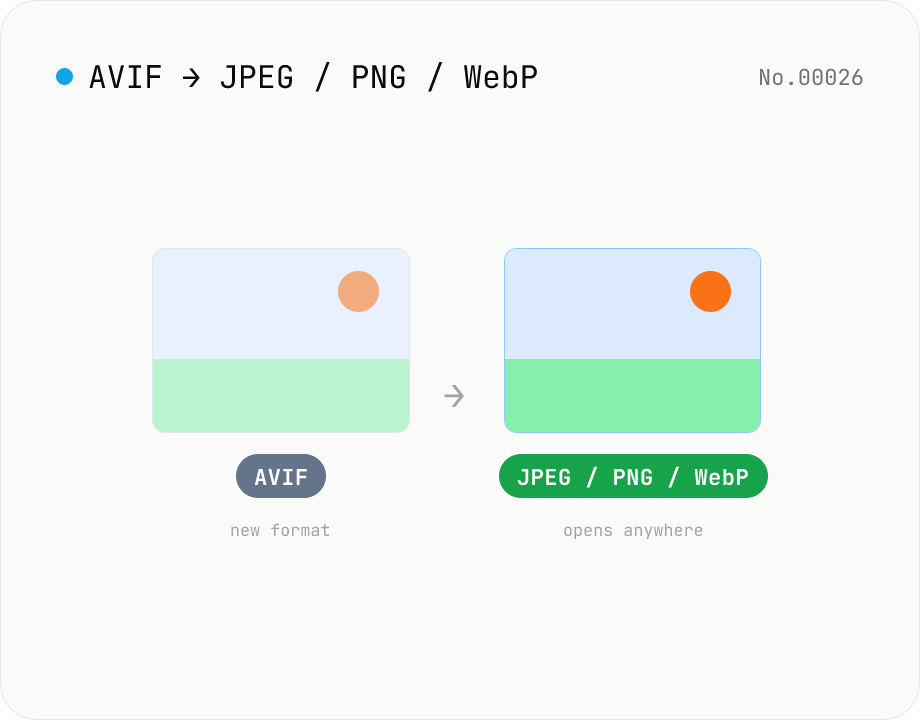
Convert AVIF photos to JPG / PNG / WebP — compatible everywhere
Decode .avif images with the browser-native AVIF decoder and re-encode them as JPEG / PNG / WebP. AVIF is great for the web but older Safari versions, email clients, Slack and Office still can't preview it — convert before sending. Batch conversion with single-click ZIP download is supported. Files never leave your device — everything runs in the browser.