
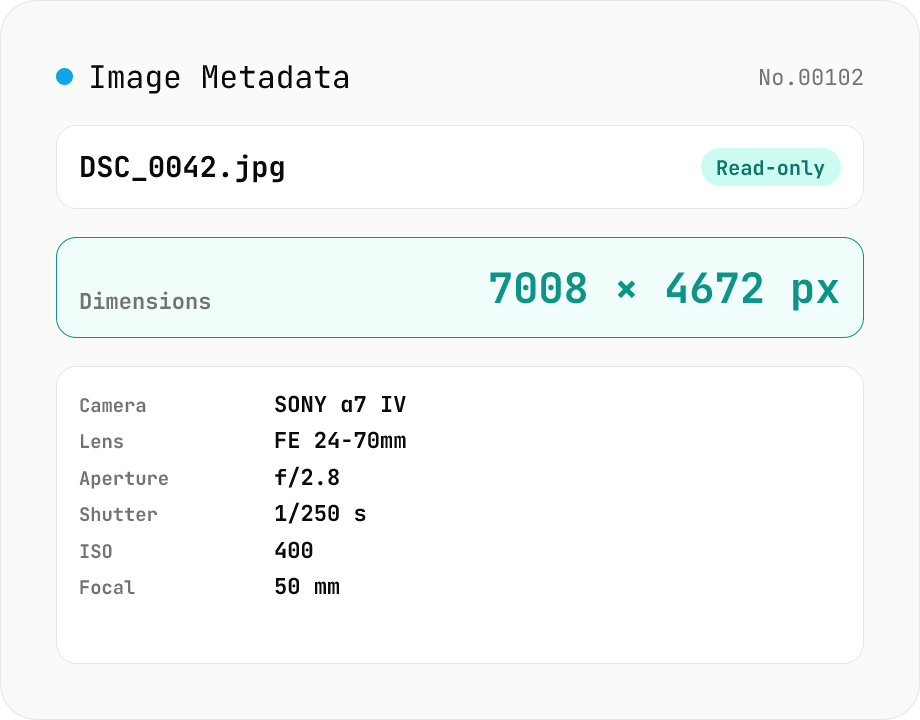
Image Metadata Viewer
Drop an image (JPEG / PNG / WebP / GIF / TIFF / HEIC / AVIF) to see its dimensions, file size, MIME type, aspect ratio, bit depth, color type, and DPI, plus extracted EXIF (capture time, camera make / model, lens, aperture, shutter speed, ISO, focal length, exposure compensation, orientation), GPS coordinates, ICC color profile, IPTC, and XMP. PNG headers (IHDR / pHYs) and JPEG markers (SOF / JFIF) are read by a small built-in parser; EXIF is parsed with exifr (MIT). Read-only — nothing is modified and the image never leaves your browser.
How to use
Drop an image (JPEG / PNG / WebP / GIF / TIFF / HEIC / AVIF) and two parses run in your browser. First, createImageBitmap reliably reads the actual dimensions (width × height), and file size, MIME, megapixels, and aspect ratio are computed. Next, a small parser reads PNG IHDR / pHYs chunks or JPEG SOF / JFIF markers to extract bit depth, color type, interlace (PNG) / progressive (JPEG), and DPI. Finally, exifr (MIT) pulls EXIF (capture time, camera make / model, lens, aperture, shutter speed, ISO, focal length, exposure compensation, metering mode, flash, orientation), GPS coordinates and altitude, ICC color profile name, and the presence of IPTC / XMP. Everything is read-only — the image is never modified or uploaded.
FAQ
- Is my image uploaded?
- No. All parsing (createImageBitmap, the in-browser header parser, exifr) runs locally. Safe for geotagged photos and unreleased work.
- Which formats are supported?
- Basic info (dimensions, size, aspect ratio) works for every format createImageBitmap can decode (JPEG / PNG / WebP / GIF / TIFF / HEIC / AVIF, depending on your browser). Detailed bit depth / color type / DPI parsing is optimized for PNG and JPEG; EXIF / GPS / ICC are extracted by exifr for the formats it supports (mainly JPEG / TIFF / HEIC).
- How do I remove EXIF?
- This tool is view-only. To actually strip EXIF / GPS, use the image-exif-strip tool — handy for wiping location data before posting to social media.
- Why are no GPS coordinates shown?
- Because no location is embedded (taken with GPS off, already stripped, or lost in a screenshot / edit). If your phone is set not to add location to photos, the EXIF won't contain GPS.
- What's the difference between DPI and resolution (pixels)?
- Resolution (width × height) is the actual pixel count. DPI (dots per inch) is metadata that sets the physical print size and doesn't affect on-screen display. For web use DPI is usually ignored; it only matters for print.
Related tools
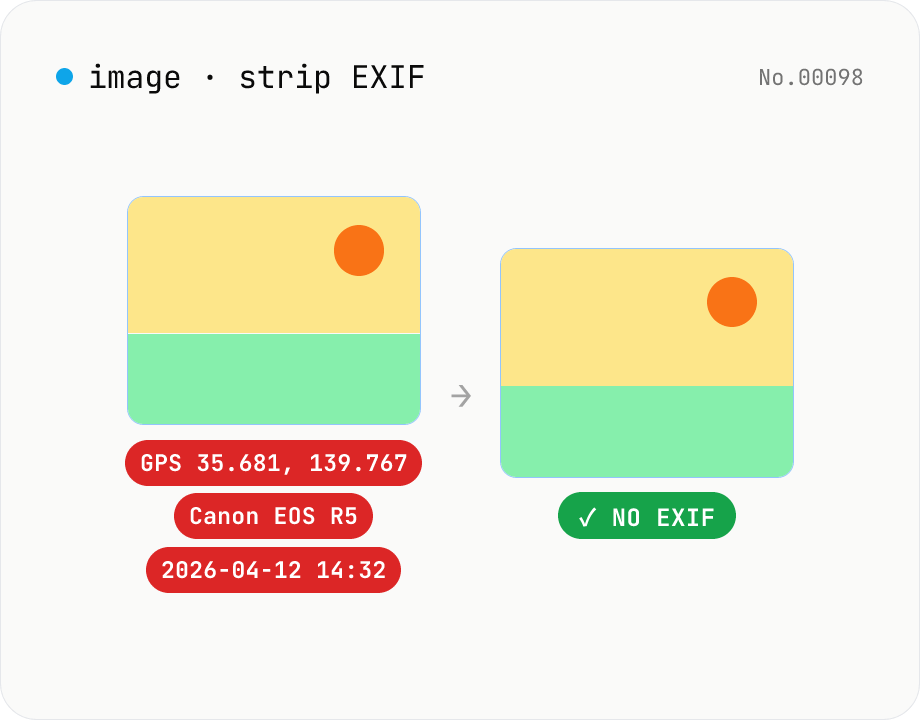
Image EXIF strip — wipe GPS / capture date metadata
Remove EXIF, XMP and other metadata from JPEG / PNG / WebP files. For JPEG, only the metadata bytes are stripped — image quality is preserved exactly. Inspect embedded GPS or capture date before sharing. Runs entirely in your browser.
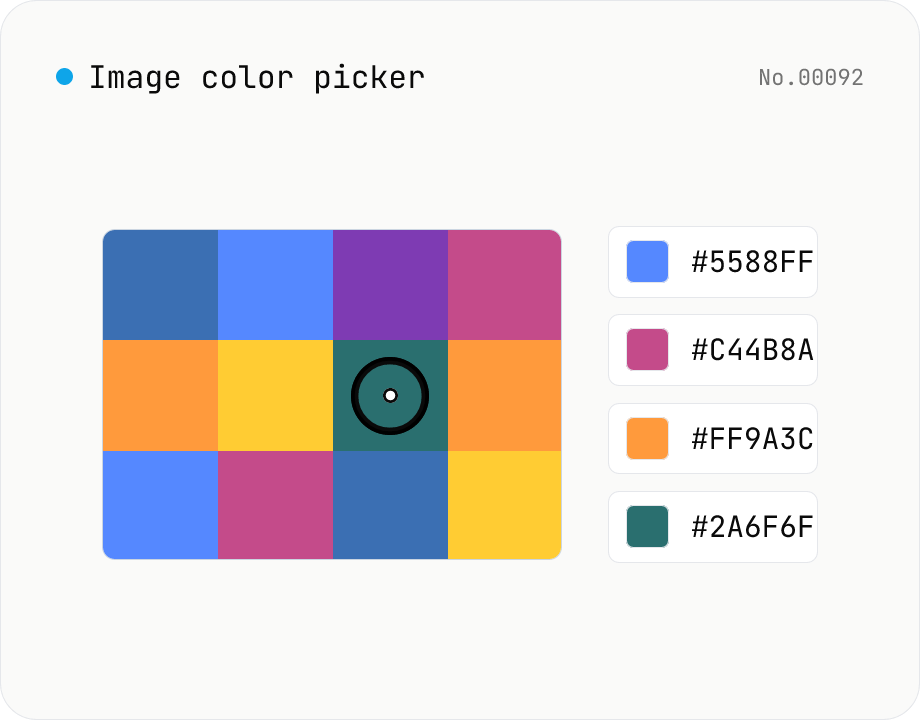
Image color picker — read pixel HEX / RGB / HSL values
Upload a JPEG / PNG / WebP and click any pixel to read its color as HEX / RGB / HSL. Hover to inspect the value with a magnifier loupe, then click to add it to a history list. Copy any format with a single click. Your image never leaves the browser — everything runs locally.
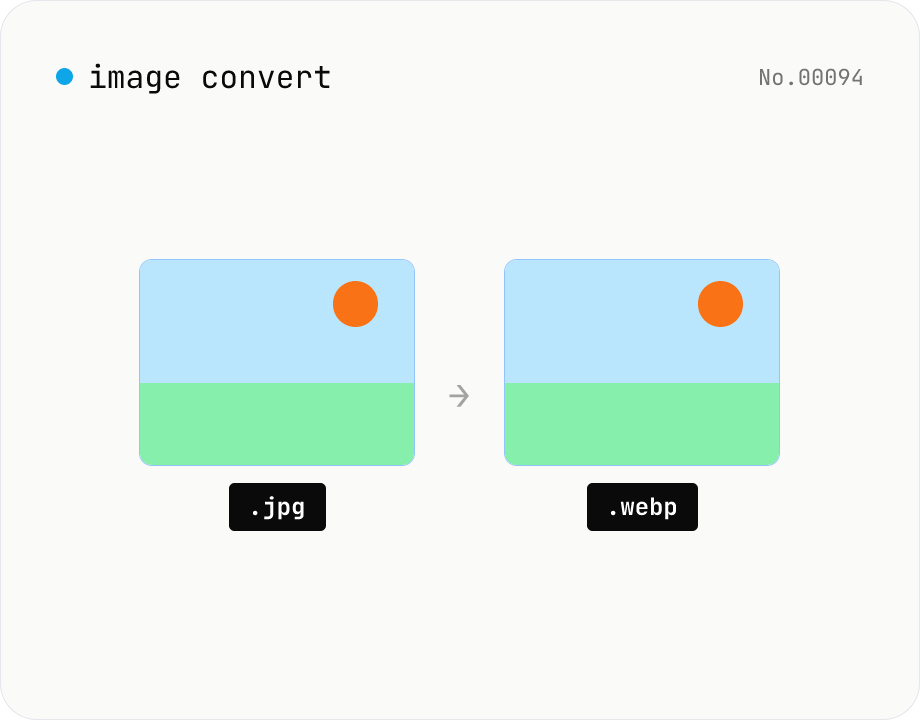
Image format convert — JPG / PNG / WebP interchange
Convert images between JPEG / PNG / WebP using the browser canvas — no network. A quality slider is available for JPEG and WebP. Supports batch processing and a single ZIP download.
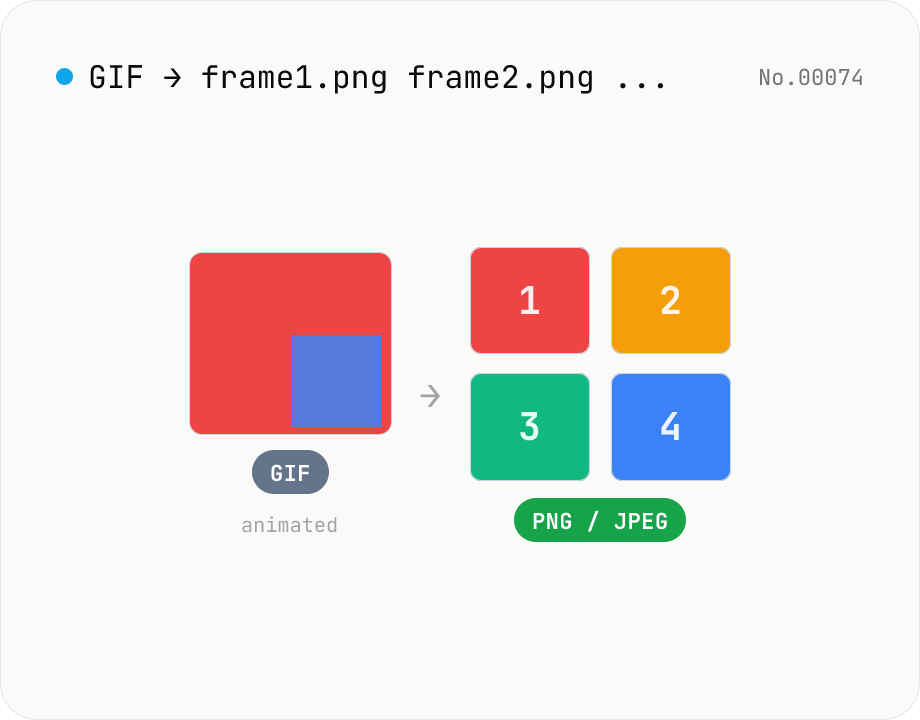
Extract frames from animated GIF / APNG to PNG / JPEG
Split an animated GIF or APNG into individual frames as PNG or JPEG images. Uses the browser-native ImageDecoder API — no extra library required. Handy when you need a thumbnail of a specific frame or when feeding still-image tools (image-resize, image-crop) that only see frame 1. Output PNG (lossless) or JPEG (with quality control), and grab everything as a ZIP. Files never leave your device — everything runs in the browser.