
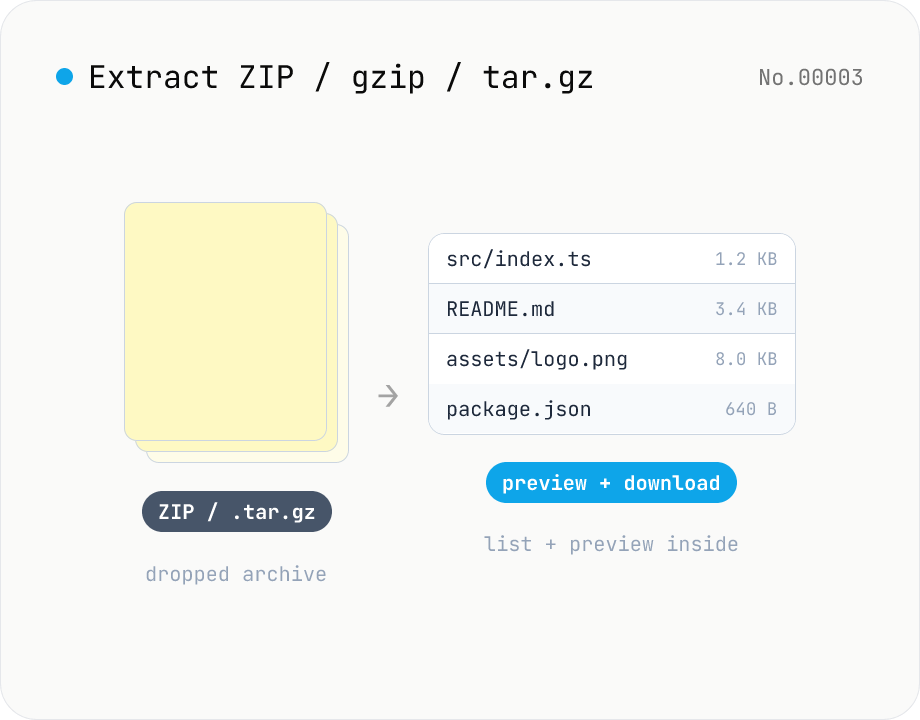
Archive extractor — open ZIP / gzip / tar / tar.gz in your browser
Drop a ZIP / gzip (.gz) / tar / tar.gz (.tgz) file and inspect it inside the browser: file listing, text and image preview, per-file download, and re-pack everything as a single ZIP. macOS and Windows do not open .gz / .tar.gz natively — this tool fills that gap without installing any app. Nothing is uploaded to a server.
How to use
Drop or pick a ZIP / gzip (.gz) / tar / tar.gz (.tgz) file. `fflate` (MIT) plus an in-tool tar parser unpacks it in your browser and lists every entry. Text files render as a preview, images as `<img>`, and anything else exposes a download button. Use 'Download all as ZIP' to repack the contents into a single ZIP. Path filtering is supported.
In depth
“Opening an archive” means handling everything someone packed into it
When you drop a ZIP / gzip / tar / tar.gz into an extractor, the payload is, on average, “a bundle of files someone made for a specific purpose”. Concrete examples include source code releases or Python wheels, log archives pulled out of a server, transcripts and meeting minutes packed together, foreign vendors’ specs and sample data, “here’s everything zipped up” attachments from Slack or email, designer asset bundles exported from Figma, and database dumps such as .sql.gz. The set spans business and personal use.
Their contents tend to carry more sensitive payload than the filenames suggest. Source headers carry author names and licence headers; package.json files leak organisation names and internal registry URLs; log archives can contain auth tokens, IPs, user IDs; database dumps are literally the user data; specs and sample data sometimes include unreleased pricing or working accounts. An operation that feels like “I just want to see what’s inside” turns into “I handed every file over to a third party” the moment it goes through an upload-style service.
What an “online unzip / tar.gz extractor” actually gets
Queries like “online unzip”, “tar.gz extract online”, “open .gz mac” have high search volume and feed upload-style SaaS that does not advertise in-browser processing. Unlike single-file format converters, the entire archive — every nested file — lives on the operator’s servers as soon as it is uploaded.
Terms of service typically cover archive contents under “uploaded content may be used to improve the service”, so log archives, SQL dumps, and internal specs end up subject to that clause. For organisations with a data-handling policy, sending such archives off for “just decompression” is a clear grey area, and is often an outright policy breach. “Deleted after N hours” promises do not guarantee that backups or log servers retained no trace before deletion, and the burden of proof falls on the user if anything goes wrong.
fflate (pure JS) plus an in-tool tar parser, all in the browser
This tool uses fflate (MIT) to decompress archives. fflate is a pure-JavaScript compression library (no WebAssembly required) covering ZIP Stored / Deflate, gzip streams, and zlib streams. tar is not natively supported by fflate, so this tool includes a hand-rolled tar parser (POSIX ustar format) of roughly 200 lines. .tar.gz runs as a two-stage pipeline: gunzipSync first, then the tar parser.
The flow after a file is dropped is (1) detect the format from magic bytes (PK = ZIP, 1f 8b = gzip, ustar at offset 257 = tar), (2) decompress through the matching routine, (3) classify each entry as text / image / binary from its extension and content, (4) decode text via TextDecoder("utf-8", { fatal: true }) for a UTF-8 attempt, hand images to URL.createObjectURL(Blob) for an <img> element. The decompressed bytes, the decoded text strings, the image blobs, and the rebuilt ZIP all stay in browser page memory — there is no networking code in this tool. The implementation is open source on GitHub for third-party audit.
Filling the “macOS / Windows can’t open this” gap as a daily-use tool
macOS Finder only extracts .zip out of the box; .gz and .tar.gz do not respond, even though gunzip and tar ship with the OS, because Finder is not wired to them. Windows Explorer behaves the same way. The choices are then “open a terminal and run gunzip / tar xzf”, “install 7-Zip / The Unarchiver”, or “use an online tar.gz extractor”. The first two cost a tool install, the third costs handing the contents to the operator — none of them are a good trade when the archive contents are at all sensitive. Keeping an in-browser extractor bookmarked saves you that decision every time.
If you only need a fast listing without decompression (works even on huge ZIPs), the archive-info tool in the same category reads the Central Directory only. This tool (archive-extract) is the complementary operation — actually expand the contents and preview them.
POSIX tar / ustar / pax structure and what this tool covers
A tar archive is a sequence of (512-byte header + body padded to 512 bytes) records. The header carries name in the first 100 bytes, size as a 12-byte octal string at offset 124, typeflag at offset 156 ('0' = regular file, '5' = directory, '1' = hard link, '2' = symlink, etc.), and the ustar\0 magic at offset 257. This tool processes '0' and '5'; links are ignored.
The GNU long-link extension (L typeflag), pax extended headers (x typeflag), sparse files, and ACL entries are not currently supported. File names beyond 100 bytes are reconstructed by joining the optional prefix field (155 bytes at offset 345), giving up to 255 characters. Anything longer, or non-ASCII edge cases, should be handled with GNU tar xzf. bz2 / xz / 7z are intentionally left out for bundle-size reasons; reach for The Unarchiver / 7-Zip / Keka if you need them.
ZIP encryption and what this tool intentionally does not support
ZIP supports two encryption schemes: legacy ZipCrypto (weak, 1990s) and AES (used by WinZip / 7-Zip, strong). This tool supports neither. The reason is design, not a missing API: (a) the desired UX for opening encrypted ZIPs is “type the password and see the contents”, and (b) doing that in a browser surfaces every file on screen, where it then sits in page memory and the GPU compositor cache, giving plenty of room for accidents.
If you have the password, unzip -P <password> on macOS or Keka / 7-Zip on the desktop is the safer route. Recovering an unknown ZIP password is a separate problem with no in-browser solution short of brute force. For workflows like “extract an image and sanitise it before sharing”, combine this tool with image-side cleaners such as image-exif-strip to strip EXIF / GPS metadata right after extraction.
FAQ
- Is the archive uploaded?
- No. `fflate` (MIT) is a pure-JavaScript decompression library (no WASM required) that runs entirely in the browser, and the tar parser is hand-rolled in this tool. Open the DevTools Network tab while dropping a file — no outgoing request is made.
- Why does macOS not open .gz / .tar.gz natively?
- macOS Finder only handles .zip out of the box. Although `gunzip` and `tar` ship with the OS, they are not wired into Finder, so .gz / .tar.gz require a terminal. This tool gives you the same operation in the browser without installing anything.
- Encrypted ZIPs?
- AES / ZipCrypto password-protected ZIPs are not supported here (breaking the password is a separate, brute-force-only problem inside a browser). If you have the password, use macOS `unzip -P` or 7-Zip.
- Which compression methods work?
- ZIP supports Stored and Deflate. Other methods (Deflate64 / BZIP2 / LZMA / Zstandard) raise an error. gzip and tar.gz are fully supported. bz2 / xz / 7z are not currently supported.
- What about secrets like API keys inside the archive?
- Extraction and preview happen entirely in the browser. Keep in mind that 'shown on screen' equals 'captured by a screenshot', so be mindful of screen sharing and recording sessions while previewing.
How to verify nothing is uploaded
This tool never sends your input outside your browser. The pages below explain how it works, how to audit it, and how the site is run.
Related tools
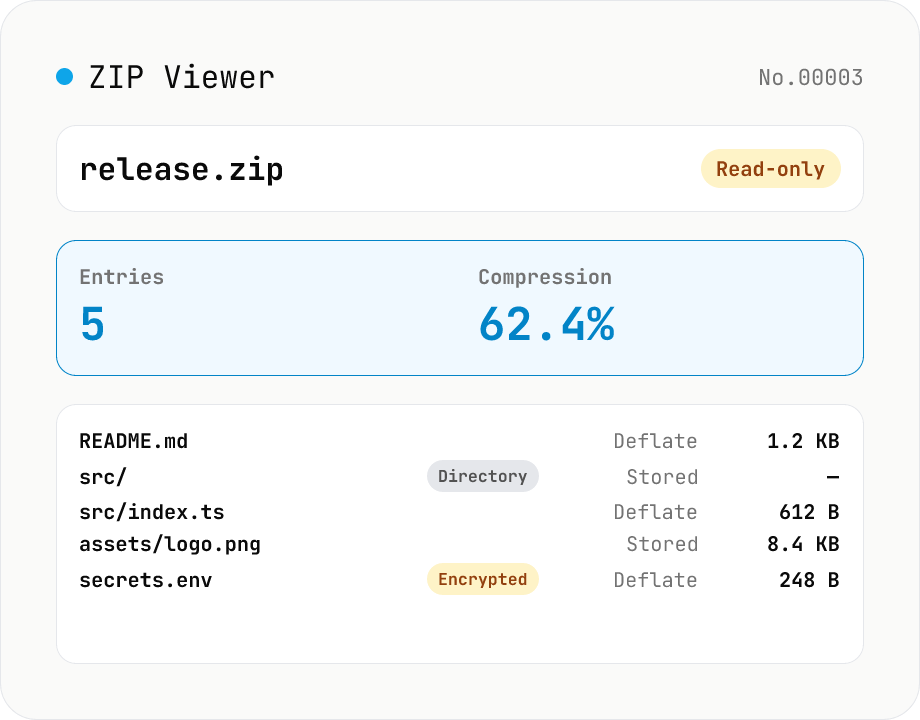
ZIP Archive Viewer
Drop a ZIP file to inspect its contents without extracting. See total entry count, archive size, compression ratio, archive comment, plus per-entry path, original / compressed size, compression method (Stored / Deflate / Deflate64 / BZIP2 / LZMA / Zstandard), last modified time, CRC32, encryption flag, and directory marker. Runs via a hand-rolled Central Directory parser — entry data is never decompressed and nothing is uploaded.
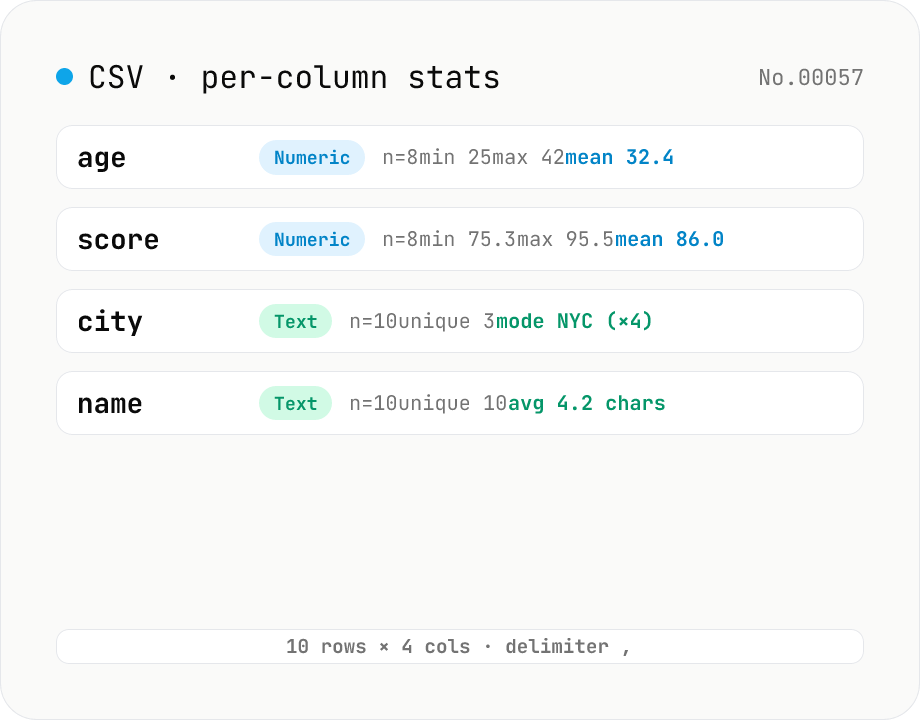
CSV stats — per-column count / unique / mean / median / stddev
Paste or drop a CSV and instantly see per-column row count, unique values, missing values, and inferred type. Numeric columns show min / max / mean / median / stddev / sum, text columns reveal the top mode and average length. RFC 4180-compliant parser (double-quote escapes), and the delimiter (comma / semicolon / tab / pipe) is auto-detected. Header row toggle plus empty / NULL / NA recognition as missing. Your raw data never leaves the browser.
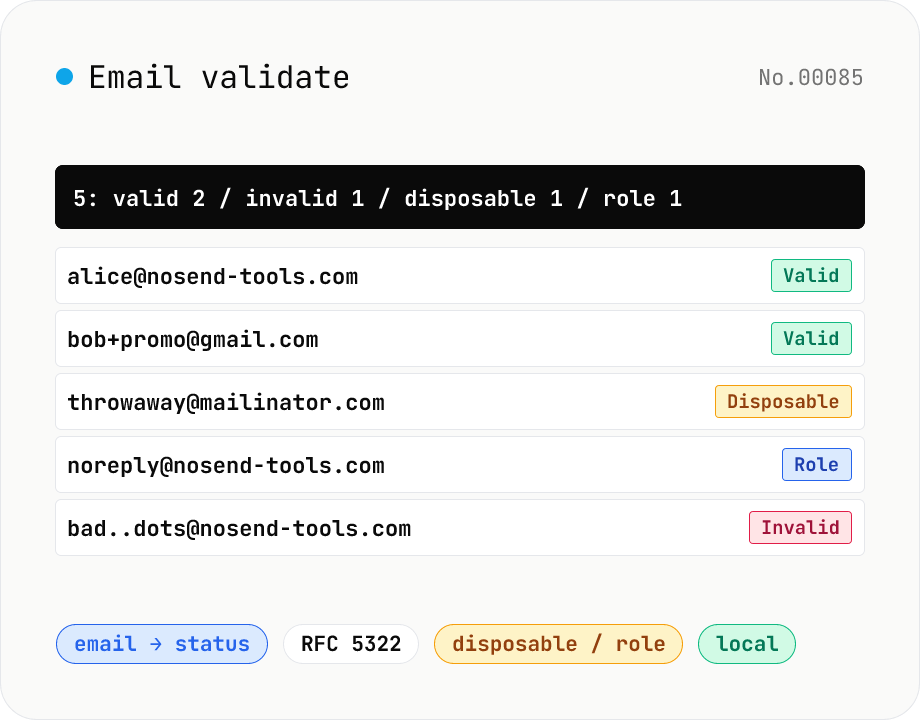
Email validate — RFC 5322 / disposable detection / role detection
Paste email addresses (one per line) to run RFC 5322-style syntax validation (local / domain / TLD / length limits), disposable-provider detection (mailinator / 10minutemail / guerrillamail and 100+ others built in), role-address detection (admin / support / postmaster / no-reply, etc.) and Gmail dot/+ tag normalisation — all in one pass. Results display as a table and export to CSV. Useful for sanitising lists before MailChimp / Stripe import, cleaning form-collected addresses, and predicting bounces before sending. Addresses stay in your browser — no upload.
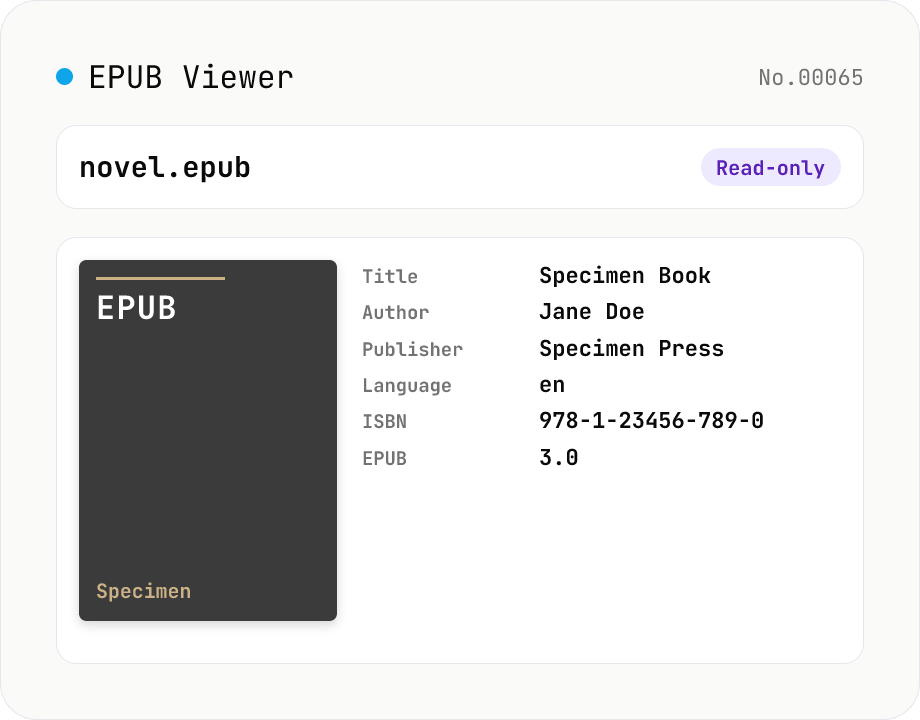
EPUB Metadata Viewer
Drop an EPUB file (.epub) to inspect its cover image and bibliographic data. Pulls dc:title / dc:creator (with role) / dc:language / dc:publisher / dc:identifier (ISBN etc.) / dc:date / dc:modified / dc:description / dc:subject (tags) / dc:rights from the OPF package, along with the reading order (spine), the manifest file list (id / href / media-type / properties), the EPUB version (2.0 / 3.0 / 3.1), and the container.xml rootfile pointer. EPUB is a ZIP container, so fflate unpacks it entirely in your browser — nothing is uploaded.