
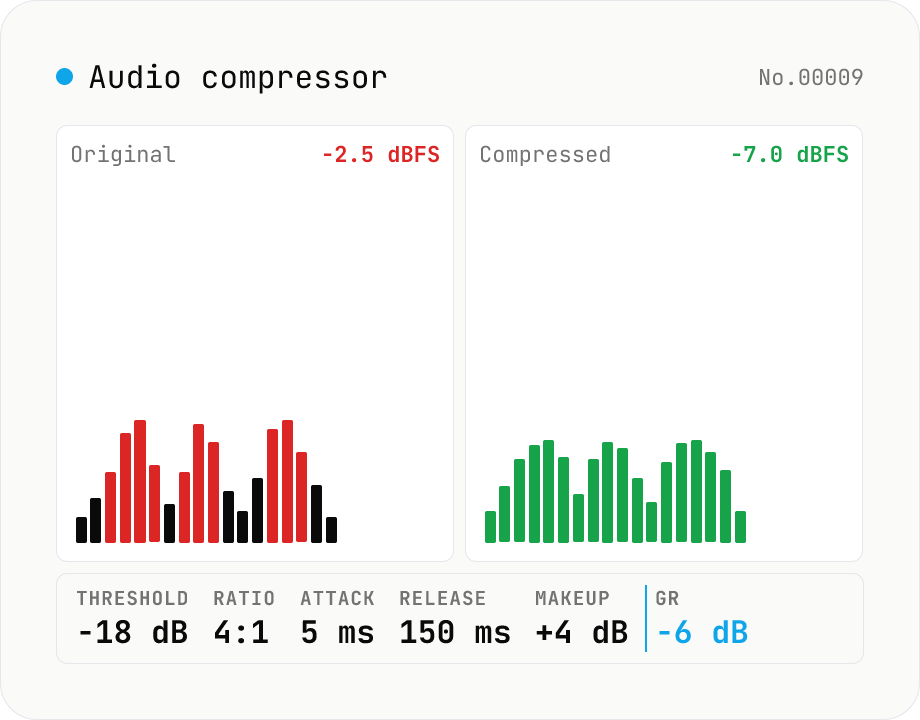
Audio compressor — tune threshold / ratio / attack / release and export WAV
Classic downward compressor backed by the Web Audio DynamicsCompressorNode. Pick threshold (-60 to 0 dB), ratio (1:1 to 20:1), attack (0 to 1 s), release (0 to 1 s), knee (0 to 40 dB) and an optional makeup gain (0 to 24 dB). Audio is rendered through an OfflineAudioContext (faster than realtime, independent of sample rate) and written out as 16-bit PCM WAV. Useful for taming vocals, narration, podcasts, drum buses or master-bus peak control. Pairs with `audio-volume` (broad gain), `audio-loudness-lufs` and `audio-true-peak` (metering only). Batch-process multiple files, save per-file WAV or grab them all as a ZIP. Audio stays in your browser — nothing is uploaded.
How to use
Drop audio files (MP3 / WAV / M4A / AAC / FLAC / OGG / Opus). Adjust threshold / ratio / attack / release / knee / makeup gain, or pick a preset (vocal / podcast / drum / mastering / limiter). Output is 16-bit PCM WAV. Multiple files can be saved as a single ZIP. Parameter changes trigger an automatic re-render (originals are kept).
In depth
Compression happens at the stage when the recording is most sensitive
You reach for a compressor at a particular moment: the track is almost finished but not yet published. Mastering a song, polishing a podcast episode, levelling a voice-over for a client. At this stage the file contains everything — the performer’s voice, the musical arrangement, lyrics, the sonic character that defines the work. It hasn’t been released yet and the rights may not be fully settled.
Dynamics processing requires the original, uncompressed audio to work on. An online tool that applies a DynamicsCompressor on its server has to receive the full audio file first. The technical necessity is real; it just means that ‘trying a compressor setting’ and ‘handing over the final mix candidate’ become the same action.
How cloud audio services handle the files you send
Server-side audio processors receive your file, process it, and return the result. In the free tier, terms of service commonly grant the service rights to use uploaded content — for feature development, for training, for other purposes described in language that is hard to parse at the time of upload.
Each parameter tweak that triggers a re-process sends another request. Over a session spent dialling in compression settings, the original file may have been transmitted multiple times. None of this is inherently malicious — but the file is there, on infrastructure the user doesn’t control, at the most sensitive point in the production timeline.
DynamicsCompressorNode processes everything inside your browser
The tool decodes audio via decodeAudioData, chains a DynamicsCompressorNode (threshold, ratio, attack, release, knee) followed by a GainNode for makeup gain, renders the result with OfflineAudioContext, and writes 16-bit PCM WAV. Nothing crosses the network; re-renders on parameter change run entirely in browser memory.
Open DevTools Network while adjusting parameters: no audio requests appear. The source — including the DynamicsCompressorNode configuration and the offline render path — is on GitHub for review.
Things worth checking before and after compressing
Compression is destructive. The original dynamics can’t be recovered from the processed output, so save the WAV alongside your source file rather than over it. Start with a preset, listen carefully, and adjust threshold and ratio to taste — that feedback loop runs in the browser without any uploads.
Makeup gain is a separate concern from the compression itself. Applying too much lifts the average level beyond what the downstream limiter or final encoder expects, potentially causing clipping. Pair this tool with audio-loudness-lufs and audio-true-peak to check levels before committing to a final export. If you only need a static gain change rather than dynamics processing, audio-volume does that without altering the envelope.
Threshold, ratio, knee — what the parameters actually do
A compressor watches the input level and, whenever it exceeds the threshold, divides the overshoot by the ratio. With threshold = -18 dB and ratio = 4:1, a -10 dB input (8 dB above threshold) is reduced to -18 + (8 / 4) = -16 dB at the output. A ratio of 1:1 passes signal through unchanged; ∞:1 becomes a brick-wall limiter. Knee controls how the transition around the threshold is shaped: a hard knee (0 dB) compresses abruptly at the threshold, while a soft knee (20–40 dB) eases into compression — preferred for vocals and acoustic guitar where the engagement should be invisible to the listener.
Attack is the time it takes for gain reduction to reach its target after the signal crosses the threshold; release is how long the gain reduction takes to recover once the signal drops back. The Web Audio DynamicsCompressorNode runs an internal RMS-style envelope follower with exponential time constants set by attackTime and releaseTime. An attack of 3 ms clamps down on transient kicks and consonants; 30 ms lets the transients through and only manages the sustained energy. Release in the 100–300 ms range avoids audible pumping (level breathing) — drum-dense material may want 60–80 ms, while voice and dialogue start around 150–250 ms.
Genre-typical settings and what compression actually fixes
Voice / narration / podcast work commonly starts at threshold -18 to -14 dB / ratio 3:1 to 4:1 / attack 10–20 ms / release 150–250 ms — controlling sibilance and plosives while lifting the average to improve intelligibility. Mastering glue compression on the mix bus uses threshold -8 to -6 dB / ratio 1.5:1 to 2:1 / attack 30 ms / release 100 ms to bind the mix together. Drum-bus compression with threshold -10 dB / ratio 4:1 / attack 5–10 ms / release 50–100 ms preserves attack and brings up the sustained energy.
Common pitfalls: (a) pushing ratio too high flattens musical dynamics and removes the sense of breath, (b) very short attack times kill the consonant and drum transients, leaving things sounding dull, (c) long release times raise the decay tails of piano and acoustic guitar in an unnatural way, (d) heavy makeup gain pushes the integrated loudness past streaming targets, causing platform-side auto-attenuation (Spotify / Apple Music / YouTube at -14 LUFS, Apple Podcasts at -16 LUFS, EBU R128 broadcast at -23 LUFS). Measuring with audio-loudness-lufs and audio-true-peak as a final pass keeps the output in spec for whichever platform you’re targeting.
FAQ
- Why use a compressor?
- A compressor squashes the dynamic range — the difference between the loudest and quietest parts of a signal. Tame vocals and narration, tighten drums, control master-bus peaks; it is one of the most-used effects in audio production.
- How do I choose threshold and ratio?
- Threshold is the level above which compression kicks in; ratio is how much it compresses. Typical vocal: threshold -18 to -12 dB, ratio 3:1 to 5:1. Gentle master-bus: threshold -6 dB, ratio 2:1. Limiter: ratio 10:1+ with a fast attack. Try the presets and trust your ears.
- What do attack and release do?
- Short attack (1–5 ms) flattens transients (kick/snare hits); long attack (50 ms+) preserves them. Short release (50 ms) makes pumping more audible; long release (300 ms+) sounds more natural. Set them by ear per source.
- Do I need makeup gain?
- Yes, usually. A compressor lowers peaks without raising the average level, so output ends up quieter. Makeup gain restores perceived loudness; a rough rule is to add roughly the same dB as the gain reduction (GR).
- Why WAV only?
- Browsers can't re-encode lossy formats (MP3 / AAC) natively. Feed the WAV into `audio-convert` if you need MP3 output.
- Is anything uploaded?
- No. Everything runs in the Web Audio API in your browser.
How to verify nothing is uploaded
This tool never sends your input outside your browser. The pages below explain how it works, how to audit it, and how the site is run.
Related tools
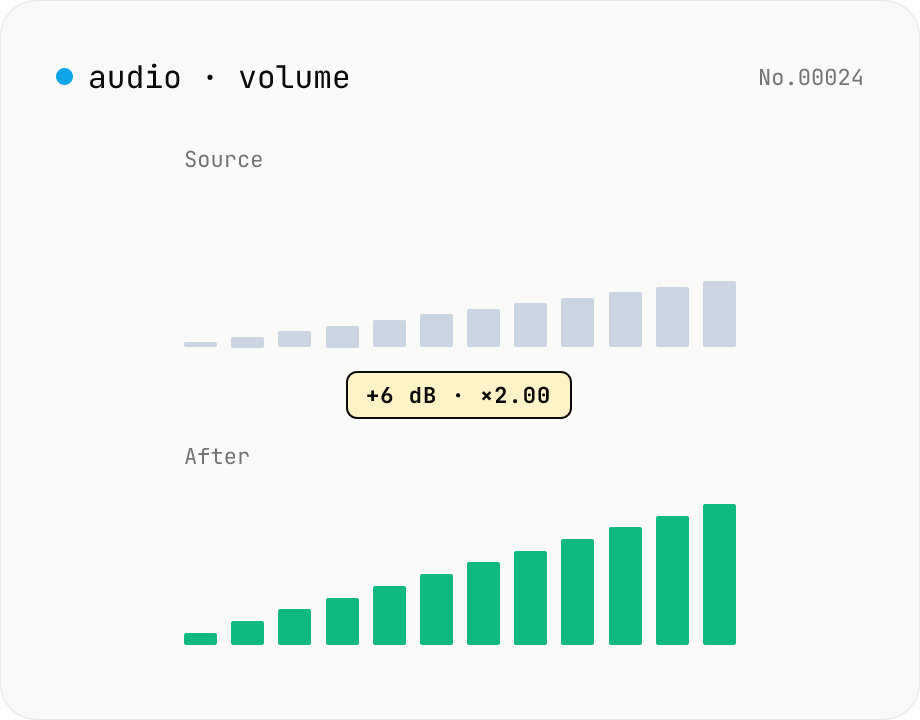
Audio volume — adjust by dB or linear multiplier
Adjust the loudness of audio files in bulk via ffmpeg.wasm's volume filter. Use the dB slider (-30 to +30 dB) or the linear multiplier (×0.03 to ×31.6). +6 dB ≈ 2x, -6 dB ≈ half. To avoid clipping, try negative values first and compare. Supports batch processing and a single ZIP download. Runs entirely in your browser — audio never leaves your device.
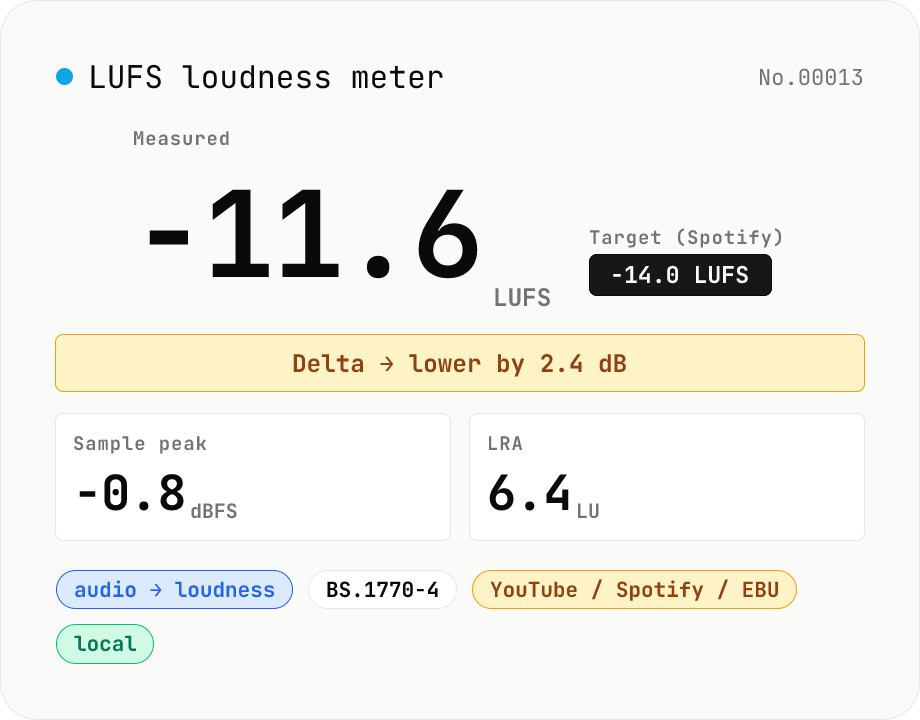
LUFS loudness meter — measure integrated loudness vs. streaming targets
Drop an audio file (MP3 / WAV / M4A / FLAC / OGG / Opus) to measure ITU-R BS.1770-4 Integrated Loudness (LUFS) / Loudness Range (LRA) / Sample Peak (dBFS) in your browser. Pick a streaming target (YouTube / Apple Music / Amazon Music: -14 LUFS, Spotify: -14 LUFS, Apple Podcasts: -16 LUFS, EBU R128 / broadcast: -23 LUFS) to see the delta in LU — telling you how many ±dB to push through audio-volume to match. Implements a K-weighting biquad, 400 ms square-window blocks, and absolute (-70 LUFS) + relative (-10 LU) gating, with ITU channel weights (L=R=C=1). Audio stays in your browser.
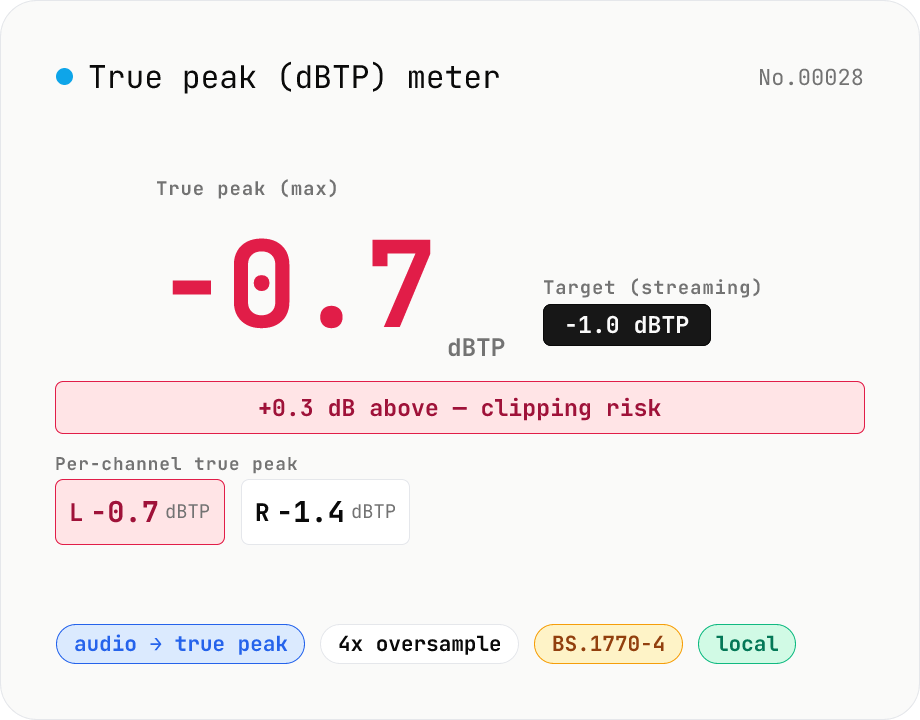
True Peak (dBTP) meter — detect inter-sample peaks via 4x oversampling
Drop an audio file (MP3 / WAV / M4A / FLAC / OGG / Opus) to measure True Peak (dBTP) using ITU-R BS.1770-4 Annex 2-compliant 4x oversampling (poly-phase FIR low-pass) to reveal inter-sample peaks invisible to sample-peak meters. Spots clipping that emerges after MP3 / AAC encoding so you can pull back the limiter before it shows up downstream. Compare against streaming targets (Spotify / Apple Music / EBU R128 = -1.0 dBTP, YouTube = -1.0 dBTP, broadcast = -2.0 dBTP) and see which channel is hottest at a glance. Audio stays in your browser.
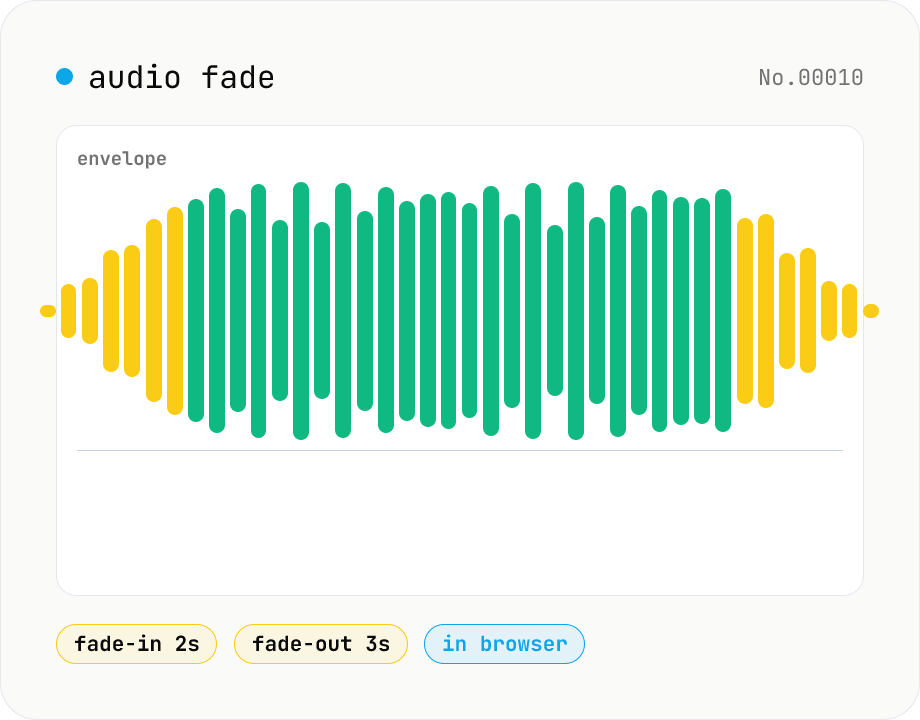
Audio fade — apply fade-in / fade-out in seconds
Add fade-in at the start and fade-out at the end of audio files. ffmpeg.wasm's afade filter handles MP3 / WAV / M4A / OGG / FLAC. Supports batch processing and a single ZIP download. Audio files never leave your device.