
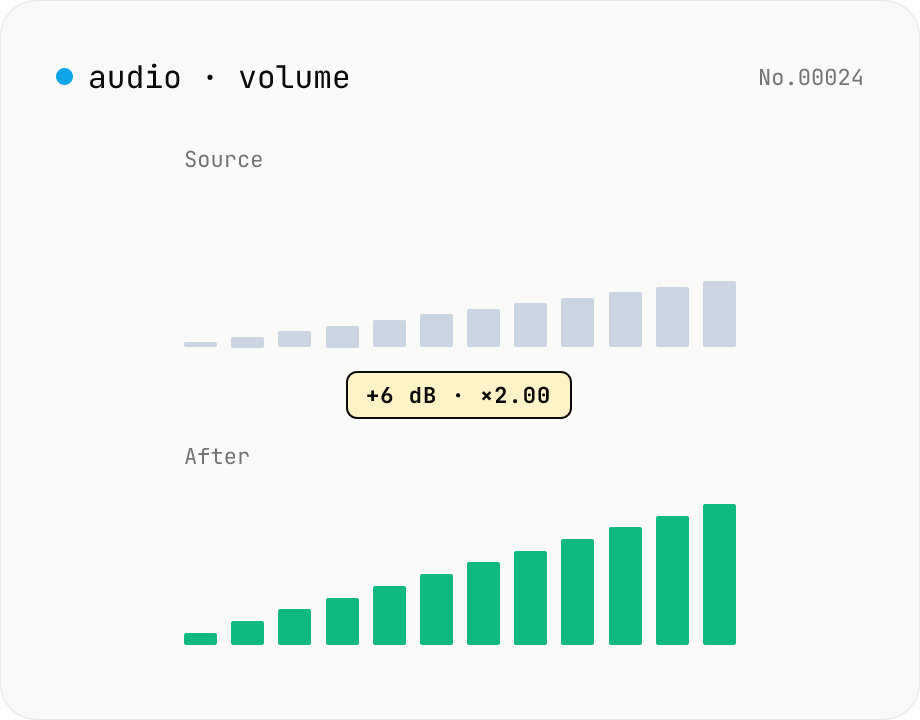
Audio volume — adjust by dB or linear multiplier
Adjust the loudness of audio files in bulk via ffmpeg.wasm's volume filter. Use the dB slider (-30 to +30 dB) or the linear multiplier (×0.03 to ×31.6). +6 dB ≈ 2x, -6 dB ≈ half. To avoid clipping, try negative values first and compare. Supports batch processing and a single ZIP download. Runs entirely in your browser — audio never leaves your device.
How to use
Drop audio files. Use the center dB slider (-30 to +30 dB) or the linear multiplier text (×0.03 to ×31.6) to dial in the gain, then click Apply. ffmpeg.wasm's `volume` filter applies the same gain to every file. dB and multiplier are linked (+6 dB ≈ 2x). The output filename carries the gain as a suffix (e.g. `_vol+6dB`) and you can grab everything as a ZIP.
FAQ
- Is audio uploaded?
- No. ffmpeg.wasm runs inside your browser; audio never leaves your device.
- Adding +6 dB causes distortion — why?
- Positive gain pushes peaks above 0 dBFS and clips, unless the source had headroom. Cutting (-3 to -6 dB) is the safe direction. Boosting cleanly requires a limiter / mastering chain, which this tool does not include.
- How are dB and multiplier related?
- multiplier = 10^(dB/20). +6 dB ≈ 2x, +12 dB ≈ 4x, -6 dB ≈ 0.5x, -20 dB ≈ 0.1x. Useful rule of thumb: 'double the level' is roughly +6 dB.
- Same output format as input?
- Same extension. The volume filter requires re-encoding, so the codec is re-encoded with ffmpeg defaults (mp3 → libmp3lame, wav → pcm_s16le, aac → aac, ogg → libvorbis, etc.). Bitrate is left to ffmpeg's defaults.
- Same gain for every file?
- Yes — the single slider value is applied to all dropped files. If you need per-file gains, run the tool once per file.
Related tools
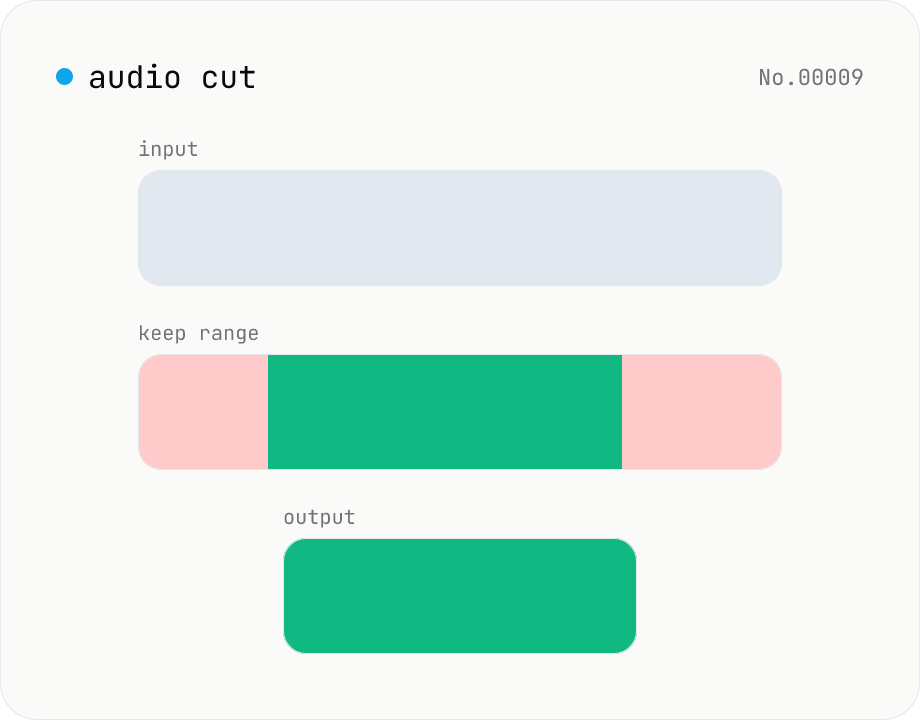
Audio cut — trim a range with no re-encoding
Trim an audio file to a chosen range with ffmpeg.wasm stream copy — no re-encoding, original codec and extension preserved. Cut points snap to the nearest keyframe. Supports batch processing and a single ZIP download.
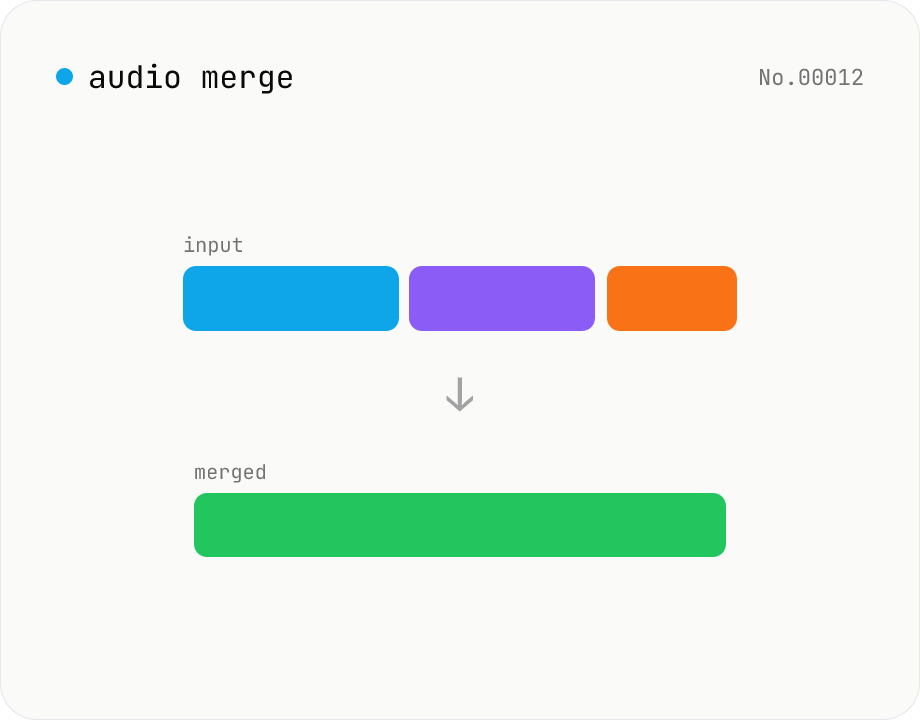
Audio merge — concat multiple files into one
Concatenate multiple audio files via the ffmpeg.wasm concat demuxer. Reorder by drag. Stream copy keeps codec untouched, but all inputs must share the same codec and sample rate.
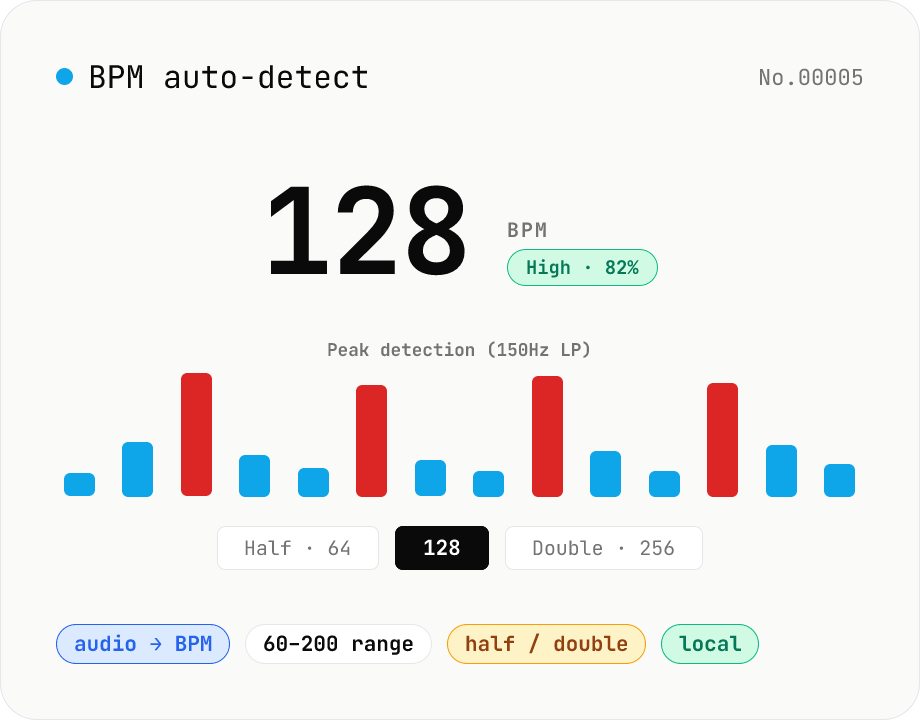
BPM auto-detect — estimate the tempo of an audio file
Drop an audio file (MP3 / WAV / M4A / FLAC / OGG) and we estimate the BPM in-browser using a low-pass filter + peak picker + histogram. Great for finding the tempo of a DJ partner track, checking sample packs, matching dance / running cadence, or grabbing a source BPM before running bpm-time-stretch. Half-tempo and double-tempo candidates are also shown so you can override 4-on-the-floor misreads (60 vs. 120). Everything stays in your browser.
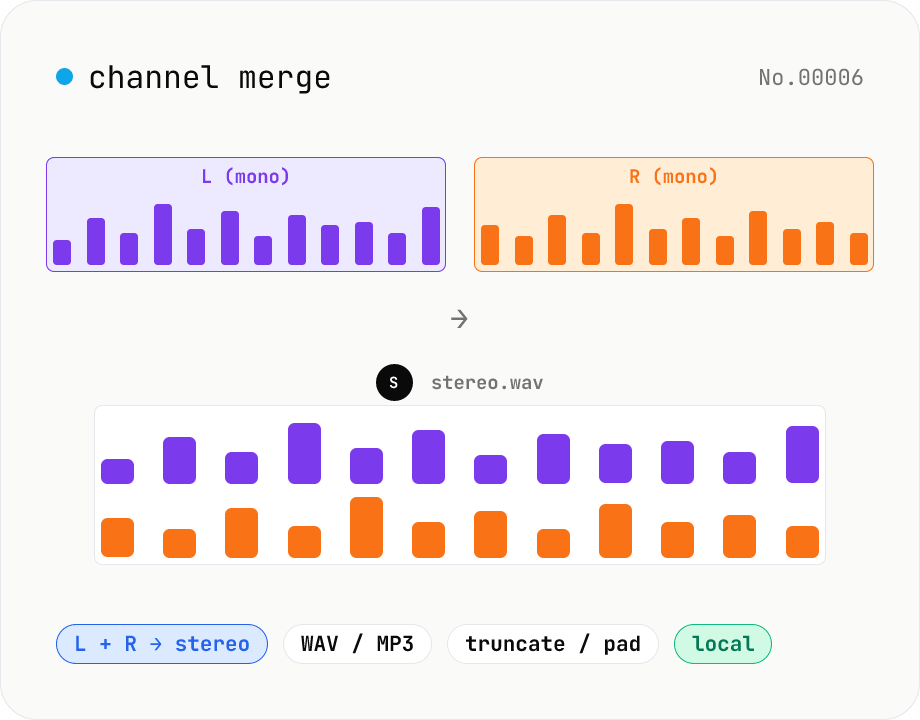
Audio channel merge — two mono files into a stereo L + R
Combine two mono audio files (MP3 / WAV / M4A / FLAC / OGG) into one stereo file. The first file becomes the left channel, the second becomes the right; we interleave them and output one stereo WAV / MP3. Useful for putting two-mic interview takes into a single L/R file, faking stereo from a mono source, or reversing audio-channel-split. When lengths differ, truncate to the shorter file or pad the shorter one with silence — your choice. Everything stays in your browser.