
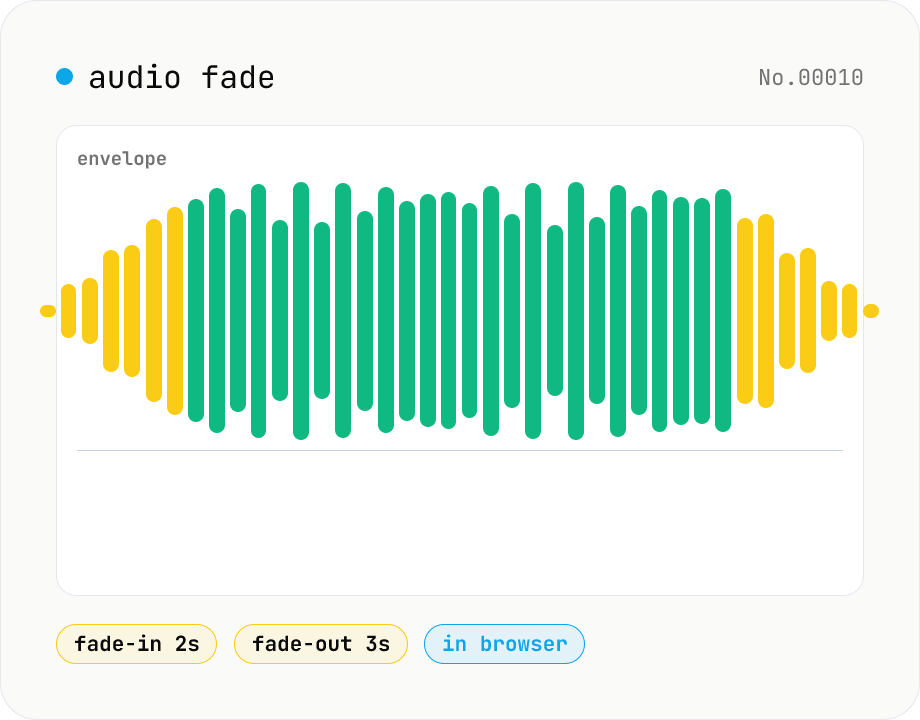
Audio fade — apply fade-in / fade-out in seconds
Add fade-in at the start and fade-out at the end of audio files. ffmpeg.wasm's afade filter handles MP3 / WAV / M4A / OGG / FLAC. Supports batch processing and a single ZIP download. Audio files never leave your device.
How to use
Drop or pick audio files. Once each file's duration is detected, set fade-in and fade-out seconds, then press Apply fades. ffmpeg.wasm's afade filter adds a fade-in at the start and a fade-out at the end (set either side to 0 to skip it). Multiple files can be processed at once — download them individually or all together as a ZIP. Both the input and output stay in your browser.
FAQ
- Are my audio files uploaded?
- No. ffmpeg.wasm (the WebAssembly build of ffmpeg) runs entirely inside your browser, so neither the source audio nor the faded output leaves your device. The first run downloads ~30MB of ffmpeg.wasm itself — that's the tool code, not your file.
- Which audio formats are supported?
- Anything ffmpeg can decode: MP3, WAV, M4A, AAC, OGG, Opus, FLAC, WebM. Output uses the same container and codec as the input.
- How are the fades implemented?
- Using ffmpeg's `afade=t=in:ss=0:d=<secs>` and `afade=t=out:st=<duration-secs>:d=<secs>` filters. Default curve is `tri` (linear) for natural-sounding fades. Fancier curves (exp / log / qsin) are not exposed here.
- What if fade seconds exceed the file duration?
- ffmpeg clamps them to the duration automatically. To avoid overlap, keep fade-in + fade-out ≤ total duration.
- Can I change the overall volume too?
- This tool only handles fades (volume changes over time). Use audio-volume to adjust the whole file's level, audio-trim-silence to remove silent edges, or audio-cut to slice a clip.
- Can I process several files at once?
- Yes. Drop multiple files and use Download ZIP for a single archive. Fade seconds are applied to every file in the batch.
Related tools
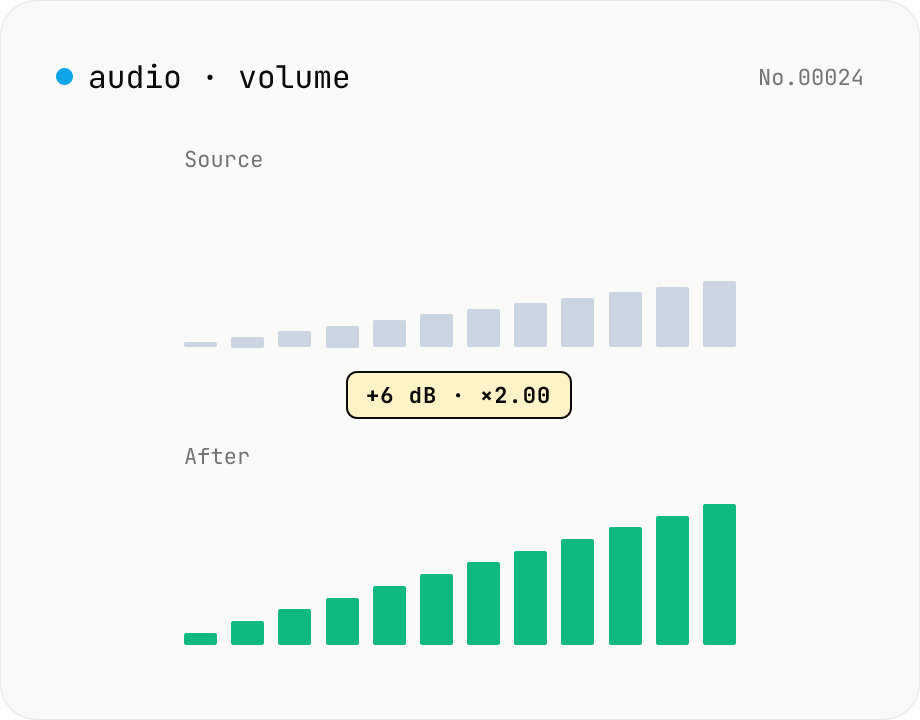
Audio volume — adjust by dB or linear multiplier
Adjust the loudness of audio files in bulk via ffmpeg.wasm's volume filter. Use the dB slider (-30 to +30 dB) or the linear multiplier (×0.03 to ×31.6). +6 dB ≈ 2x, -6 dB ≈ half. To avoid clipping, try negative values first and compare. Supports batch processing and a single ZIP download. Runs entirely in your browser — audio never leaves your device.
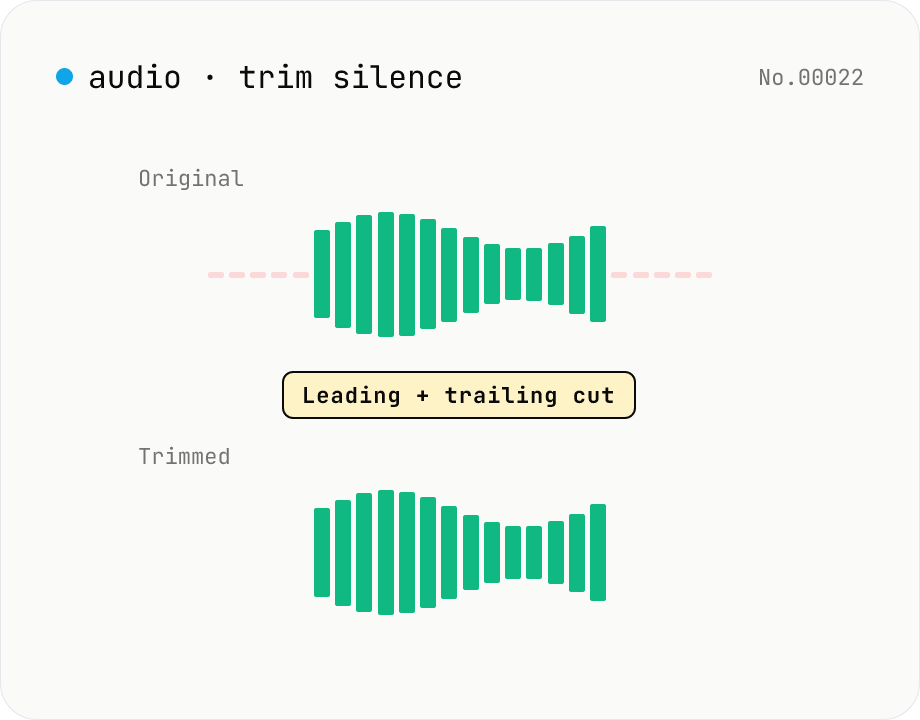
Trim silence from audio — auto-cut leading and trailing silence (ffmpeg.wasm)
Automatically trim the leading and trailing silence from MP3 / WAV / M4A / AAC / OGG / OPUS / FLAC files using ffmpeg.wasm's silenceremove filter. Great for removing dead air at the start of recordings, the awkward pause before a talk, or an unnecessarily long fade-out at the end of a podcast. Tweak the threshold (dB) and minimum silence length (seconds) and choose which side(s) to trim. Batch process and grab a single ZIP. Files never leave your device — every step runs in the browser.
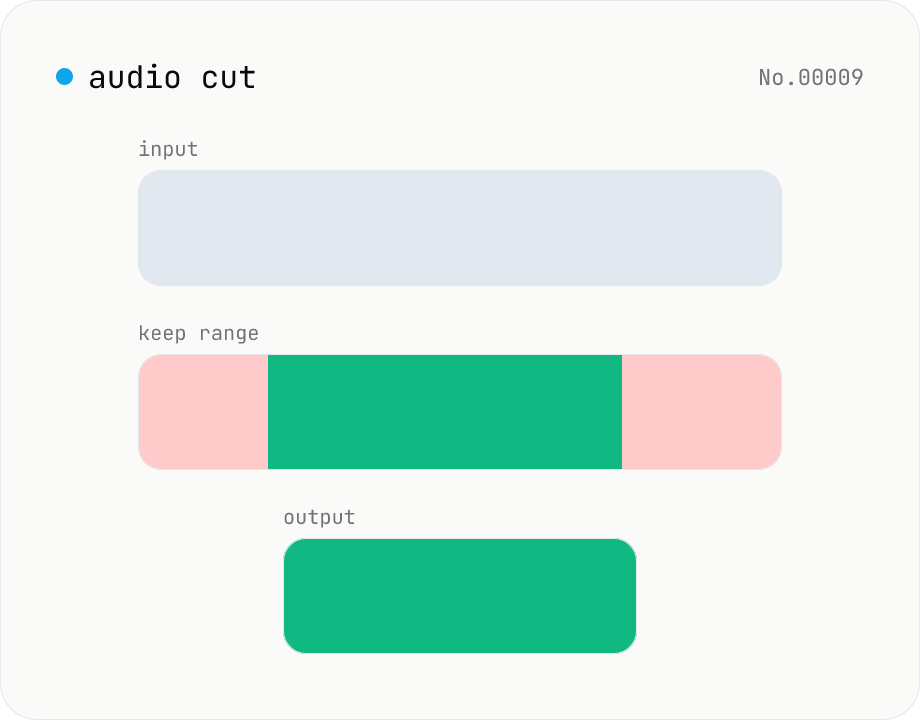
Audio cut — trim a range with no re-encoding
Trim an audio file to a chosen range with ffmpeg.wasm stream copy — no re-encoding, original codec and extension preserved. Cut points snap to the nearest keyframe. Supports batch processing and a single ZIP download.
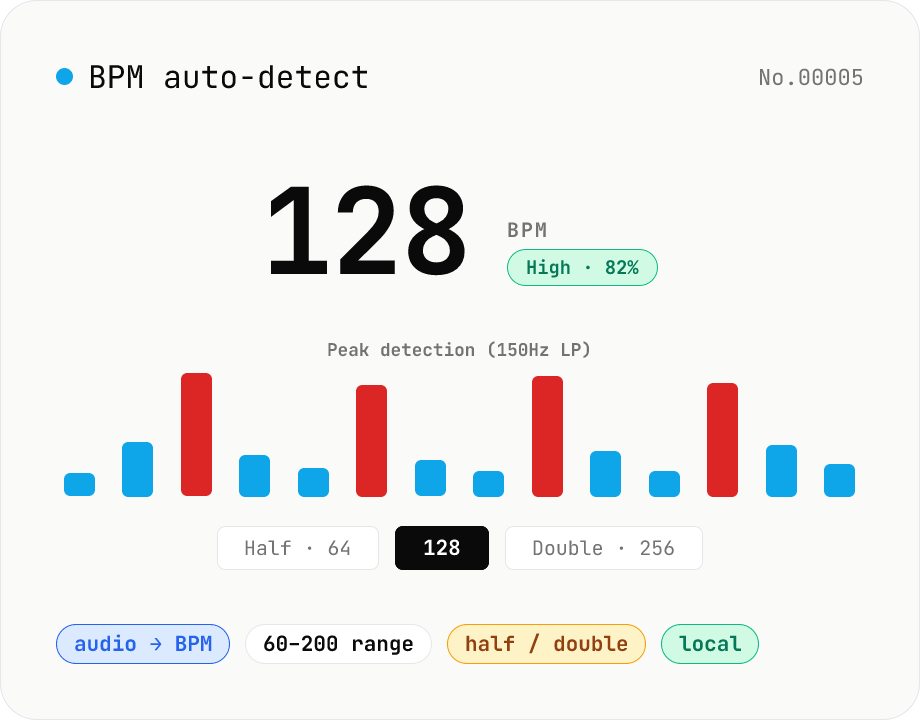
BPM auto-detect — estimate the tempo of an audio file
Drop an audio file (MP3 / WAV / M4A / FLAC / OGG) and we estimate the BPM in-browser using a low-pass filter + peak picker + histogram. Great for finding the tempo of a DJ partner track, checking sample packs, matching dance / running cadence, or grabbing a source BPM before running bpm-time-stretch. Half-tempo and double-tempo candidates are also shown so you can override 4-on-the-floor misreads (60 vs. 120). Everything stays in your browser.