
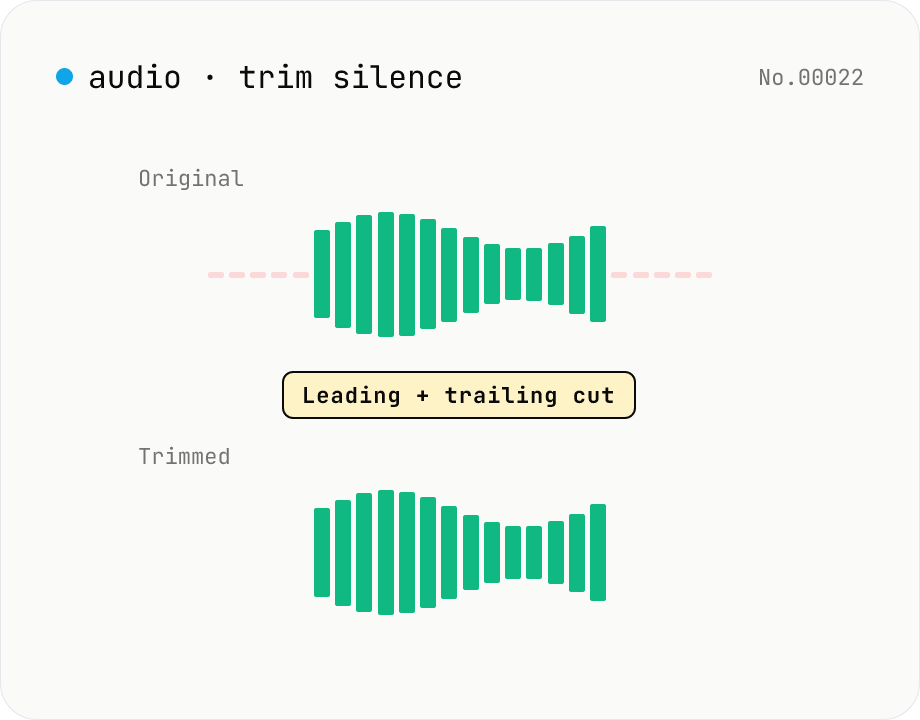
Trim silence from audio — auto-cut leading and trailing silence (ffmpeg.wasm)
Automatically trim the leading and trailing silence from MP3 / WAV / M4A / AAC / OGG / OPUS / FLAC files using ffmpeg.wasm's silenceremove filter. Great for removing dead air at the start of recordings, the awkward pause before a talk, or an unnecessarily long fade-out at the end of a podcast. Tweak the threshold (dB) and minimum silence length (seconds) and choose which side(s) to trim. Batch process and grab a single ZIP. Files never leave your device — every step runs in the browser.
How to use
Drop or pick audio files (MP3 / WAV / M4A / AAC / OGG / OPUS / FLAC, batch supported). Adjust the trim side (both / leading / trailing), silence threshold (dB), and minimum silence length (s) if needed, then click Trim silence — ffmpeg.wasm's silenceremove filter runs locally. Download individually or as a ZIP.
FAQ
- Are audio files uploaded?
- No. ffmpeg.wasm runs in your browser, so neither the input nor the processed output ever leaves your device.
- How do I pick the threshold?
- Around -40 to -50 dB works for clean studio recordings; -30 to -35 dB is better for noisier outdoor recordings. The audio-volume tool's waveform preview can help eyeball levels first.
- Does it cut silence in the middle too?
- No — this tool only targets the leading and trailing silence. Pauses between speech are preserved.
- Nothing was trimmed even though the file has silence
- Set the minimum silence length to 0.1–0.3s to catch short pauses, or to 1.0s+ if you only want to remove longer dead air.
- What's the output format?
- Same as the input — the file's extension is reused, so M4A / AAC stay as AAC and so on.
Related tools
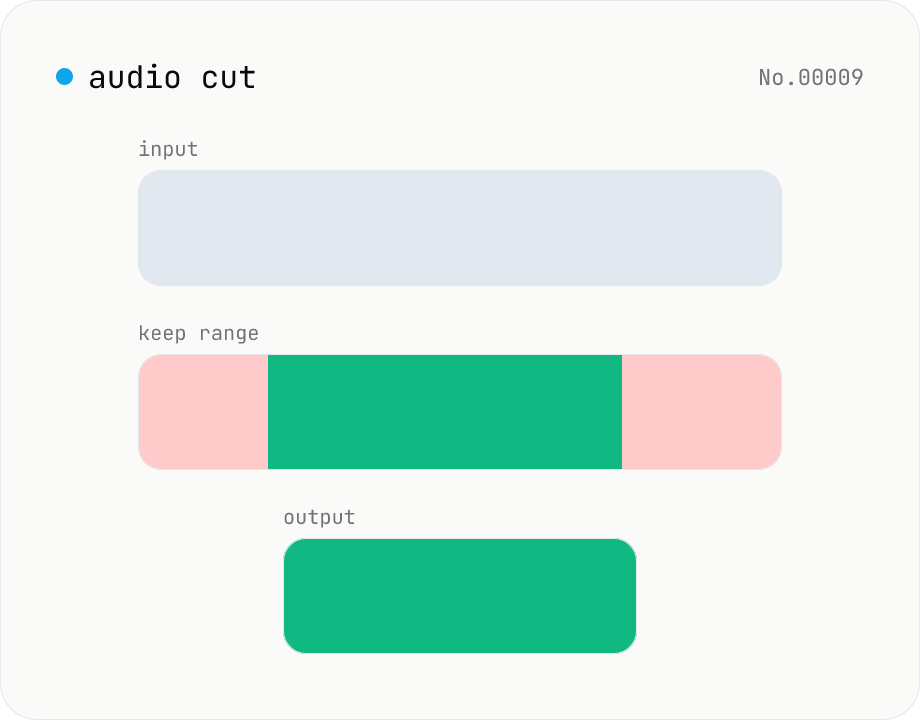
Audio cut — trim a range with no re-encoding
Trim an audio file to a chosen range with ffmpeg.wasm stream copy — no re-encoding, original codec and extension preserved. Cut points snap to the nearest keyframe. Supports batch processing and a single ZIP download.
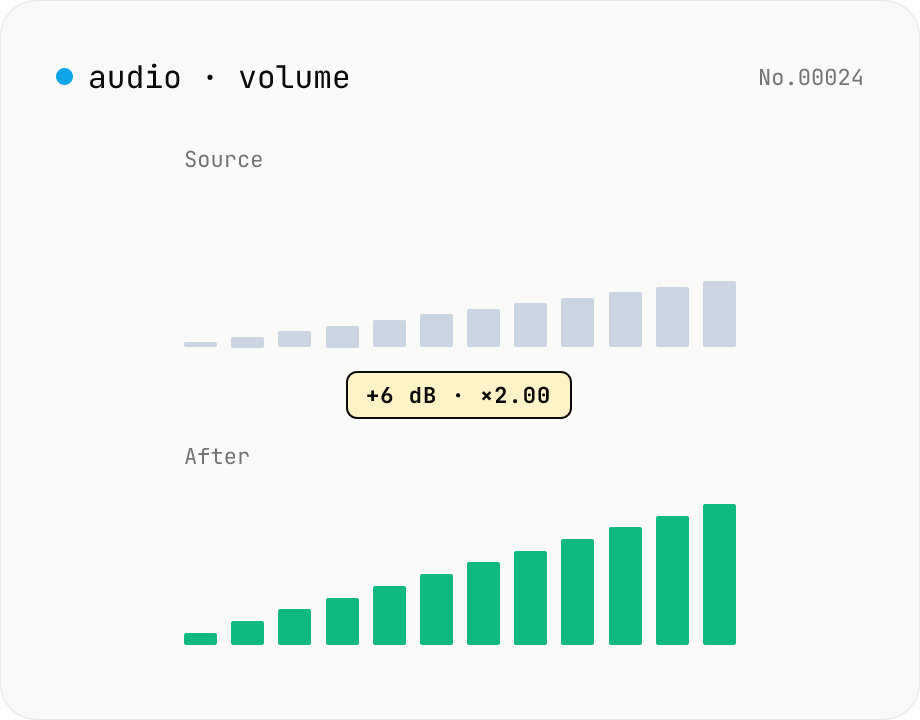
Audio volume — adjust by dB or linear multiplier
Adjust the loudness of audio files in bulk via ffmpeg.wasm's volume filter. Use the dB slider (-30 to +30 dB) or the linear multiplier (×0.03 to ×31.6). +6 dB ≈ 2x, -6 dB ≈ half. To avoid clipping, try negative values first and compare. Supports batch processing and a single ZIP download. Runs entirely in your browser — audio never leaves your device.
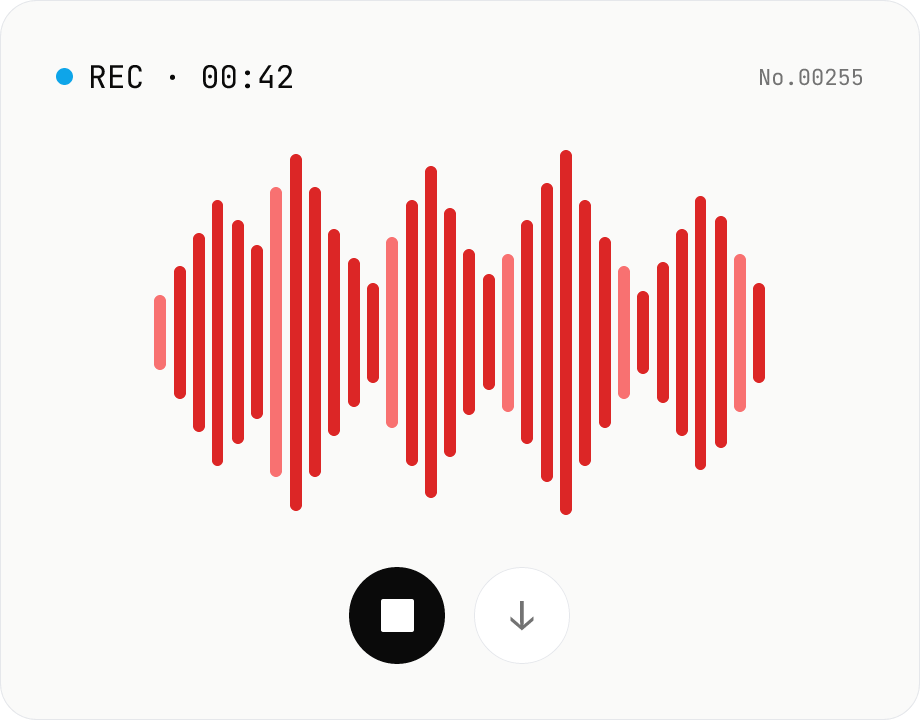
Voice recorder — record mic to MP3 / WAV
Record from your mic and download as MP3 / WAV. Everything runs in your browser.
Audio file transcription — Whisper, multilingual
Upload an MP3 / WAV / M4A file and transcribe it with Whisper running inside your browser. Long files are chunked automatically. No audio or model data leaves your device. Performance and supported model size depend on your hardware (CPU / GPU / RAM).