
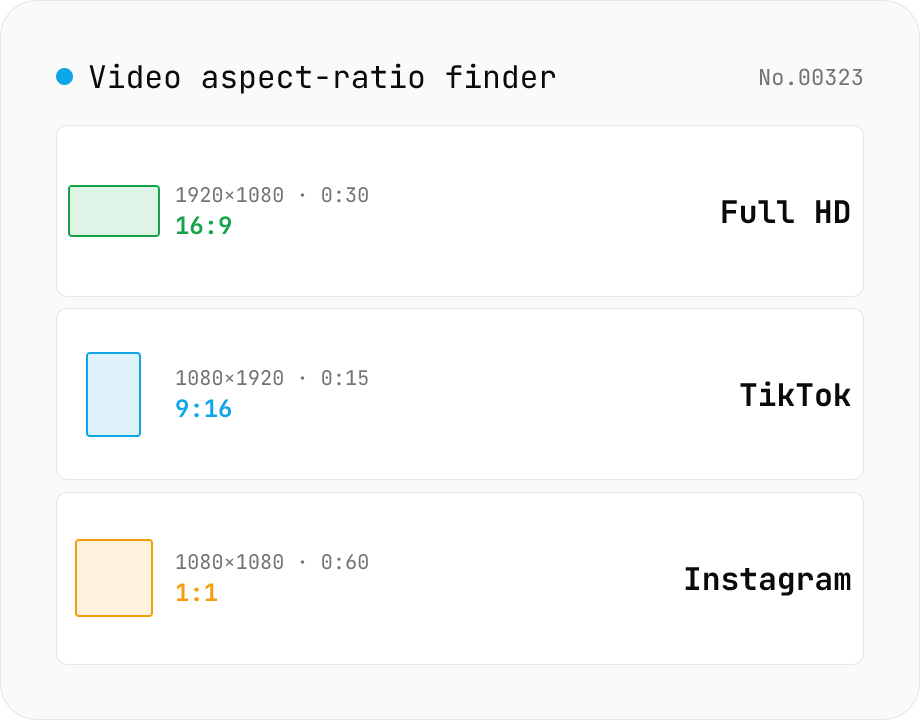
Video aspect-ratio finder — resolution + duration + GCD ratio + 1080p / TikTok match
Drop video files and see each one's resolution (width × height), duration, GCD-reduced aspect ratio (1920×1080 → 16:9, 1080×1920 → 9:16) and the closest matching standard format (Full HD 1080p, 4K UHD, TikTok 9:16, Instagram 4:5, YouTube 16:9, Cinemascope 21:9 — 17 presets). The **video counterpart to `image-aspect-find`** — quickly check whether assets need resizing for social, whether your asset set mixes portrait and landscape, or whether everything matches your timeline's sequence settings. Codec / bitrate / fps deep-dive belongs to `video-codec-info`; this tool focuses on **aspect, resolution and duration only**, so it stays lightweight (uses `HTMLVideoElement` metadata, no wasm). Perfect for pre-publishing checks across Instagram + TikTok + YouTube. CSV export supported. Everything runs in your browser — videos are never uploaded.
How to use
Drop video files (MP4 / MOV / WebM / MKV). Each video shows resolution, duration, GCD aspect ratio, and the closest standard format (1080p / 4K / TikTok / Instagram, etc.). Toggle *Ignore orientation* to treat 16:9 and 9:16 as the same — useful when mixing portrait and landscape. Results can be copied as CSV or downloaded.
In depth
Checking aspect ratio still requires the whole video file to be accessible
Aspect ratio and resolution checks run before a social post (“Is this 16:9 or 9:16?”), when verifying that client-supplied footage meets spec, when auditing a batch of clips for consistency, or when choosing a sequence setting before import. The verification takes seconds, but the video being verified may be unfinished footage, client-confidential material, or internal training content.
Most online metadata inspection services require uploading the full video file. Retrieving the aspect ratio and duration brings hundreds of megabytes to gigabytes of video to the operator’s server in exchange for a few numbers. This data-to-result imbalance is among the largest in the video category — the query result is tiny; the payload required to answer it, on a server-based approach, is the entire file.
Resolution, duration, and GCD ratio are readable from the file header without decoding
Video containers (MP4, MOV, WebM, MKV) encode width, height, frame rate, and duration in a header structure near the beginning of the file — typically within the first few hundred bytes to a few kilobytes. Reading these values does not require decoding or playing any video frames. The browser’s HTMLVideoElement fires loadedmetadata after reading the header, at which point videoWidth, videoHeight, and duration are already available.
This means aspect ratio, resolution, and duration can be extracted without touching the video’s image data at all. Uploading the entire file to a server is technically unnecessary for this task. Doing so is a choice that moves more data than the job requires.
Only the loadedmetadata event is used — zero network requests for the video
This tool creates a local object URL with URL.createObjectURL(file) and sets it on a hidden HTMLVideoElement. When loadedmetadata fires, video.videoWidth, video.videoHeight, and video.duration are read. GCD is computed with gcd(width, height) to produce the simplified ratio. Nearest-preset matching compares the decimal ratio (width / height) against 17 registered standards (16:9, 9:16, 21:9, 4:5, etc.) within a ±1% tolerance.
No video frames are decoded. No upload occurs. Open DevTools Network tab while dropping videos — no request fires for the video content. CSV export is generated client-side.
Spec verification on production material should not require surrendering the material
Checking the specs of footage, client deliverables, or project clips is routine in production workflows. Keeping that check in the browser means the source material never leaves the device for a task that only ever needed a few numbers from the file’s header. Lightweight verification can still carry a privacy baseline consistent with how the footage itself is managed.
MP4 / MOV / WebM container headers and how HTMLVideoElement uses them
ISO/IEC 14496-12 (MP4 / MOV) containers are organised as a hierarchy of “boxes”: ftyp (file type), moov (movie metadata), and mdat (sample data) in roughly that order. Resolution, duration, frame rate, and codec live inside moov atom — specifically mvhd (movie header), trak → tkhd (track header), mdia → minf → stbl → stsd (sample description). Reading these requires only a few kilobytes of the file, even when the file itself is gigabytes. WebM / MKV uses EBML (Extensible Binary Meta Language), a binary XML, where Segment → Info and Tracks elements hold the equivalent information.
The browser’s HTMLVideoElement embeds a libavformat-class demuxer; setting src triggers a header read (via Range Request or Blob), and loadedmetadata fires once the demuxer has enough to expose videoWidth, videoHeight, and duration. Files written with movflags faststart keep moov atom at the front and resolve metadata instantly. Files where moov sits at the end (the default when an encoder writes incrementally) need a seek to the tail — fine for local Blobs but slow over HTTP Range. VP9 / AV1 in WebM behave similarly: the Tracks element sits near the head of the file, and the browser reads it without decoding any media data.
Platform-by-platform aspect-ratio requirements
YouTube treats 16:9 (landscape) as standard; Shorts requires 9:16 (portrait). 1:1 and 4:5 end up letterboxed and are discouraged. TikTok defaults to 9:16 (1080×1920), and 16:9 clips are cropped to a smaller display window. Instagram Reels expects 9:16 (1080×1920), Feed posts accept 1:1 (1080×1080) or 4:5 (1080×1350), and Stories use 9:16 — a single brand needs assets in multiple ratios. X (formerly Twitter) accepts 16:9, 1:1, 9:16, and 4:5, but timeline rendering may crop everything to 16:9.
LinkedIn supports 16:9, 1:1, and 9:16, with 1:1 historically returning the highest feed engagement because it occupies more vertical real estate. Facebook accepts 16:9, 1:1, 4:5, and 9:16. Pinterest pins favour 2:3 (1000×1500) for vertical video. Cinema (DCP) uses Flat (1.85:1) or Scope (2.39:1), and DCI 4K (4096×2160) is technically 17:9. When the same source has to ship to multiple destinations, the typical workflow is to inventory the source here, then reach for video-crop to produce a per-platform center crop, or video-resize when only the short edge needs to change.
FAQ
- How does this differ from video-codec-info?
- video-codec-info uses mediainfo.js (wasm) to surface codec, bitrate, frame rate, audio tracks etc. This tool is the lightweight, fast counterpart focused on **aspect ratio, resolution and duration**. No wasm load — just `HTMLVideoElement` metadata. Multi-file comparison table + CSV export. Aimed at design / marketing use cases.
- Versus image-aspect-find?
- Same aspect-ratio comparison, just for video instead of stills. Same 17 presets (16:9, 9:16, 21:9, 4:5 …). This tool additionally shows duration.
- Why no frame rate or codec?
- By design — this tool focuses on aspect ratio. Use `video-codec-info` for codec / bitrate / fps details. Adding fps would require loading mediainfo.js (a few MB of wasm), which we deliberately avoid here.
- What is a GCD aspect ratio?
- Width and height divided by their greatest common divisor: 1920×1080 → GCD = 120 → 16:9; 1080×1920 → 9:16. It gives the simplest integer form of the ratio.
- How is the closest preset chosen?
- Decimal ratio compared against 17 registered presets (Full HD, 4K, TikTok, Instagram, YouTube, Cinemascope, iPad, etc.). Anything within 1% is reported as the closest match — so even "almost 16:9 but a bit off" cases get flagged.
- Compare portrait and landscape together?
- Enable *Ignore orientation* — 16:9 and 9:16 will be treated as the same ratio shape. By default we keep them separate (Instagram distinguishes portrait / landscape).
- Is anything uploaded?
- No. We use the `HTMLVideoElement` `loadedmetadata` event only.
How to verify nothing is uploaded
This tool never sends your input outside your browser. The pages below explain how it works, how to audit it, and how the site is run.
Related tools
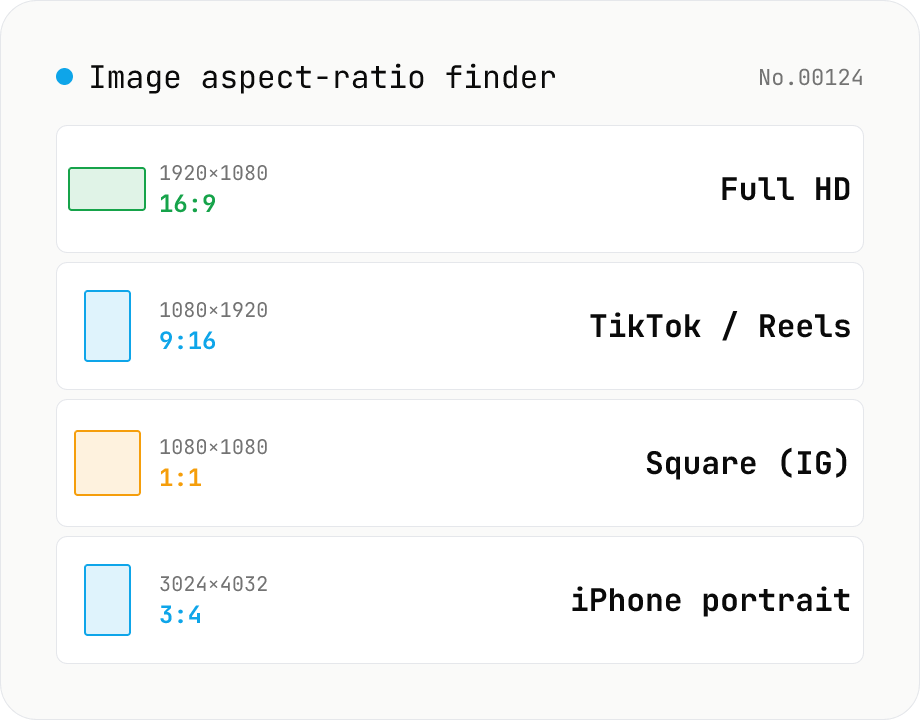
Image aspect-ratio finder — GCD ratios + 1080p / 4K / iPhone / TikTok match
Drop multiple images and see each one's width × height, the GCD-reduced aspect ratio (1920×1080 → 16:9, 3024×4032 → 3:4) and the closest matching standard format (Full HD 1080p, 4K UHD, iPhone screen sizes, TikTok 9:16, Instagram 4:5, YouTube thumbnail 1280×720 — 30+ presets). Useful for web design / marketing workflows: confirm a single asset fits Instagram + YouTube + TikTok, check whether a 21:9 hero shot matches your device targets, or sanity-check that an asset set is all the same aspect. The comparison table makes it easy to spot odd ones out. Everything runs in your browser (uses `Image()` `naturalWidth/Height`); images are never uploaded.
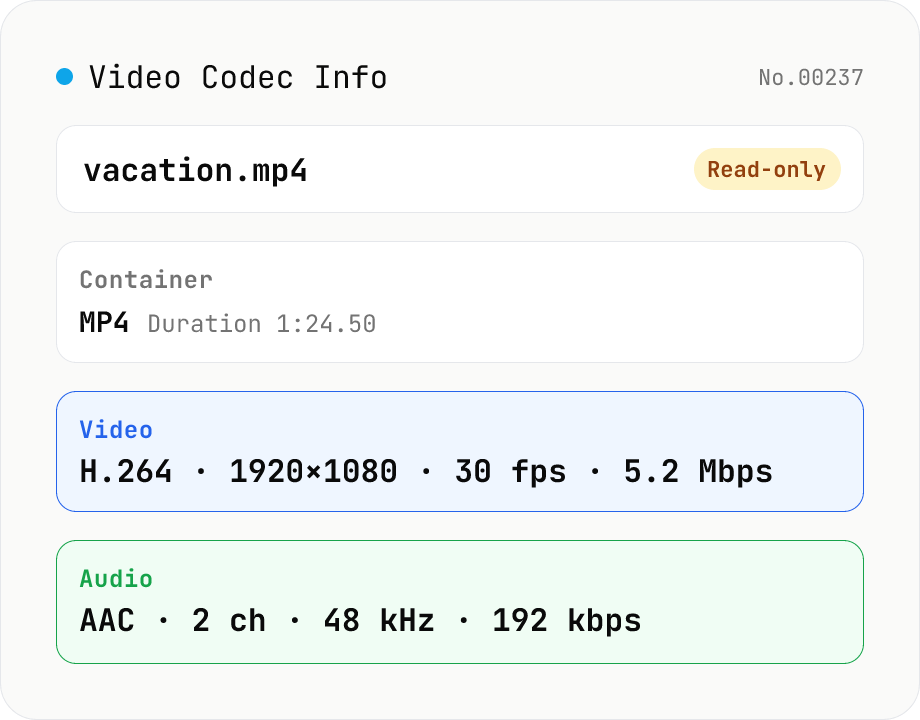
Video Codec Info
Inspect MP4 / MOV / MKV / WebM video files and read out container, codec, resolution, frame rate, bitrate, and audio track information. Read-only, runs entirely in your browser via mediainfo.js (BSD).
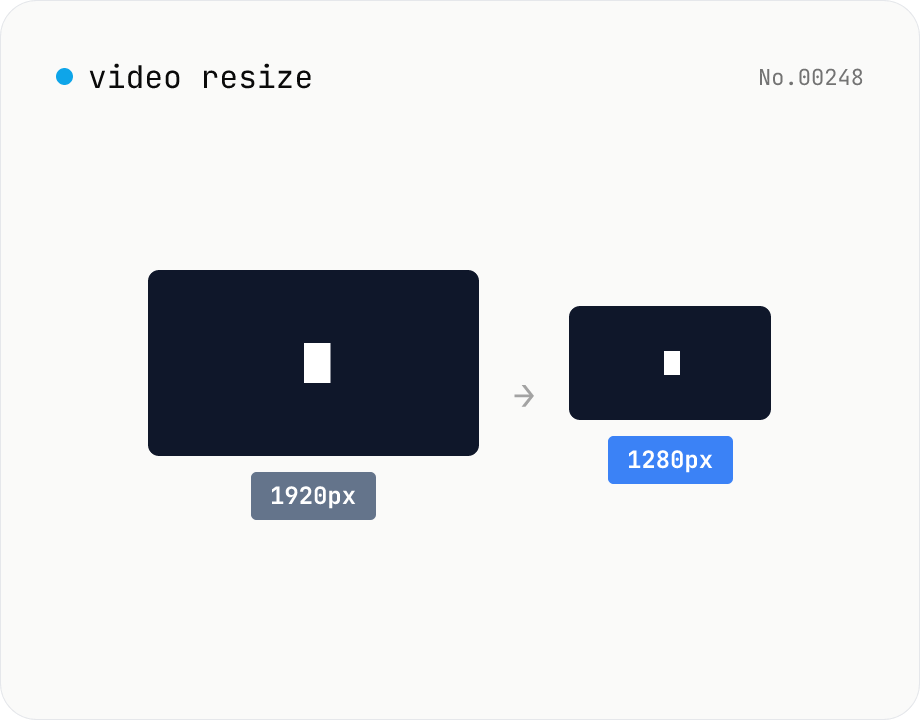
Video resize — change target resolution, keep aspect ratio
Resize a video to a target width with the height inferred from the aspect ratio. Re-encodes with libx264 (CRF adjustable) and outputs mp4. Supports batch processing and a single ZIP download.
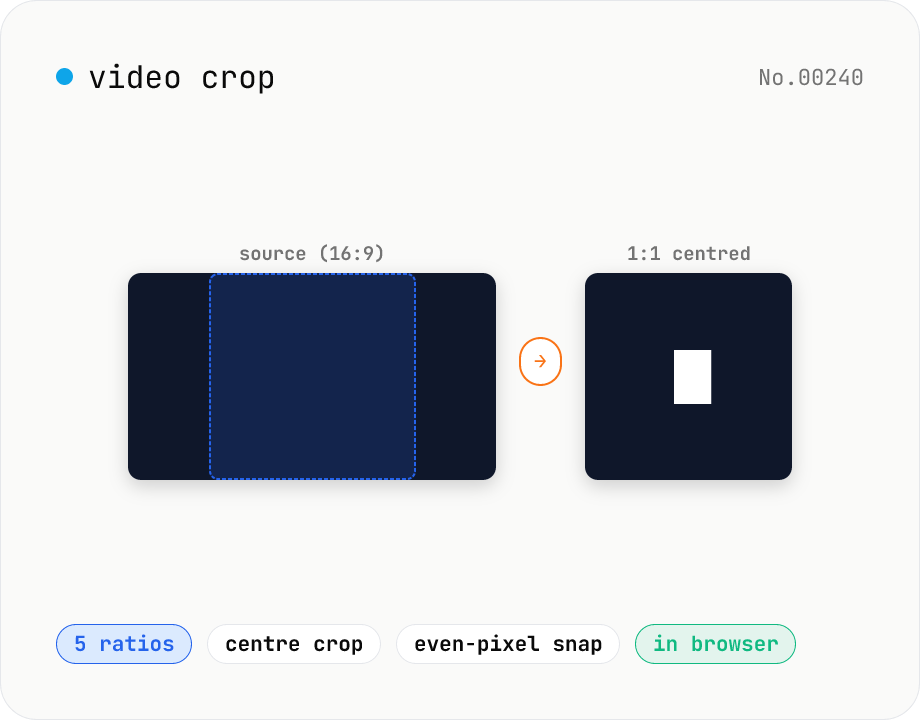
Video crop — center-crop to 1:1, 9:16, 16:9, 4:3 or 3:4
Center-crop a video to a target aspect ratio with one click. Instagram-style 1:1, TikTok / Reels 9:16, YouTube 16:9, and the SD 4:3 / 3:4 ratios are all built in. The tool automatically picks the largest centred rectangle that fits the original resolution and snaps it to even dimensions for H.264 compatibility. ffmpeg.wasm runs entirely in your browser — videos never leave your device.