
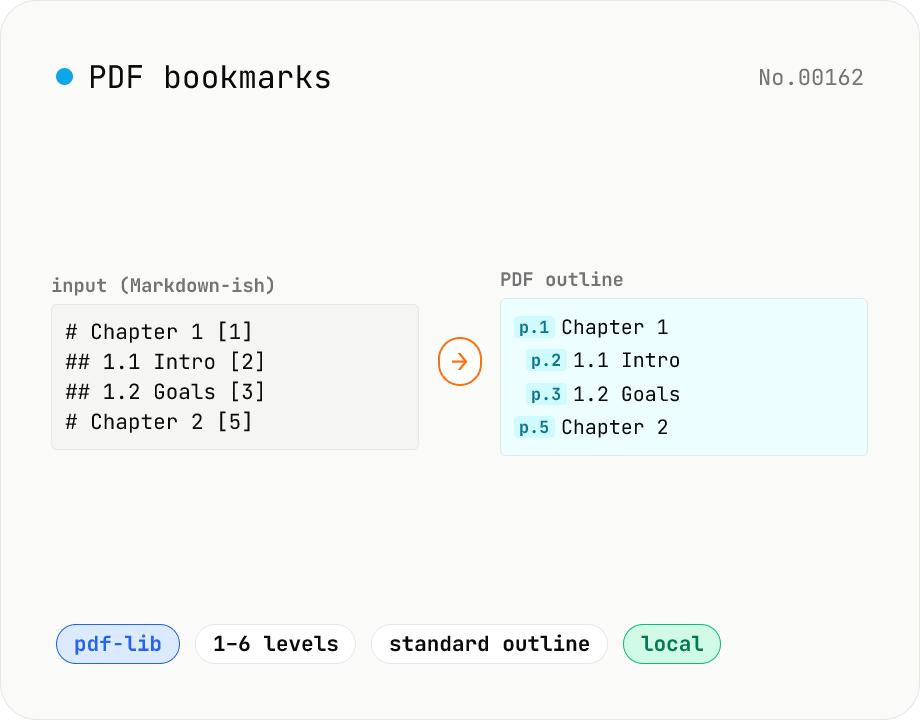
PDF bookmarks — add an outline / bookmark tree
Add a PDF outline (bookmark tree) in one shot using a Markdown-like syntax (`# Chapter 1 [3]`). Built with pdf-lib's low-level Catalog → Outlines API. `#` count = nesting level (1–6), each line ends with the target page in `[3]` brackets. Perfect for scanned PDFs or long documents without chapter titles, so you can jump to sections in Acrobat / Preview / browser PDF viewers. Runs entirely in your browser — no upload.
How to use
Drop or pick a single PDF. Write your bookmark tree in Markdown-like syntax. `#` count (1–6) is the nesting level, end each line with `[3]` to point to a page. Check the parsed outline preview for the hierarchy and count. Invalid lines are highlighted in red. Click Add bookmarks to bake the outline into a new PDF via pdf-lib.
FAQ
- How do I count page numbers?
- Use the physical page number (1-based). If the cover is page 1 and the body starts on page 2, write `[2]` for body chapter 1. Not the printed page label (i, ii, iii) — match what the PDF viewer shows in the page counter.
- How deep can the tree go?
- 1–6 levels (`#` to `######`). The PDF spec allows deeper trees but six levels keeps things readable. Skipping levels (e.g. `#` then `###`) works but may look odd in viewers.
- What happens to existing bookmarks?
- They are removed. This tool clears `/Outlines` before writing the new tree. Back up the original PDF if you need to preserve the old outline.
- Will viewers other than Acrobat show the bookmarks?
- Yes. We use the standard PDF outline spec, so Acrobat, Preview, Chrome, Firefox, Edge, iBooks, etc. all display them identically. No Acrobat-specific actions are used.
- Can it handle encrypted PDFs?
- No. Unlock the PDF first, then run it through this tool.
- Is anything uploaded?
- No. pdf-lib runs entirely in your browser; the PDF stays local.
Related tools
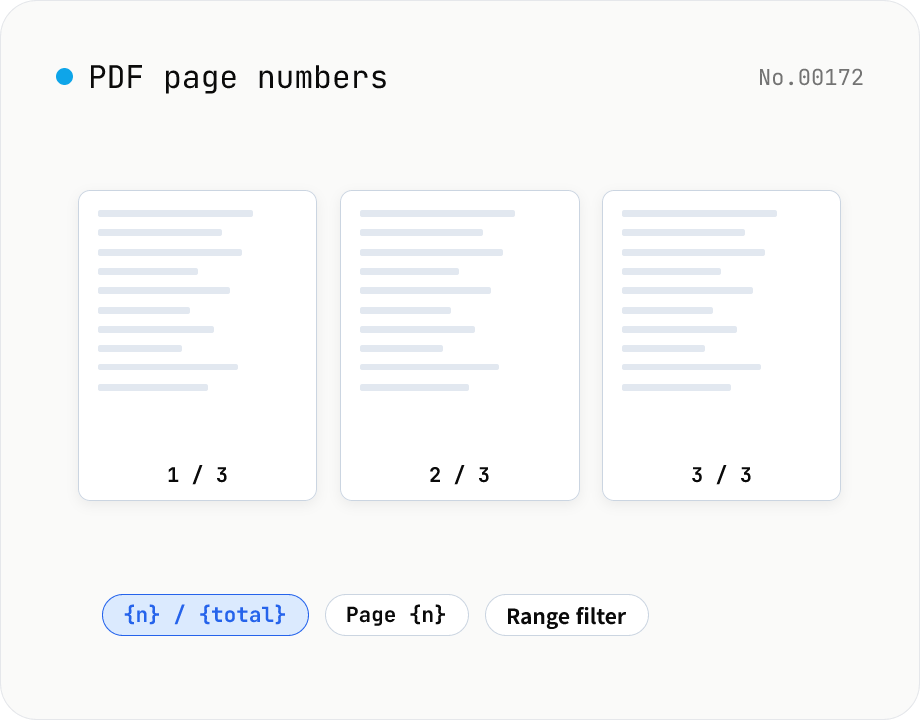
PDF page numbers — template / 9 positions / range
Stamp page numbers onto every page of a PDF. The format is a free template (`{n}` / `{n} / {total}` / `Page {n}` etc.). Tune the placement (9-grid), font size, color, starting number, margin, and which page range to apply to. Runs entirely on pdf-lib in the browser — your files never leave the device. Batch processing and ZIP download supported.
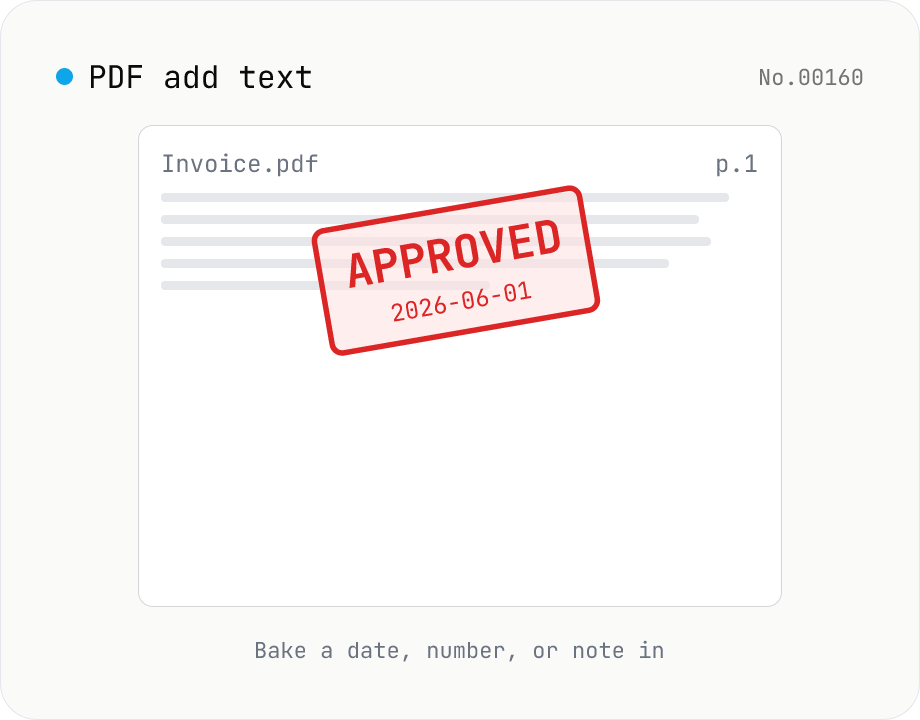
PDF add text — bake dates, notes, or labels into a page
Drop a text annotation onto a chosen page of a PDF — perfect for date stamps, file numbers, contractor names, or any quick label that just needs to look right. Position via 9-grid + margin, set font size / color / rotation / opacity, and pick which pages. Uses pdf-lib's built-in Helvetica (Regular / Bold / Oblique), so the text is ASCII / Latin only. For Japanese, build a stamp PNG with stamp-jp and place it with pdf-add-image. Multiple PDFs can be batched and downloaded as a ZIP. Files never leave your browser.
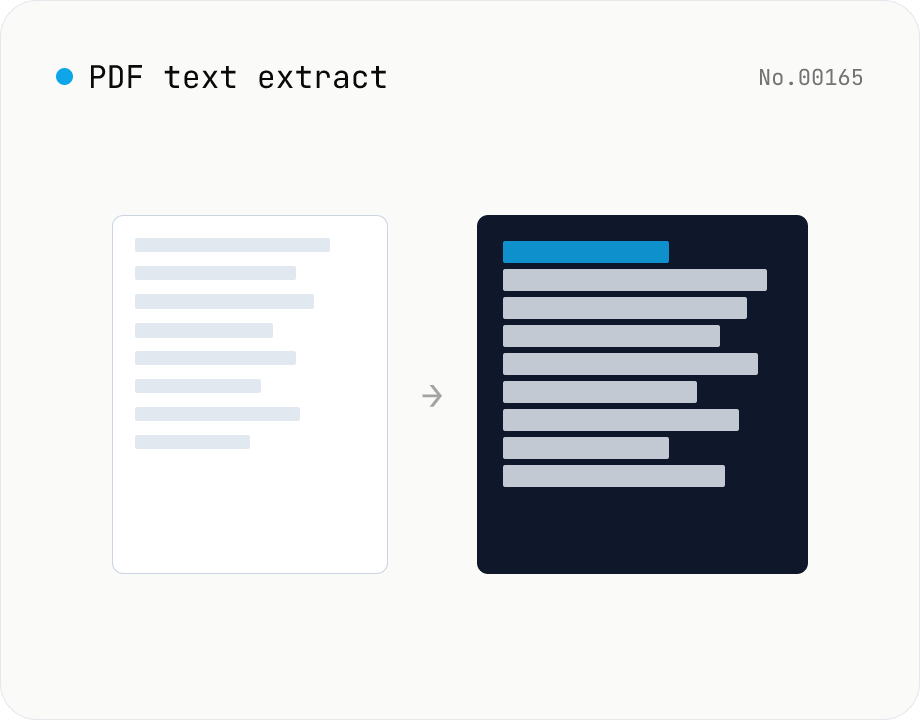
PDF text extract — export pages to .txt
Extract plain text from PDF files entirely in the browser via pdfjs-dist getTextContent. Each PDF becomes its own .txt file; batch downloads ship as a ZIP. Page-break markers are optional.
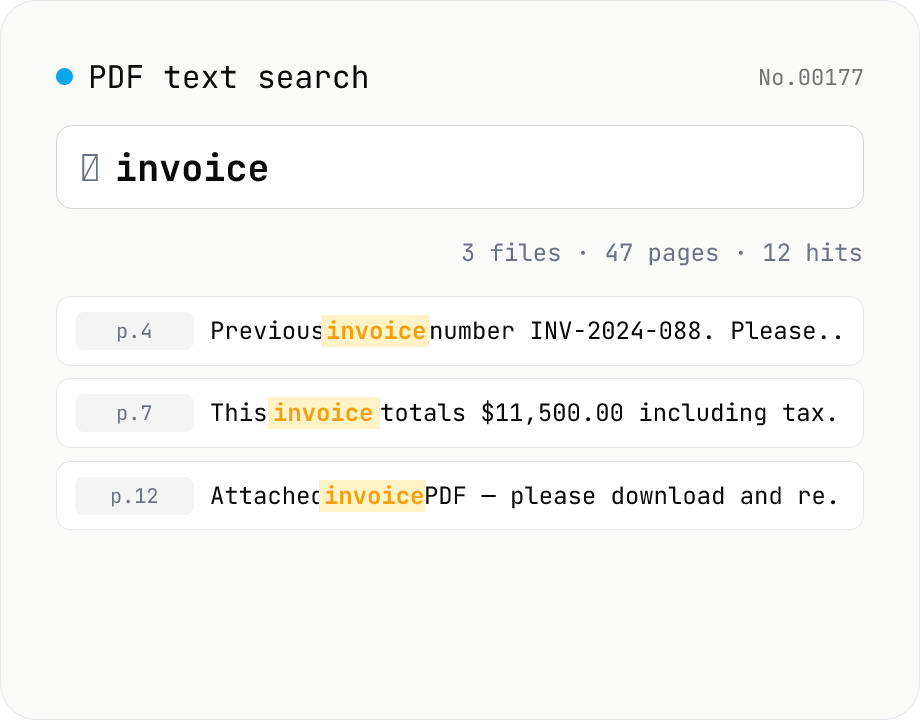
PDF text search — full-text search across multiple PDFs
Search several PDFs at once and inspect every match with its page number and surrounding context. Toggle case sensitivity, word boundaries (\b), regular expressions, and a multi-line mode. Adjust the query or context width (10–200 chars) and the matches refresh live. Each file shows a hit count and the full result set can be downloaded as CSV. Uploaded PDFs never leave the browser.