
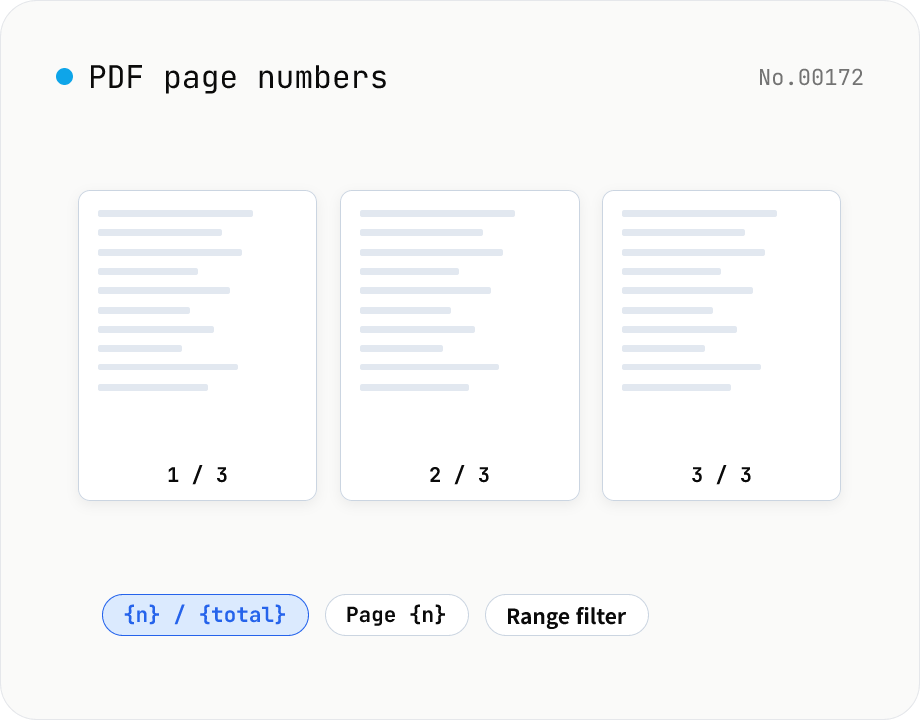
PDF page numbers — template / 9 positions / range
Stamp page numbers onto every page of a PDF. The format is a free template (`{n}` / `{n} / {total}` / `Page {n}` etc.). Tune the placement (9-grid), font size, color, starting number, margin, and which page range to apply to. Runs entirely on pdf-lib in the browser — your files never leave the device. Batch processing and ZIP download supported.
How to use
Drop your PDFs, then pick a format preset or write a custom template (`{n}` for current page, `{total}` for total pages). Choose a placement (6 corners/edges), font size, color, starting number, margin, and the page range to apply to (`all` or `1-3,5,7`). Click Add page numbers to stamp each page. Batch processing and a single ZIP download are supported. Runs on pdf-lib in the browser — your PDFs never leave the device.
FAQ
- Is my PDF uploaded to a server?
- No. PDFs are read as ArrayBuffers and processed entirely with pdf-lib in the browser. Stamping and saving happen locally with no network traffic.
- What's the difference between 'Start number' and 'Apply to pages'?
- 'Start number' controls the first label shown (start = 5 means page 1 gets '5'). 'Apply to pages' is the set of physical pages to stamp at all. So range `2-4` + start `1` puts 1, 2, 3 on physical pages 2, 3, 4 respectively.
- Is `{total}` the size of the applied range?
- No, it's the total page count of the entire PDF (= getPageCount). That matches the usual '1 / 10' convention. To restrict the denominator, hard-code a literal in the template instead.
- Can I use Japanese in the format?
- Not in this version. The built-in text path uses Helvetica (Latin only). Non-Latin support would need font embedding plus a different stamping path.
- Does it support encrypted PDFs?
- Not yet. Run them through pdf-unlock first, then pipe the result here.
- Can I set the position in millimetres?
- Margins are specified as a percentage of page width (e.g. 4% on A4 ≈ 24pt ≈ 8mm). A physical-unit input isn't exposed yet.
Related tools
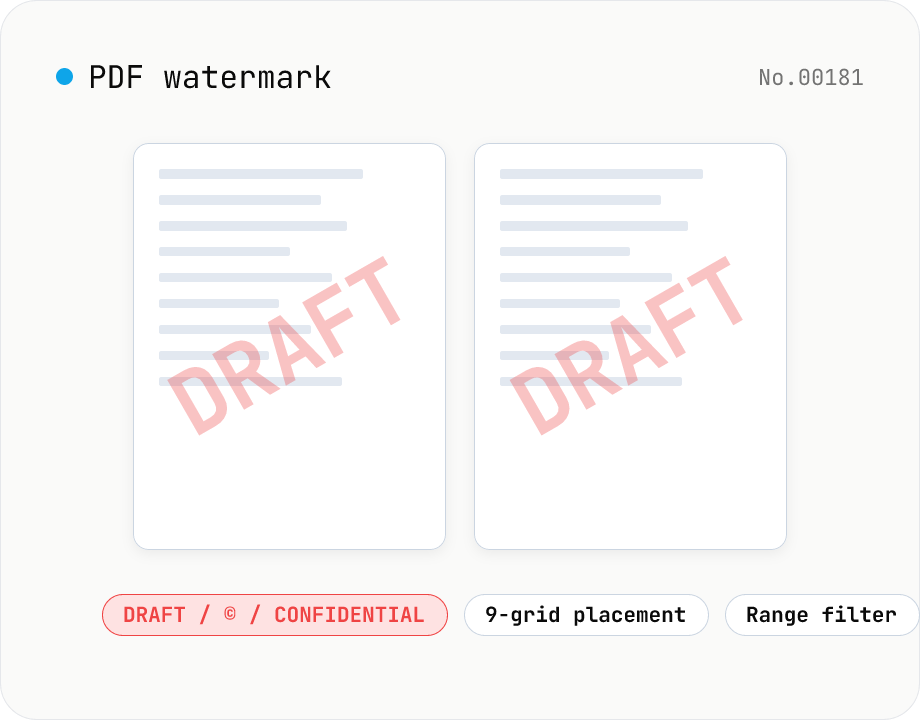
PDF watermark — text or image overlay
Stamp every page of a PDF with text (DRAFT / CONFIDENTIAL / © ...) or an image logo. Pick from a 9-grid placement, adjust opacity, size, rotation, and restrict to specific page ranges. Runs entirely on pdf-lib in the browser — your files never leave the device. Batch processing and ZIP download supported.
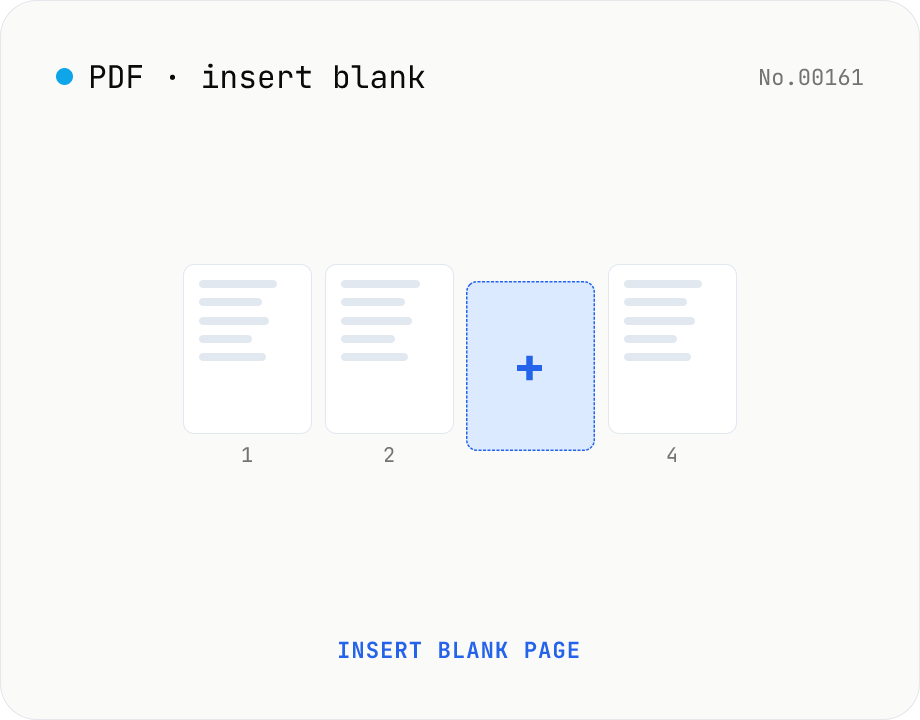
PDF insert blank page — start / end / any position
Insert one or more blank pages at the start, end, or just before any page number of a PDF. Use the same size as the source PDF, or pick A4 / A4 landscape / A3 / A3 landscape / Letter / Legal. Powered by pdf-lib with no re-rendering, so quality is preserved. Batch multiple PDFs and download as a ZIP. Everything runs in your browser.
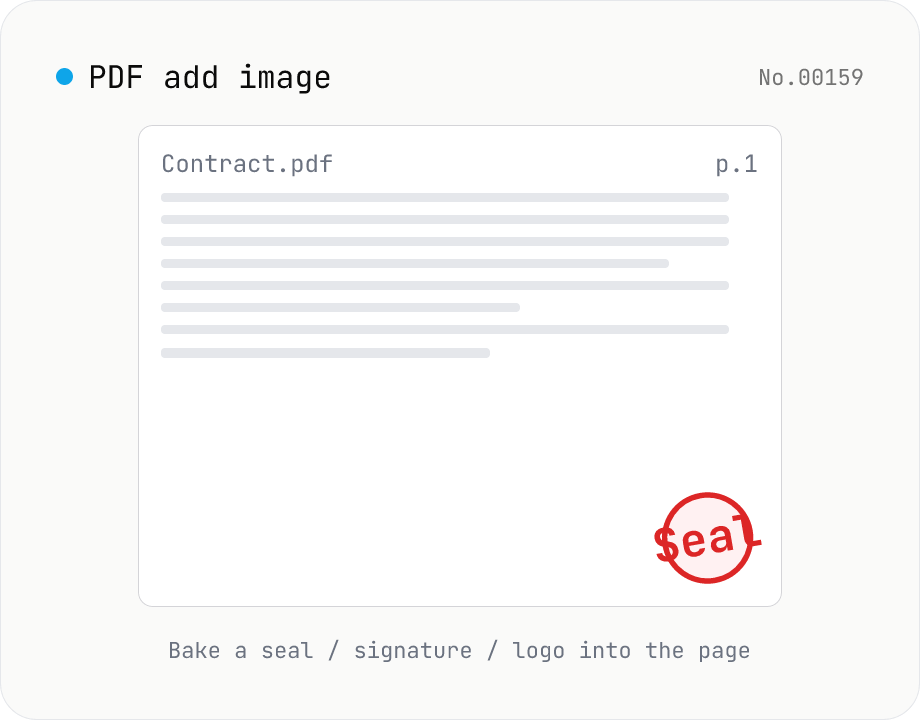
PDF add image — bake a signature / seal / logo into a page
Drop an image (PNG / JPEG / WebP) onto a chosen page of a PDF — perfect for adding a personal seal, scanned handwritten signature, or company logo just before sending the document back. Pick a 9-grid position with margin, set the image size as a percentage of page width, and tweak opacity, rotation, and which pages get the image. Powered by pdf-lib's embedPng / embedJpg. Batch multiple PDFs and download as a ZIP. Files never leave your browser.
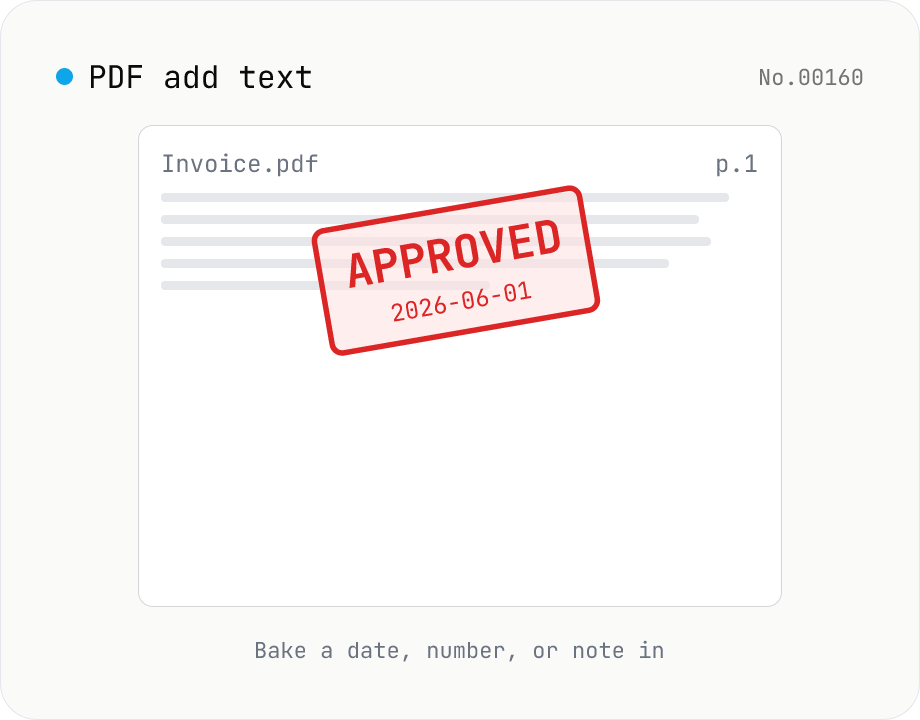
PDF add text — bake dates, notes, or labels into a page
Drop a text annotation onto a chosen page of a PDF — perfect for date stamps, file numbers, contractor names, or any quick label that just needs to look right. Position via 9-grid + margin, set font size / color / rotation / opacity, and pick which pages. Uses pdf-lib's built-in Helvetica (Regular / Bold / Oblique), so the text is ASCII / Latin only. For Japanese, build a stamp PNG with stamp-jp and place it with pdf-add-image. Multiple PDFs can be batched and downloaded as a ZIP. Files never leave your browser.