
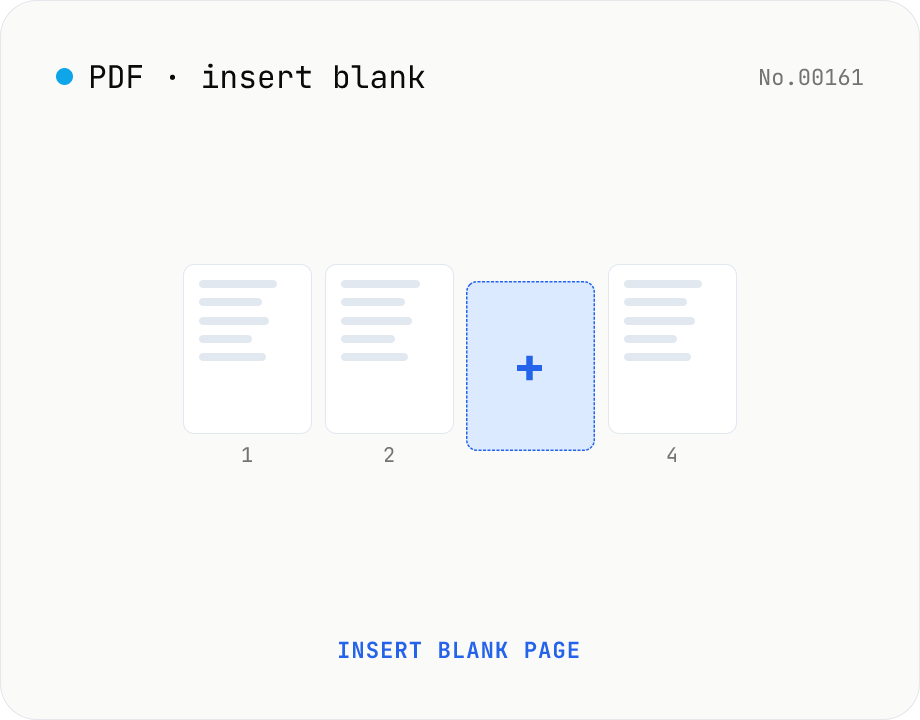
PDF insert blank page — start / end / any position
Insert one or more blank pages at the start, end, or just before any page number of a PDF. Use the same size as the source PDF, or pick A4 / A4 landscape / A3 / A3 landscape / Letter / Legal. Powered by pdf-lib with no re-rendering, so quality is preserved. Batch multiple PDFs and download as a ZIP. Everything runs in your browser.
How to use
Drop or choose one or more PDFs, then pick where to insert (start / end / before a page number), what size to use, and how many blank pages. Click Insert blank page and pdf-lib produces a new PDF with the blanks added. The Download ZIP button bundles every result when you've batched multiple files. The original content streams are untouched, so quality stays exactly the same.
FAQ
- Are my PDFs uploaded?
- No. Files are read locally with the File API and pdf-lib runs in memory. No network requests are made.
- What does 'Match source PDF' do?
- It uses each file's own page-1 size for the inserted blank, so the blank matches that PDF's geometry. When you batch PDFs of different sizes, each file gets a different blank size — pick a fixed size like A4 to enforce a single shape across the batch.
- What if I enter a page number larger than the PDF?
- It's automatically clamped to the end of that file. For example, asking to insert before page 100 in a 10-page PDF just appends to the end. No error.
- Are signatures, bookmarks, or form fields preserved?
- Signatures will likely be invalidated when pdf-lib re-saves the file. Bookmarks (outlines) usually survive, but the page-number references can shift depending on where you insert.
- Can I process password-protected PDFs?
- No. Decrypt them first with the PDF unlock tool, then run them through this tool.
- I need blanks at multiple positions for two-sided printing
- This tool inserts at a single position per run. Split the PDF first, then insert blanks between the parts to control multiple positions.
Related tools
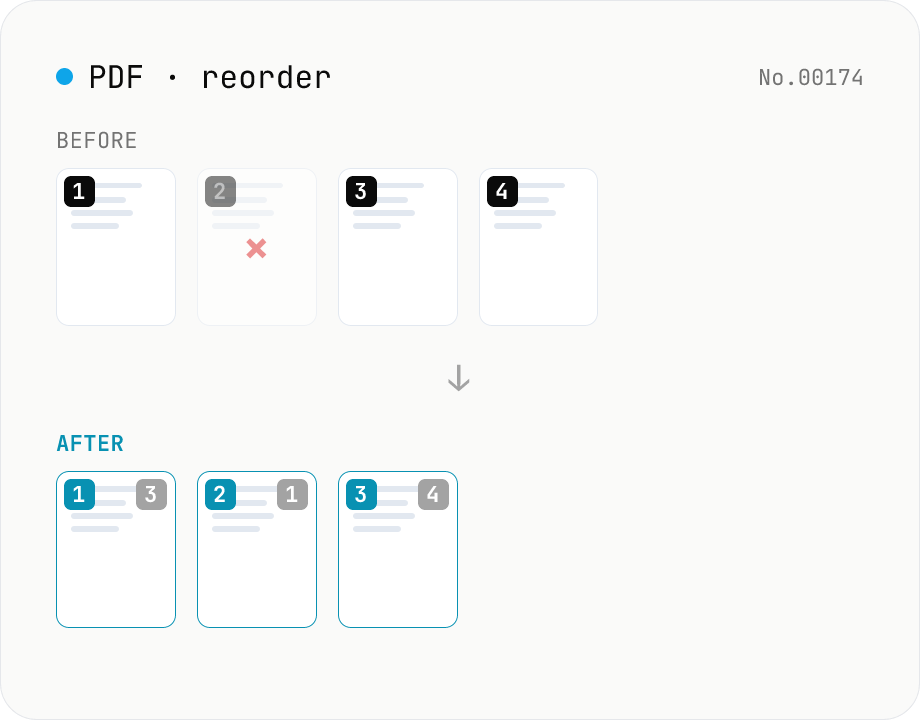
PDF reorder & delete pages — thumbnail editor
Drag pages of a PDF to reorder them, remove unwanted pages, and generate a new PDF with thumbnail previews. Runs entirely in your browser.
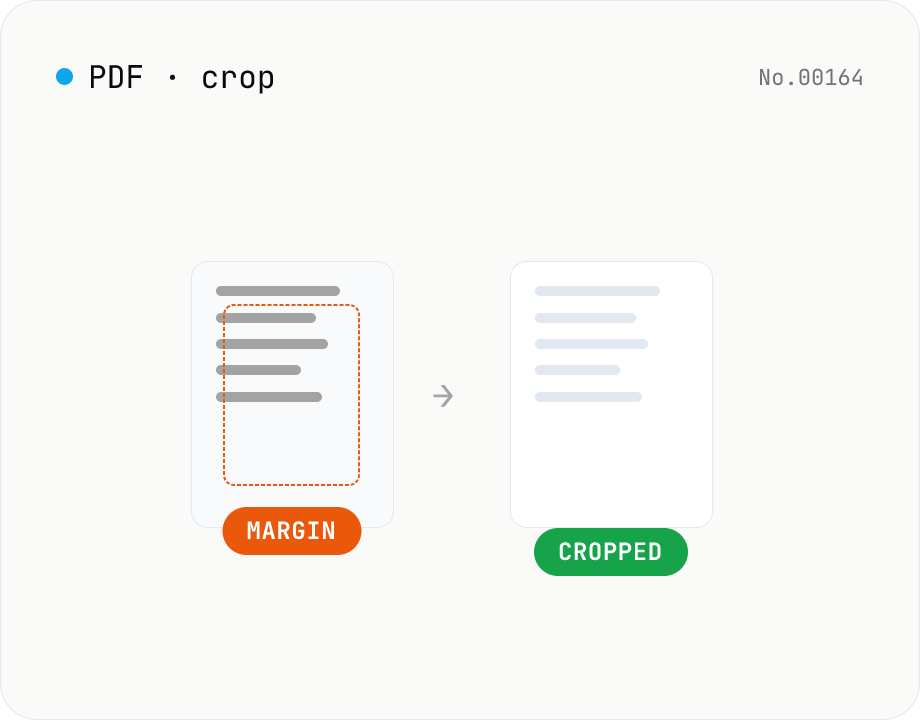
PDF crop — trim top / right / bottom / left in mm
Trim the top / right / bottom / left margins of each PDF page by a value in millimetres. Use it to cut off white borders from scans or shrink overly generous margins. Batch multiple PDFs and download as a ZIP. pdf-lib rewrites the MediaBox / CropBox without re-rendering, so quality is preserved and everything runs in your browser.
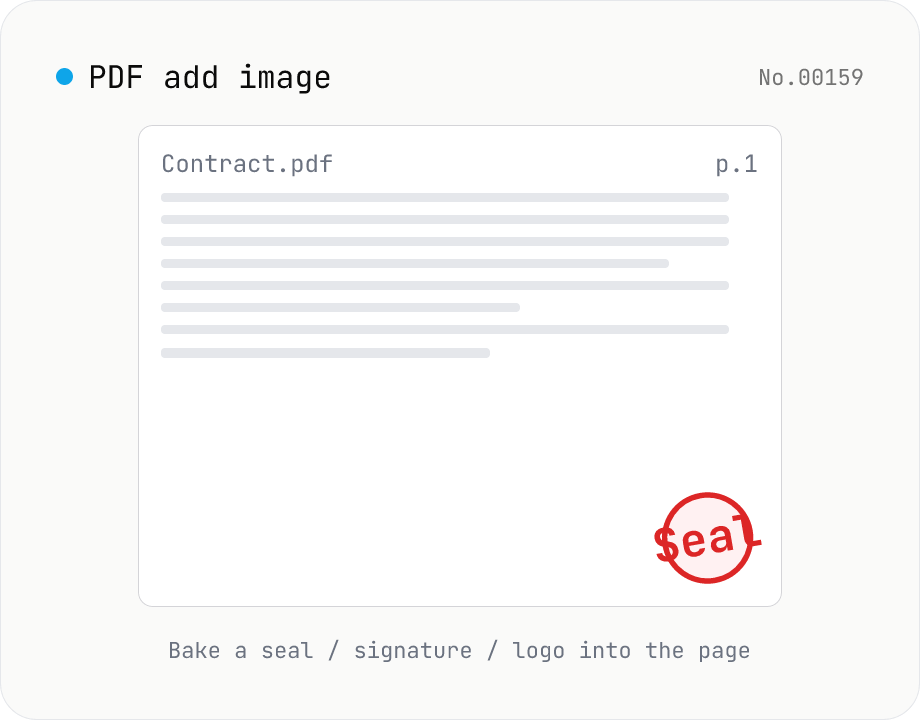
PDF add image — bake a signature / seal / logo into a page
Drop an image (PNG / JPEG / WebP) onto a chosen page of a PDF — perfect for adding a personal seal, scanned handwritten signature, or company logo just before sending the document back. Pick a 9-grid position with margin, set the image size as a percentage of page width, and tweak opacity, rotation, and which pages get the image. Powered by pdf-lib's embedPng / embedJpg. Batch multiple PDFs and download as a ZIP. Files never leave your browser.
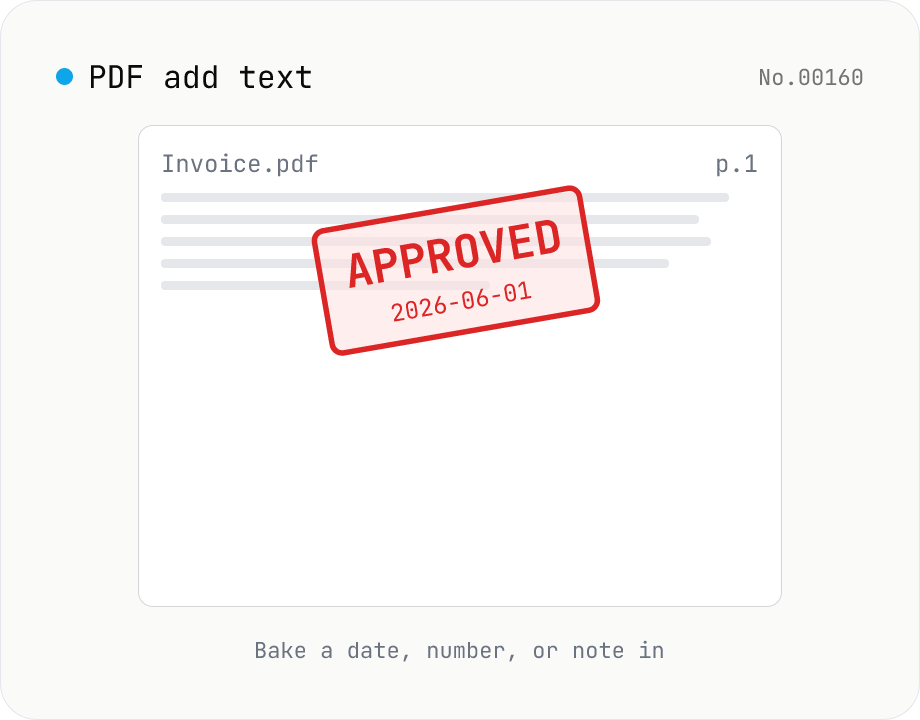
PDF add text — bake dates, notes, or labels into a page
Drop a text annotation onto a chosen page of a PDF — perfect for date stamps, file numbers, contractor names, or any quick label that just needs to look right. Position via 9-grid + margin, set font size / color / rotation / opacity, and pick which pages. Uses pdf-lib's built-in Helvetica (Regular / Bold / Oblique), so the text is ASCII / Latin only. For Japanese, build a stamp PNG with stamp-jp and place it with pdf-add-image. Multiple PDFs can be batched and downloaded as a ZIP. Files never leave your browser.