
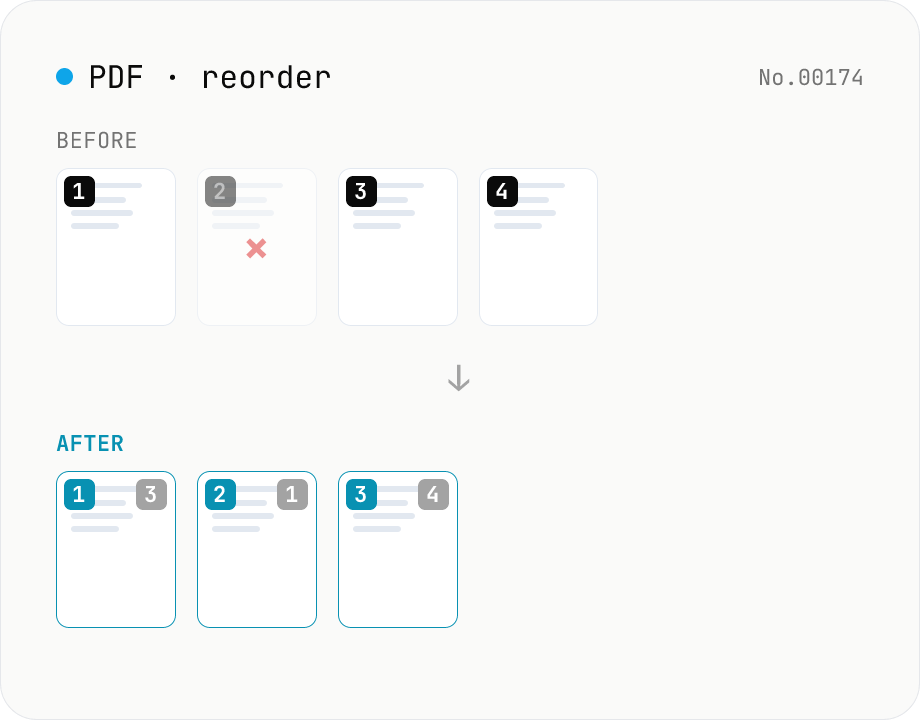
PDF reorder & delete pages — thumbnail editor
Drag pages of a PDF to reorder them, remove unwanted pages, and generate a new PDF with thumbnail previews. Runs entirely in your browser.
How to use
Load one PDF and you'll see thumbnails of every page. Drag thumbnails to reorder, remove unwanted ones with the Remove button, and restore them later if needed. Click Apply to generate a new PDF in the chosen order — preview and download.
FAQ
- Is the PDF uploaded?
- No. Reordering and deletion are done with pdf-lib in your browser. The input and output stay on your device.
- Can I delete every page?
- No — at least one page must remain. If you want to discard the file entirely, delete it locally instead.
- Does it work on password-protected PDFs?
- No, unlock them first with the PDF unlock tool.
- Do bookmarks follow the new order?
- Pages are reordered correctly, but bookmarks (Outline) and some links may not follow the new arrangement due to pdf-lib limits.
Related tools
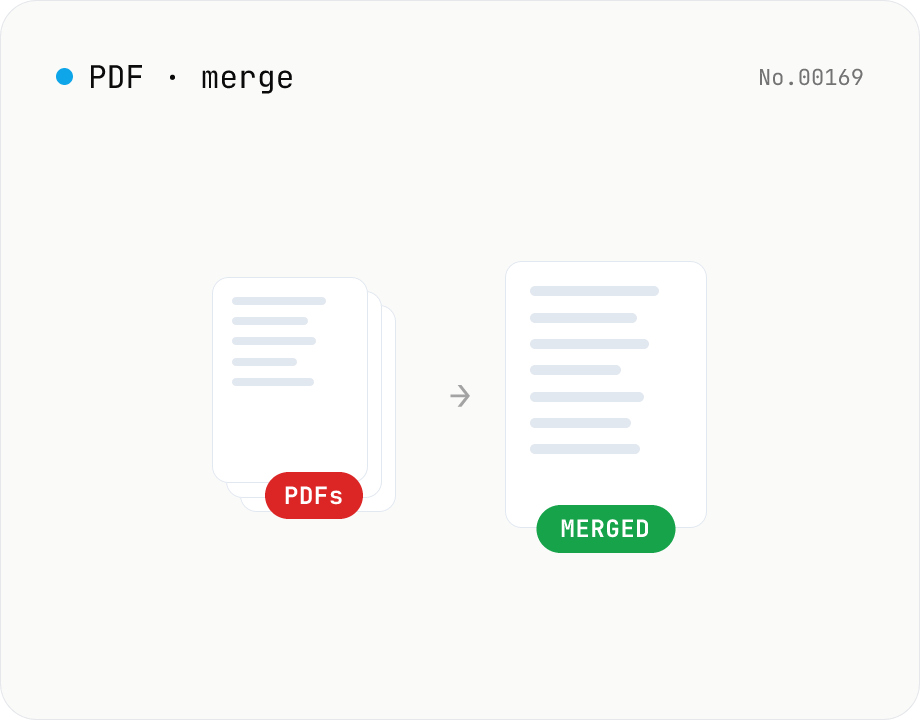
PDF merge — combine multiple PDFs into one
Drag and drop multiple PDFs, reorder them, and merge into a single PDF. Runs entirely in your browser.
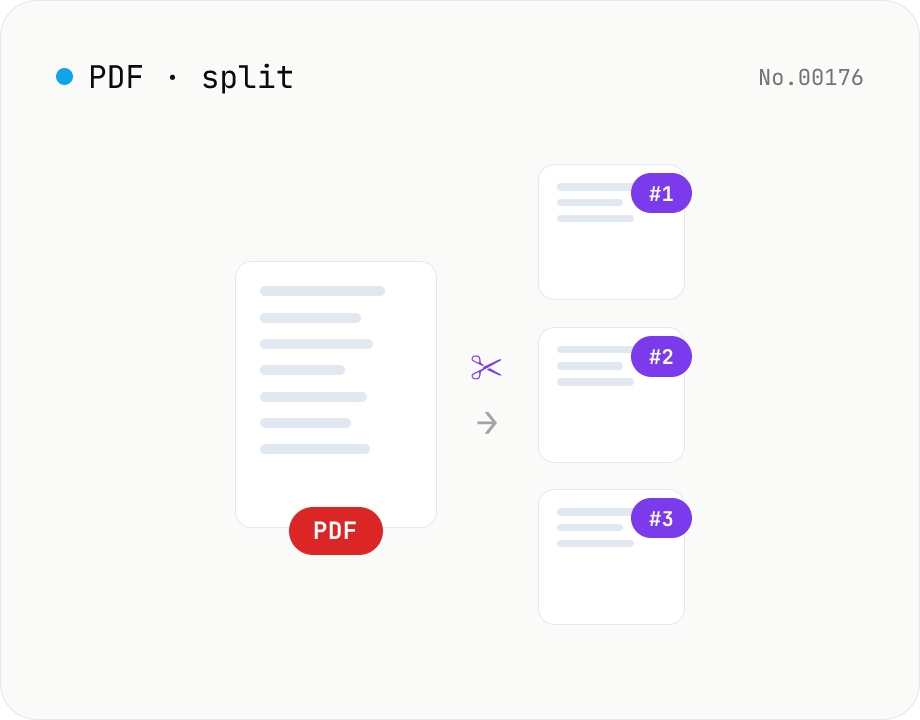
PDF split — by page range or every N pages
Split a PDF using one of three modes: page ranges, every N pages, or one PDF per page. Download all parts as a ZIP. Runs entirely in your browser.
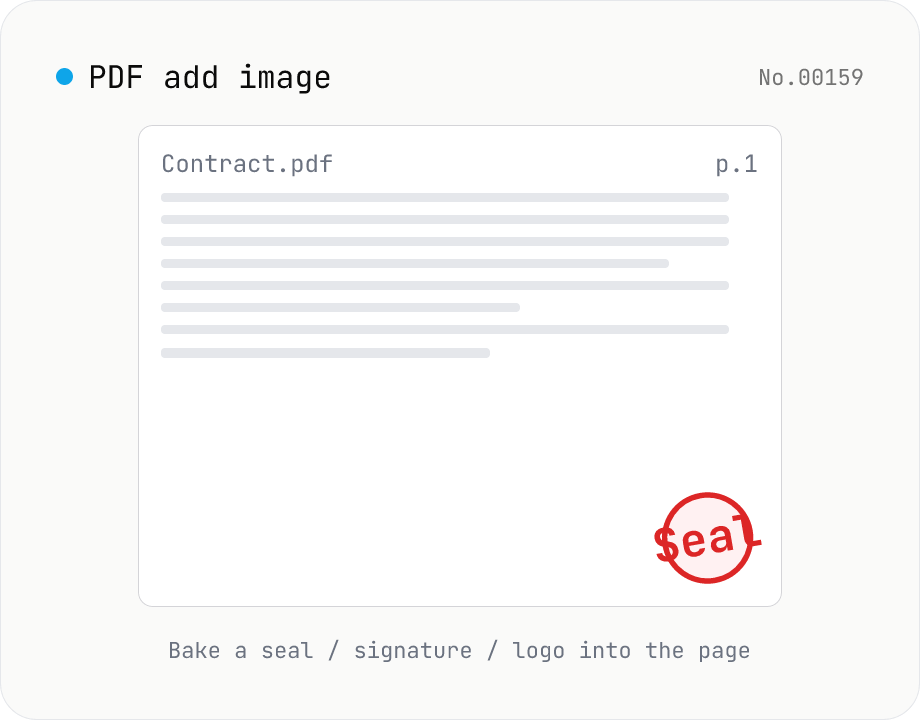
PDF add image — bake a signature / seal / logo into a page
Drop an image (PNG / JPEG / WebP) onto a chosen page of a PDF — perfect for adding a personal seal, scanned handwritten signature, or company logo just before sending the document back. Pick a 9-grid position with margin, set the image size as a percentage of page width, and tweak opacity, rotation, and which pages get the image. Powered by pdf-lib's embedPng / embedJpg. Batch multiple PDFs and download as a ZIP. Files never leave your browser.
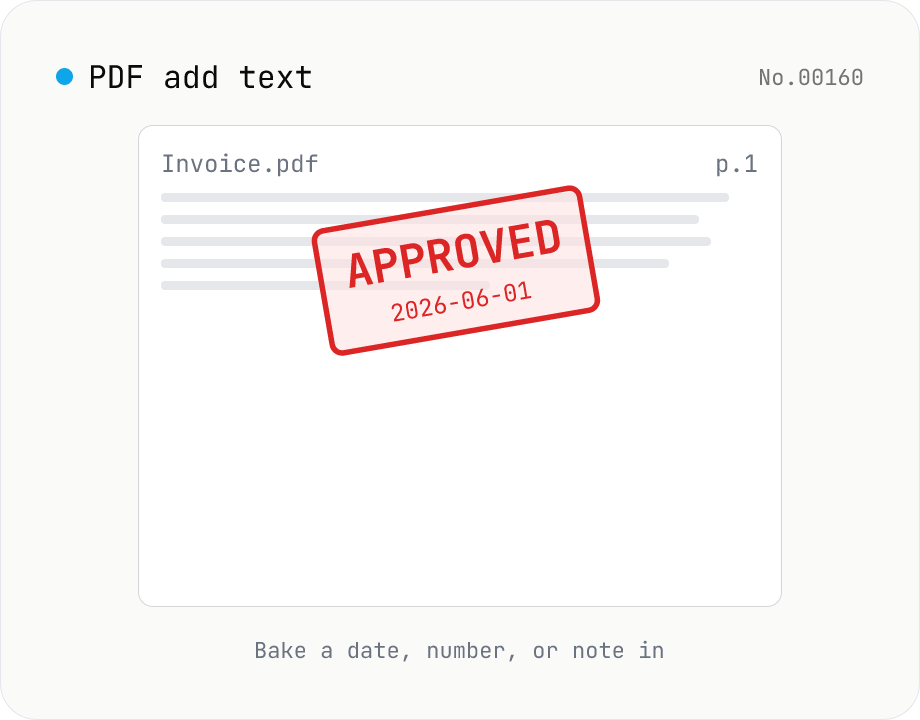
PDF add text — bake dates, notes, or labels into a page
Drop a text annotation onto a chosen page of a PDF — perfect for date stamps, file numbers, contractor names, or any quick label that just needs to look right. Position via 9-grid + margin, set font size / color / rotation / opacity, and pick which pages. Uses pdf-lib's built-in Helvetica (Regular / Bold / Oblique), so the text is ASCII / Latin only. For Japanese, build a stamp PNG with stamp-jp and place it with pdf-add-image. Multiple PDFs can be batched and downloaded as a ZIP. Files never leave your browser.