
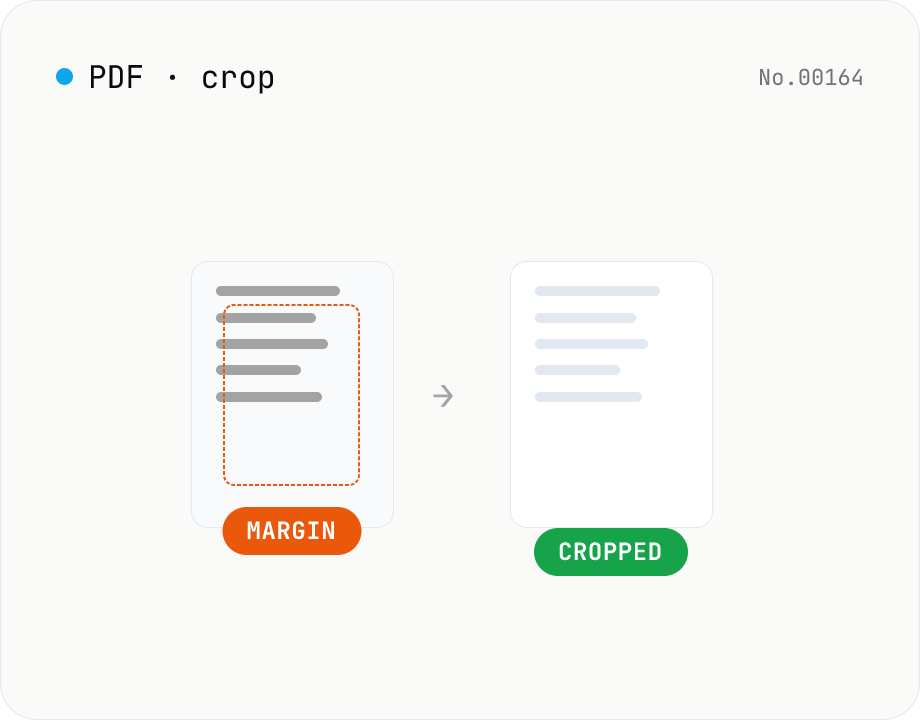
PDF crop — trim top / right / bottom / left in mm
Trim the top / right / bottom / left margins of each PDF page by a value in millimetres. Use it to cut off white borders from scans or shrink overly generous margins. Batch multiple PDFs and download as a ZIP. pdf-lib rewrites the MediaBox / CropBox without re-rendering, so quality is preserved and everything runs in your browser.
How to use
Drop or choose one or more PDFs, then enter how many millimetres you want trimmed from each side. Tick 'Use the same value for all sides' to mirror the top value to every side. Click Trim margins and pdf-lib shrinks each page's MediaBox / CropBox to produce a new PDF. With multiple files, the Download ZIP button bundles them. Because only the box rectangles are rewritten (no re-rendering), there is zero quality loss.
FAQ
- Are my PDFs uploaded?
- No. Files are read locally with the File API and the crop runs in memory via pdf-lib. No network requests are made.
- What does the tool actually modify?
- It shrinks each page's MediaBox and CropBox by the values you supplied. Content streams (text and images) are left untouched — only the viewport rectangle becomes smaller.
- What happens to content that lives in the trimmed area?
- It becomes invisible in PDF viewers (clipped). The underlying data is still inside the file but no longer rendered. For a permanent removal you'd need to re-rasterize the PDF with a separate tool.
- Can I use different margins per page?
- Not in this tool — every page is trimmed uniformly. For per-page margins, split the PDF, crop each part separately, then merge them back.
- What if I trim more than the page width / height?
- The tool stops with an error to avoid creating a zero- or negative-sized page. Check the original page size and keep the sum of margins below it (A4 portrait is roughly 210mm × 297mm).
- Can I crop password-protected PDFs?
- Not directly. Decrypt them first with the PDF unlock tool, then run them through this tool.
Related tools
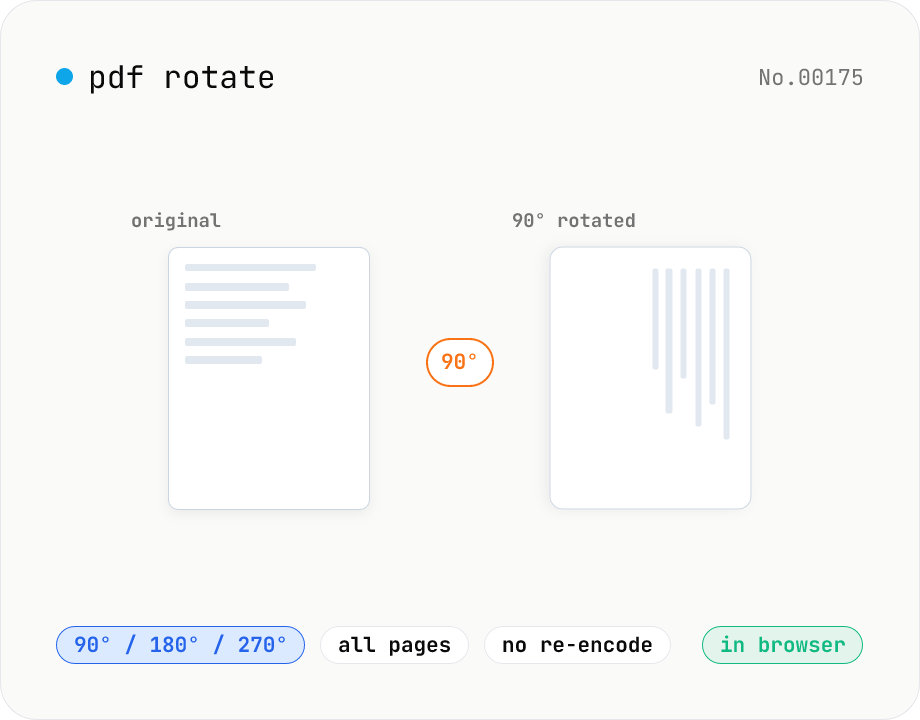
PDF rotate — 90 / 180 / 270 degrees in batch
Rotate every page of a PDF by 90° / 180° / 270° (clockwise) and save it as a new PDF. Process multiple PDFs at once and download them individually or as a single ZIP. Files never leave your browser — all rotation happens locally.
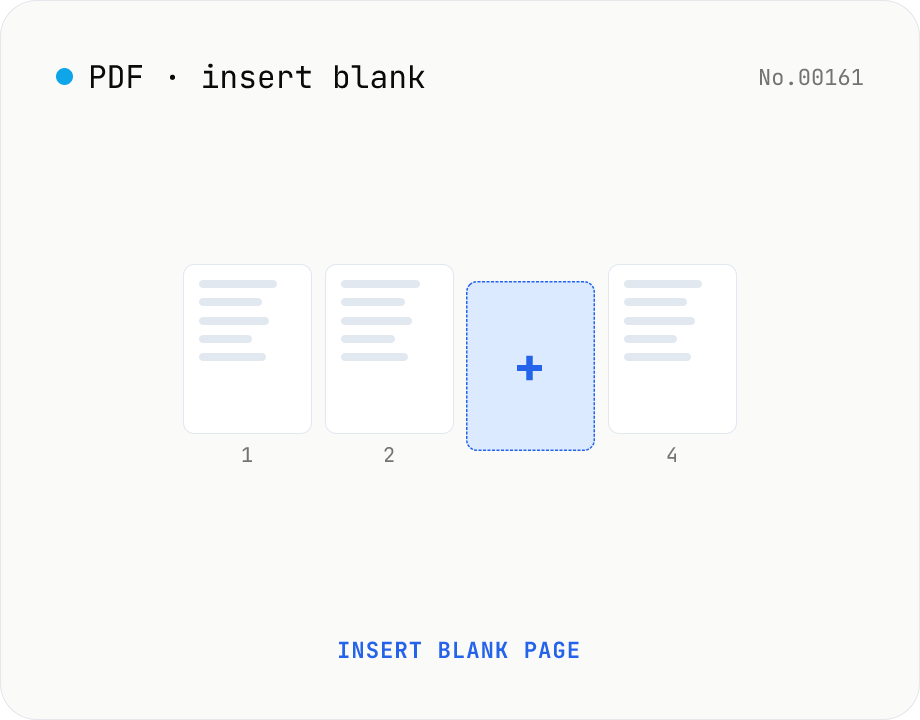
PDF insert blank page — start / end / any position
Insert one or more blank pages at the start, end, or just before any page number of a PDF. Use the same size as the source PDF, or pick A4 / A4 landscape / A3 / A3 landscape / Letter / Legal. Powered by pdf-lib with no re-rendering, so quality is preserved. Batch multiple PDFs and download as a ZIP. Everything runs in your browser.
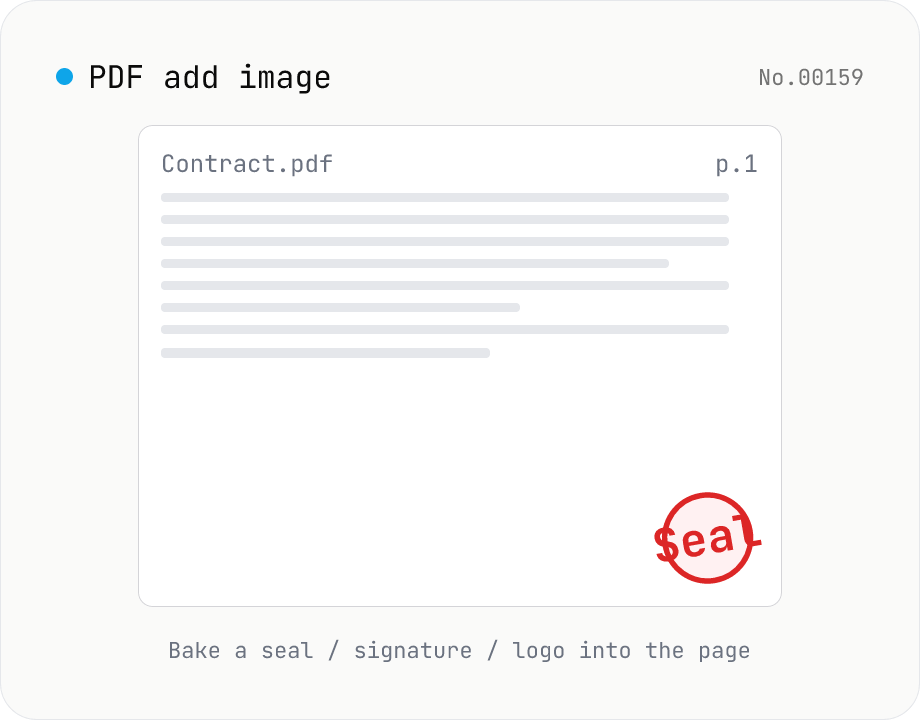
PDF add image — bake a signature / seal / logo into a page
Drop an image (PNG / JPEG / WebP) onto a chosen page of a PDF — perfect for adding a personal seal, scanned handwritten signature, or company logo just before sending the document back. Pick a 9-grid position with margin, set the image size as a percentage of page width, and tweak opacity, rotation, and which pages get the image. Powered by pdf-lib's embedPng / embedJpg. Batch multiple PDFs and download as a ZIP. Files never leave your browser.
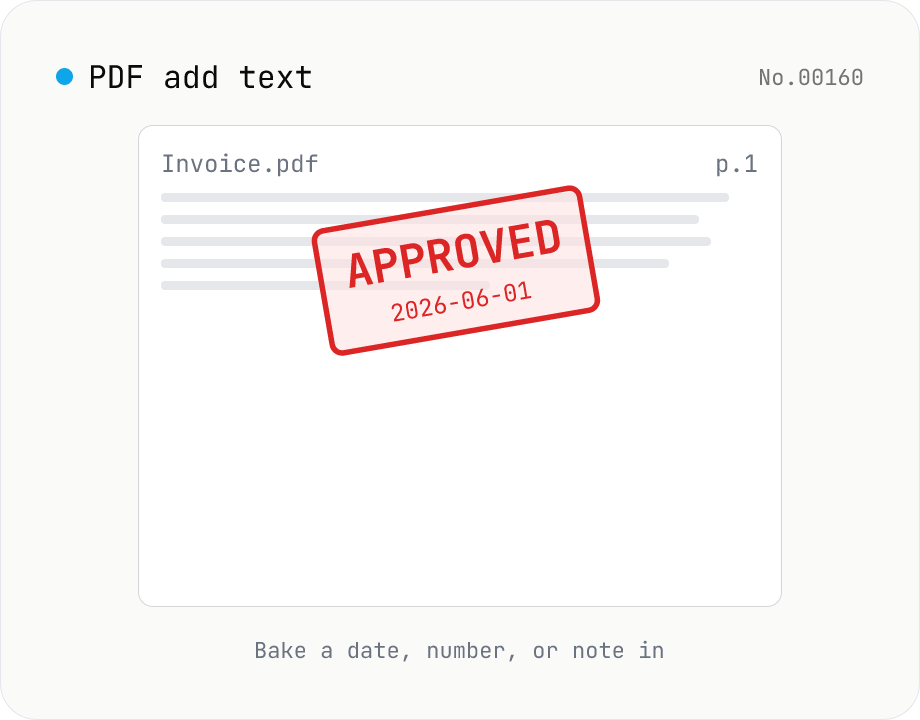
PDF add text — bake dates, notes, or labels into a page
Drop a text annotation onto a chosen page of a PDF — perfect for date stamps, file numbers, contractor names, or any quick label that just needs to look right. Position via 9-grid + margin, set font size / color / rotation / opacity, and pick which pages. Uses pdf-lib's built-in Helvetica (Regular / Bold / Oblique), so the text is ASCII / Latin only. For Japanese, build a stamp PNG with stamp-jp and place it with pdf-add-image. Multiple PDFs can be batched and downloaded as a ZIP. Files never leave your browser.