
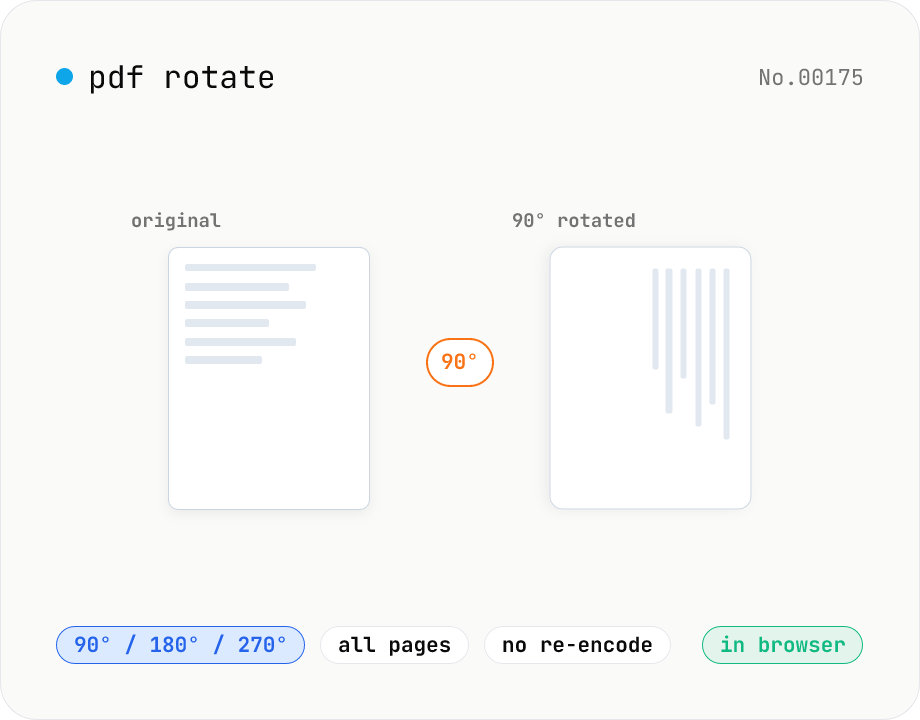
PDF rotate — 90 / 180 / 270 degrees in batch
Rotate every page of a PDF by 90° / 180° / 270° (clockwise) and save it as a new PDF. Process multiple PDFs at once and download them individually or as a single ZIP. Files never leave your browser — all rotation happens locally.
How to use
Pick a rotation angle (90° / 180° / 270° clockwise), then drop or choose one or more PDFs. Click Rotate PDF and every page in each PDF will be rotated by the chosen angle. Download each result individually, or grab them all as a single ZIP when you have multiple files. Files never leave your browser — all processing happens locally.
FAQ
- Are my PDFs uploaded to a server?
- No. Files are read locally via the File API and rotated in memory with pdf-lib. No network traffic is generated at any step.
- What's the difference between 90° / 180° / 270°?
- 90° is clockwise, 180° flips the page upside-down, and 270° is clockwise by 270° (= 90° counter-clockwise). Pick 90° or 270° to turn landscape scans into portrait, and 180° to fix upside-down pages.
- Can I rotate individual pages by different angles?
- Not in this tool — every page receives the same rotation. To rotate pages independently, split the PDF, rotate the parts separately, then merge them back.
- How are PDFs that already have a rotation flag handled?
- The chosen angle is added on top of the existing rotation (modulo 360°). For example, applying 90° to a PDF that's already rotated 90° leaves the output rotated 180°.
- Does the content, image quality, or fonts change?
- No. Rotation only updates each page's rotation flag — content streams are left untouched, so image quality, fonts, and file size stay essentially the same.
- Can I rotate password-protected PDFs?
- No. Decrypt them first with the PDF unlock tool, then run them through this tool.
Related tools
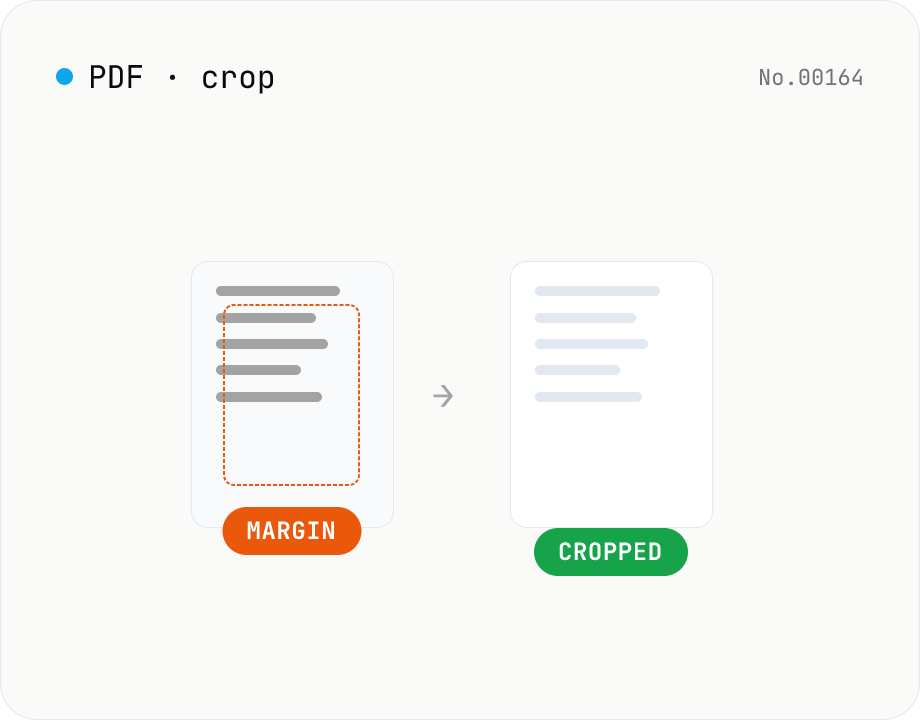
PDF crop — trim top / right / bottom / left in mm
Trim the top / right / bottom / left margins of each PDF page by a value in millimetres. Use it to cut off white borders from scans or shrink overly generous margins. Batch multiple PDFs and download as a ZIP. pdf-lib rewrites the MediaBox / CropBox without re-rendering, so quality is preserved and everything runs in your browser.
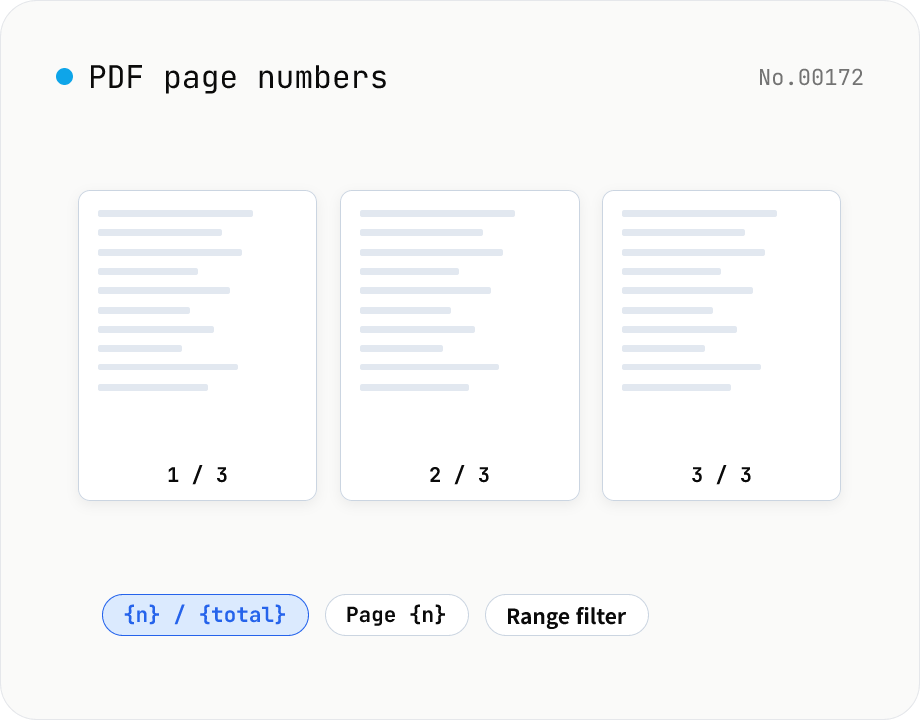
PDF page numbers — template / 9 positions / range
Stamp page numbers onto every page of a PDF. The format is a free template (`{n}` / `{n} / {total}` / `Page {n}` etc.). Tune the placement (9-grid), font size, color, starting number, margin, and which page range to apply to. Runs entirely on pdf-lib in the browser — your files never leave the device. Batch processing and ZIP download supported.
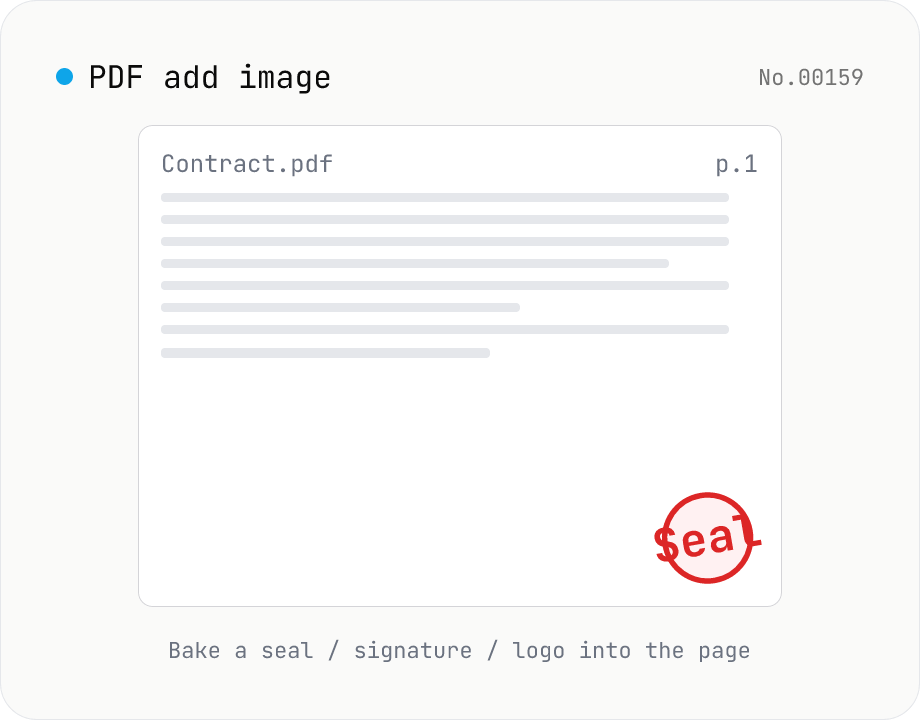
PDF add image — bake a signature / seal / logo into a page
Drop an image (PNG / JPEG / WebP) onto a chosen page of a PDF — perfect for adding a personal seal, scanned handwritten signature, or company logo just before sending the document back. Pick a 9-grid position with margin, set the image size as a percentage of page width, and tweak opacity, rotation, and which pages get the image. Powered by pdf-lib's embedPng / embedJpg. Batch multiple PDFs and download as a ZIP. Files never leave your browser.
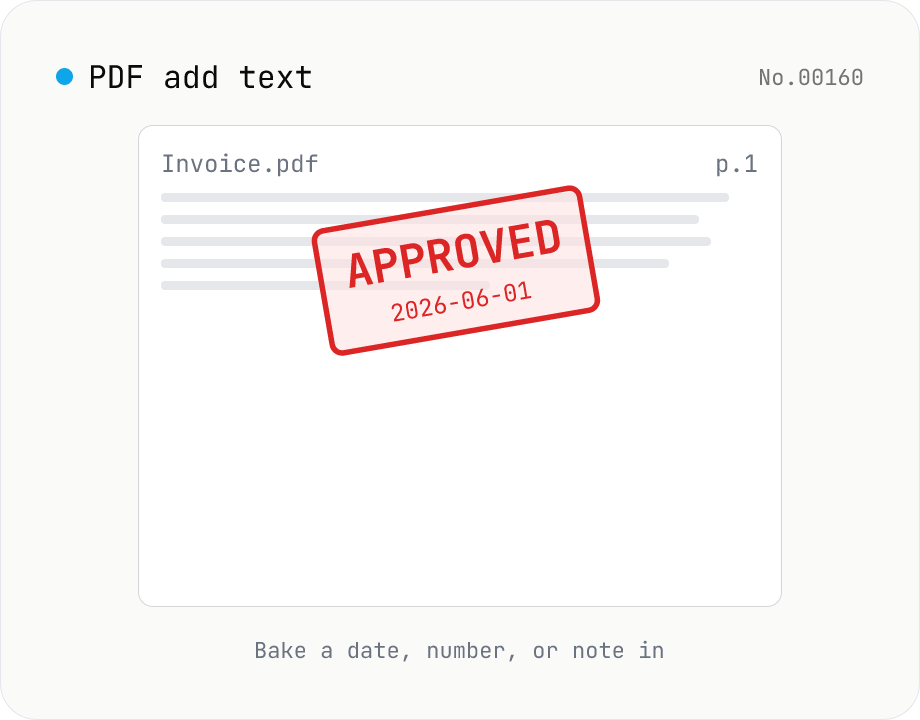
PDF add text — bake dates, notes, or labels into a page
Drop a text annotation onto a chosen page of a PDF — perfect for date stamps, file numbers, contractor names, or any quick label that just needs to look right. Position via 9-grid + margin, set font size / color / rotation / opacity, and pick which pages. Uses pdf-lib's built-in Helvetica (Regular / Bold / Oblique), so the text is ASCII / Latin only. For Japanese, build a stamp PNG with stamp-jp and place it with pdf-add-image. Multiple PDFs can be batched and downloaded as a ZIP. Files never leave your browser.