
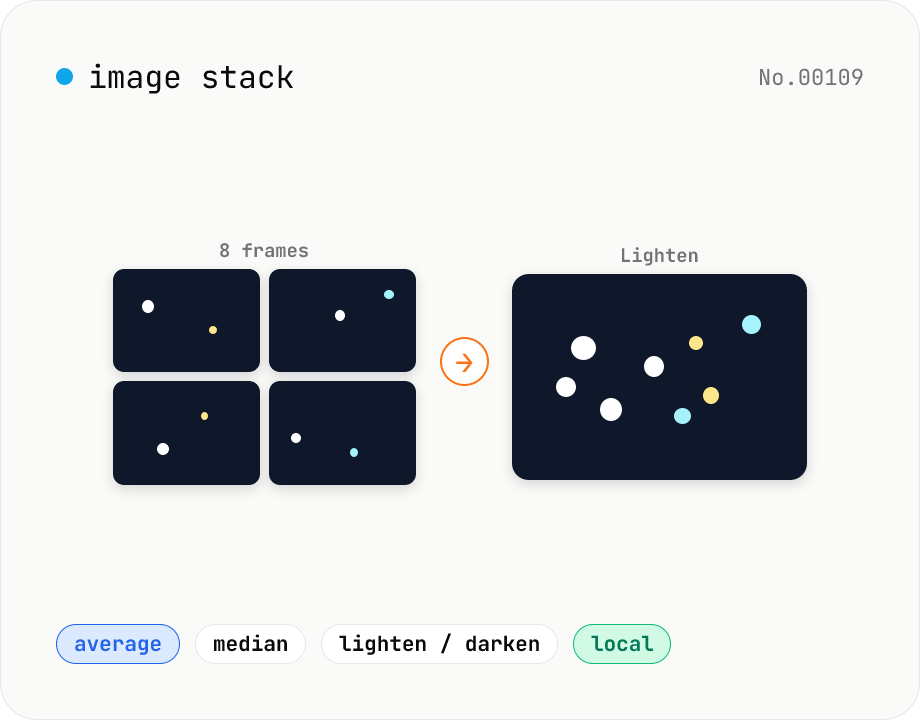
Image stack — average / median / lighten / darken multiple images
Combine multiple same-size images (JPEG / PNG / WebP) into one PNG by stacking them per-pixel: average for astrophotography noise reduction, median to remove people from a busy scene, maximum (lighten) for star trails or firework composites, minimum (darken) to keep the dark frames. Runs entirely in Canvas + getImageData; your photos never leave your device.
How to use
Drop or pick two or more images. They must all share the same dimensions. Pick a stack mode: Average for denoising, Median for removing moving objects, Lighten for accumulating bright detail (star trails, fireworks), Darken for keeping the dark frames. Click Stack. The browser composites the images per pixel via Canvas. Save the result as PNG (alpha preserved).
FAQ
- Can I stack images of different sizes?
- No. If any image differs from the baseline (first image) size, the tool refuses to stack. Resize them first with the image-resize tool.
- How many frames do I need for astrophotography denoising?
- Random noise decreases with the square root of the number of frames: 8 frames roughly cut it by 1/3, 16 by 1/4. Use 8–32 same-exposure shots on a tripod for best results.
- How many frames for median?
- To erase moving subjects, ensure each subject occupies fewer than half the frames at any given pixel. 5–10 frames work for fast-moving subjects; use 15+ for slower ones.
- Star trails: Lighten or Average?
- Use Lighten. It keeps the brightest sample at each pixel, so every star position is preserved. Average dilutes the trail.
- Median uses a lot of memory.
- Median keeps every pixel for every frame in RAM. Large images × many frames can use hundreds of MB. Downscale to ~2K or reduce the frame count if your browser crashes.
- Is anything uploaded?
- No. Canvas + getImageData runs entirely in your browser.
Related tools
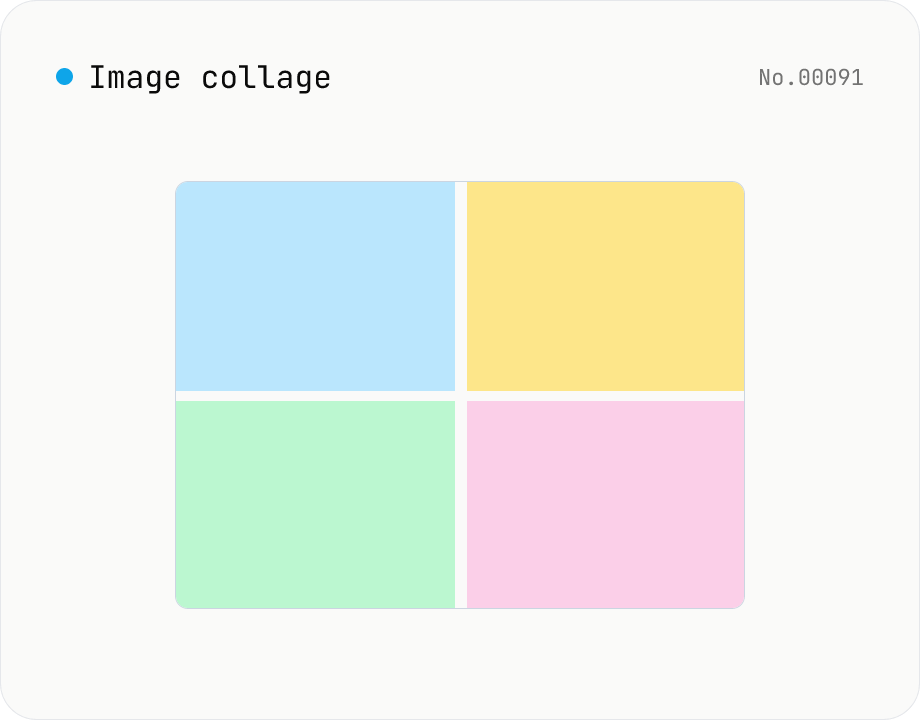
Image collage — grid / horizontal / vertical layout
Combine multiple images into one — as a grid, a horizontal strip, or a vertical strip. Composited via Canvas entirely in the browser. Tune columns, gap, padding, background color and output format (PNG / JPEG / WebP). Reorder with up/down buttons.
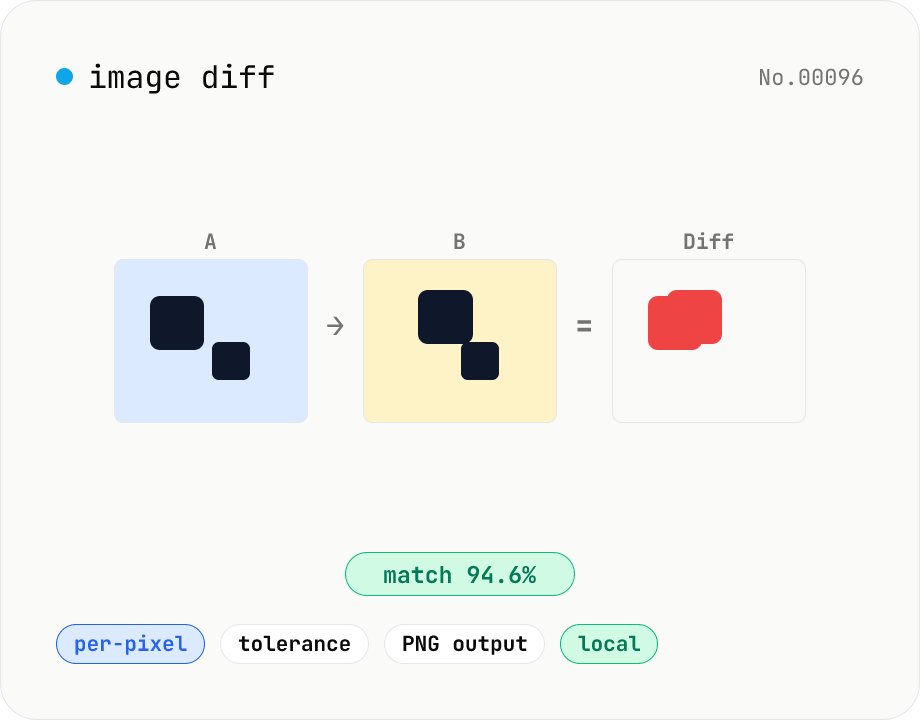
Image difference — highlight pixel diffs between two images
Compare two images (JPEG / PNG / WebP / GIF) pixel-by-pixel on a canvas and produce a diff image that highlights only the changed pixels in your chosen color. Great for design QA, plagiarism checks, regression testing, or screenshot diffing. Tunable threshold lets you ignore near-identical pixels and shows the match percentage. Two display modes (diff only / overlay on top of the original). Everything runs in the browser — your images are never uploaded.
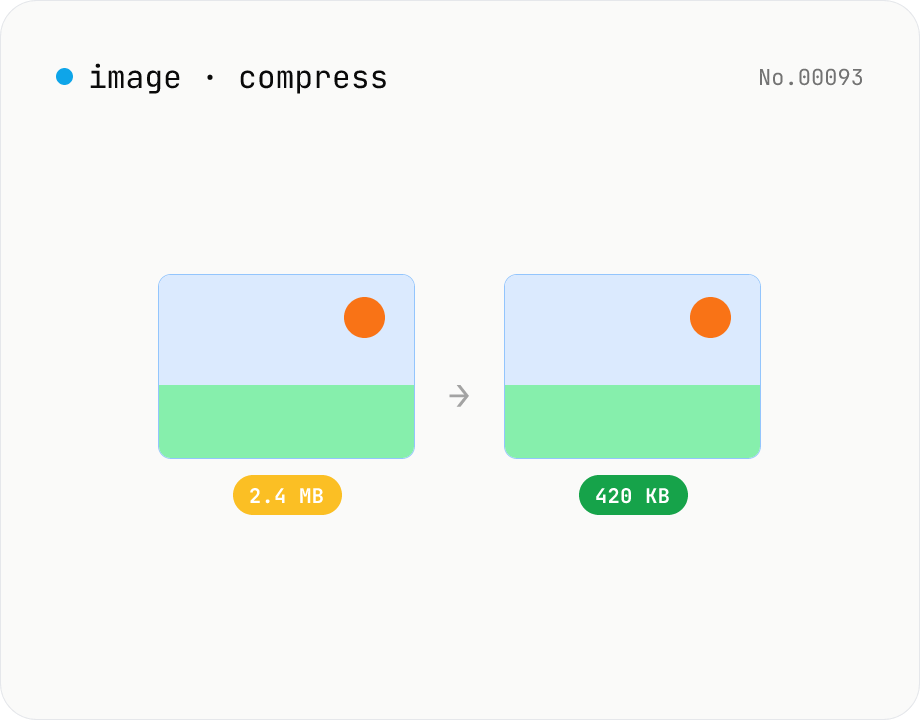
Image compress — shrink JPG / PNG / WebP without resize
Shrink image file sizes without changing dimensions. JPEG / WebP are re-encoded via a quality slider; PNG is losslessly optimised with oxipng (WASM). Batch process multiple files and download individually or as a ZIP. Runs entirely in your browser.
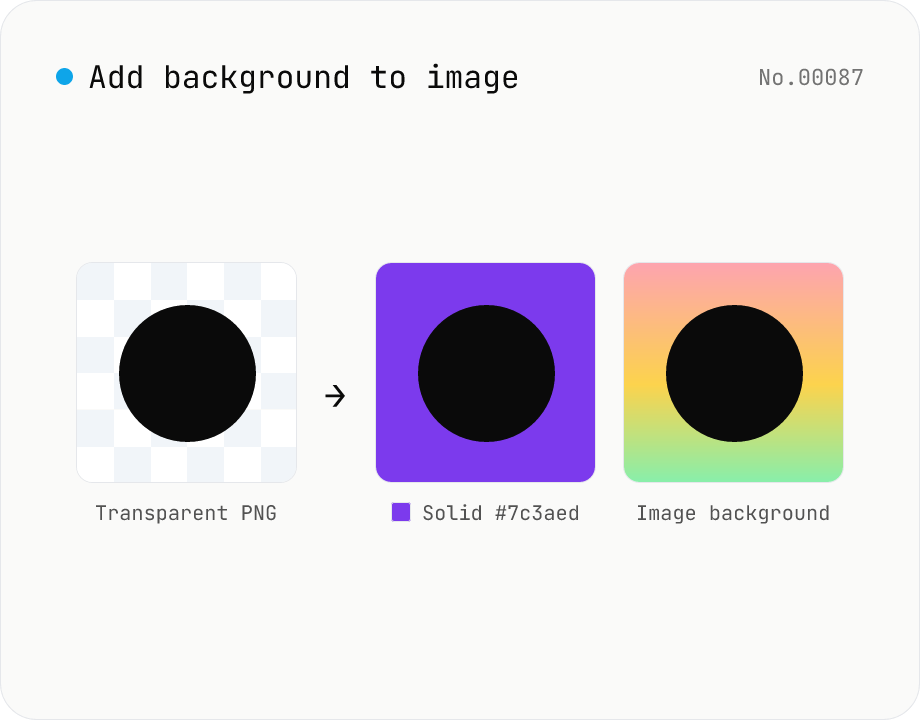
Add image background — solid color or another photo overlay
Composite a solid color (hex code) or another image as the background for transparent PNGs and photos. Runs on the local Canvas — nothing leaves your browser. Either fill the original transparent areas or add padding on all sides and let the background wrap around. Batch-process and download as a ZIP. Output keeps the source format (PNG / JPEG / WebP).