
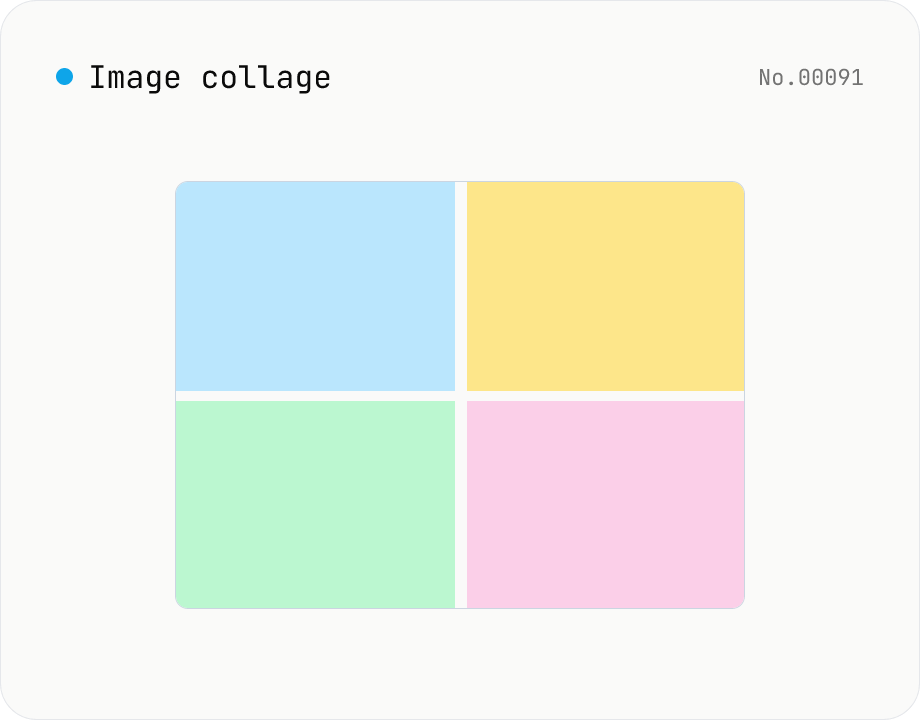
Image collage — grid / horizontal / vertical layout
Combine multiple images into one — as a grid, a horizontal strip, or a vertical strip. Composited via Canvas entirely in the browser. Tune columns, gap, padding, background color and output format (PNG / JPEG / WebP). Reorder with up/down buttons.
How to use
Drop two or more images, pick a layout (Grid / Horizontal / Vertical), then click Create collage. Canvas composes them with the chosen column count, gap, padding and background color. Use the up/down buttons to reorder, and choose the output format (PNG / JPEG / WebP) before downloading.
FAQ
- Are images uploaded?
- No. Compositing runs on Canvas; images never leave your browser.
- What's the difference between Horizontal and Vertical strips?
- Horizontal normalizes the heights and lays the images out left-to-right; Vertical normalizes the widths and lays them top-to-bottom. Aspect ratios are preserved.
- How is the grid cell size decided?
- Each cell uses the maximum width and height across all inputs. Every image is centered inside its cell using `contain`, with letterboxes filled by the background color.
- What if the output is too big?
- Run the resize tool on the result. Compositing keeps the original resolution to preserve quality.
- Does JPEG output keep transparency?
- No — JPEG has no alpha channel, so transparent areas are flattened to the chosen background color. Use PNG or WebP to preserve transparency.
Related tools
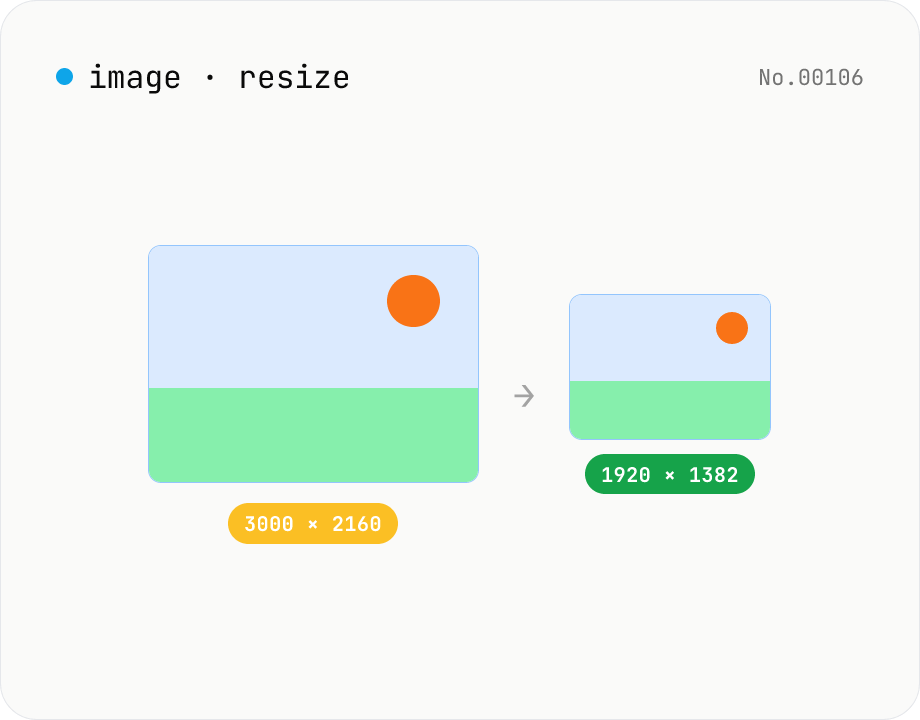
Image resize — by px or %, keep or lock aspect ratio
Resize JPEG / PNG / WebP images by specifying the longer side in pixels — aspect ratio is preserved. Batch process multiple files and download individually or as a ZIP. Runs entirely in your browser.
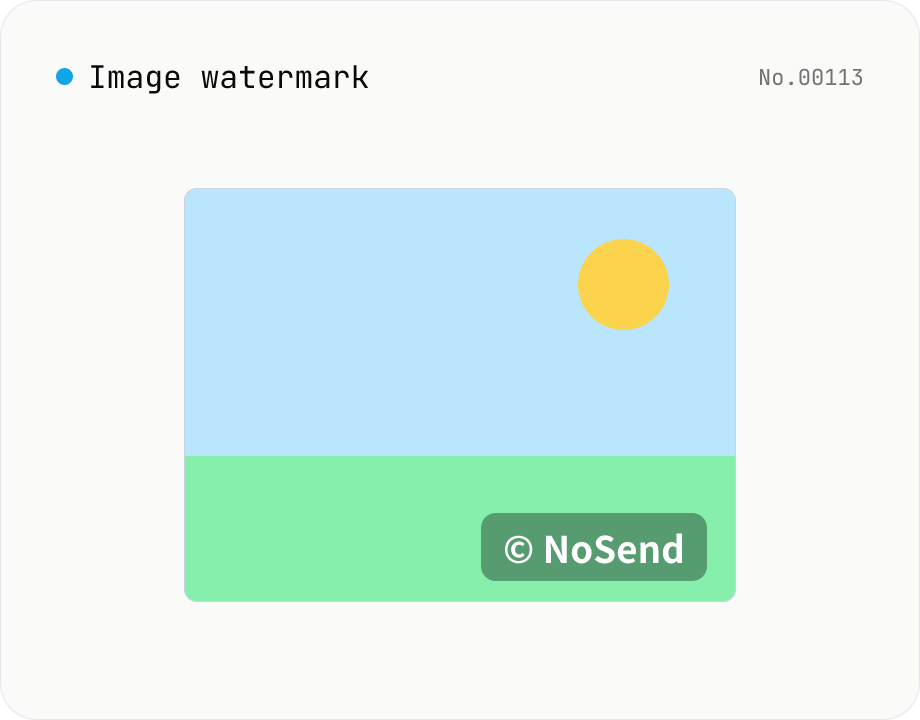
Image watermark — overlay text or image at 9-grid position
Overlay a text or image watermark onto your photos. Composited via Canvas entirely in the browser. Choose position (9-grid), size, opacity and margin. Batch-process and download as a single ZIP. Output keeps the original format (PNG / JPEG / WebP).
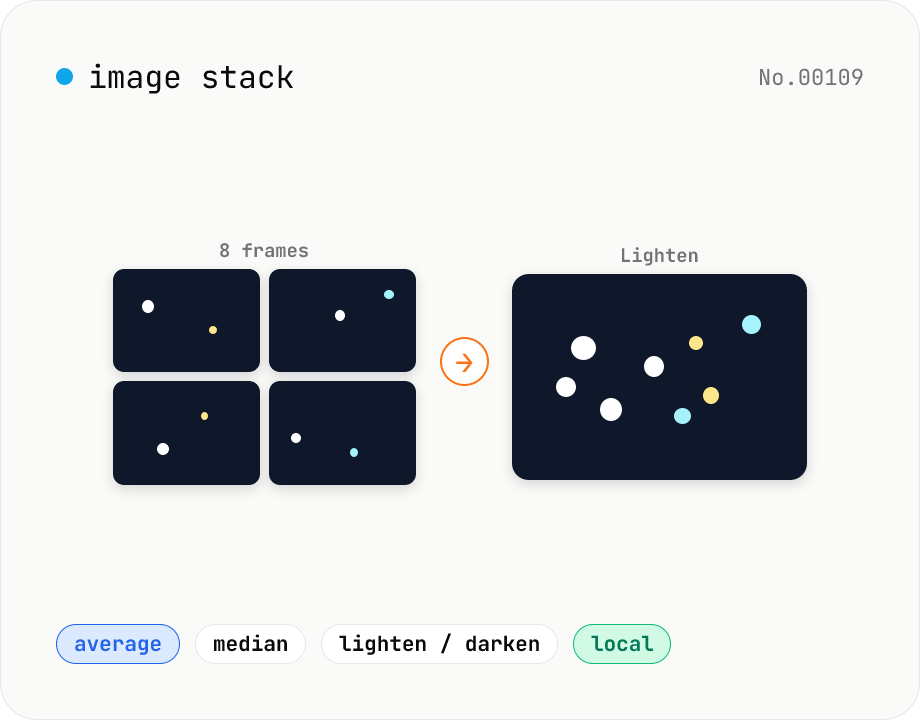
Image stack — average / median / lighten / darken multiple images
Combine multiple same-size images (JPEG / PNG / WebP) into one PNG by stacking them per-pixel: average for astrophotography noise reduction, median to remove people from a busy scene, maximum (lighten) for star trails or firework composites, minimum (darken) to keep the dark frames. Runs entirely in Canvas + getImageData; your photos never leave your device.
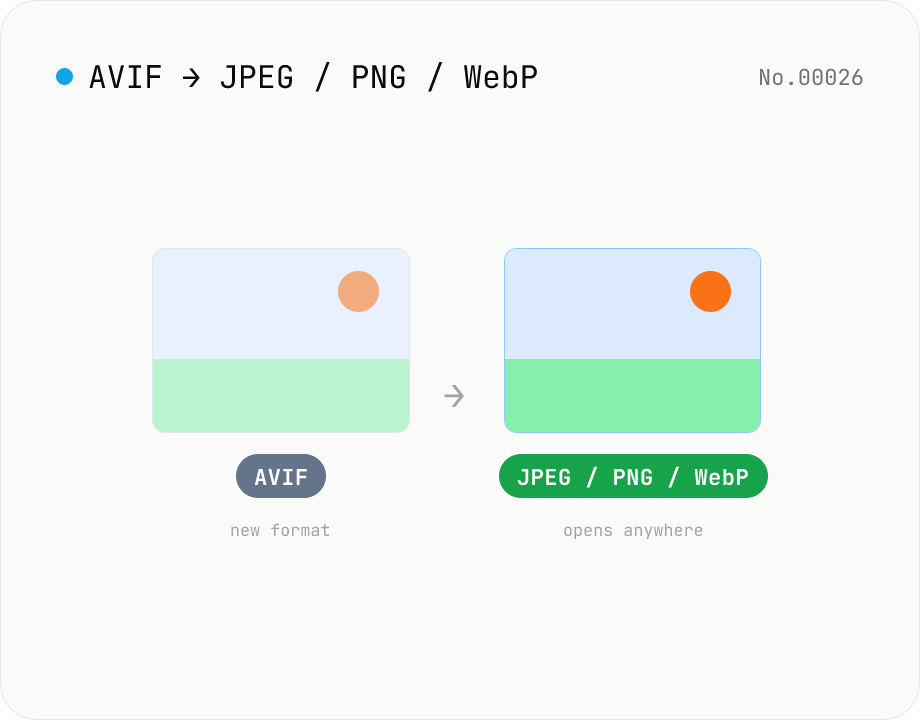
Convert AVIF photos to JPG / PNG / WebP — compatible everywhere
Decode .avif images with the browser-native AVIF decoder and re-encode them as JPEG / PNG / WebP. AVIF is great for the web but older Safari versions, email clients, Slack and Office still can't preview it — convert before sending. Batch conversion with single-click ZIP download is supported. Files never leave your device — everything runs in the browser.