
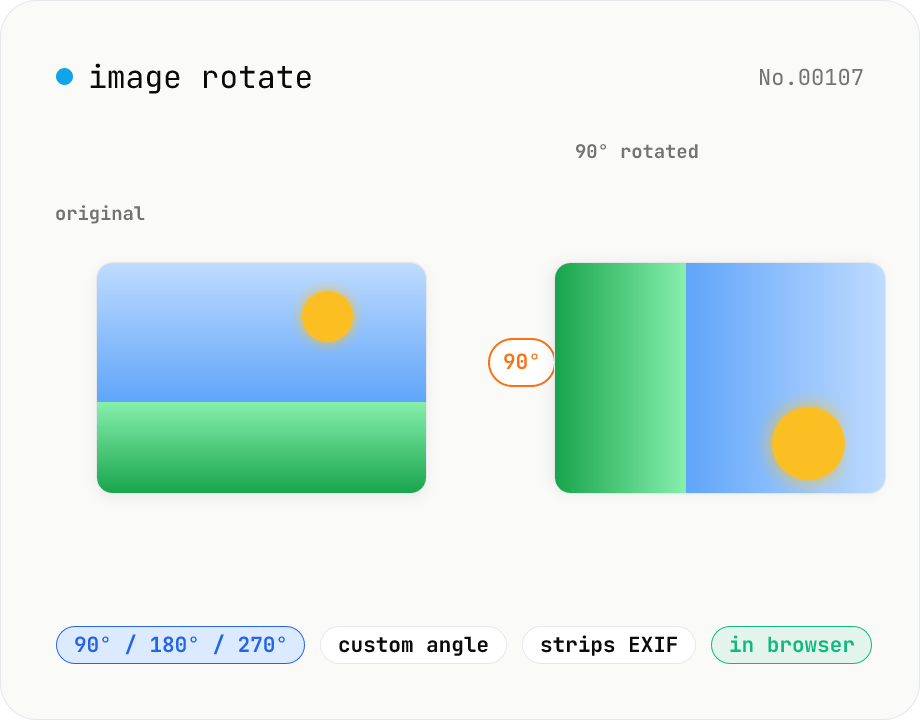
Image rotate — 90° / 180° / 270° presets or custom angle
Rotate JPEG / PNG / WebP images by 90° / 180° / 270° or a custom angle. For custom angles, choose a background color (transparent / white / black) to fill the corners. Pick an output format (PNG / JPEG / WebP) with quality control for the lossy formats. Your image never leaves the browser — every step runs locally.
How to use
Pick a rotation angle (90° / 180° / 270° / custom), then drop or choose an image. If you pick custom, set the angle (-360°–360°) and a background color (transparent / white / black). Choose the output format (PNG / JPEG / WebP) and quality (for the lossy ones), then click Rotate to download the result. The image is re-encoded through canvas so EXIF / GPS metadata is stripped. Nothing is uploaded — every step runs locally in your browser.
FAQ
- Is my image uploaded to a server?
- No. Files are read locally with the Image API, decoded into a canvas, rotated via canvas.rotate, and re-exported through toBlob. No network traffic is generated at any step.
- What's the difference between 90°-step and custom rotation?
- 90° / 180° / 270° fit the output exactly (just swapping width and height), so there's no background fill and no quality loss. Custom angles leave triangular gaps in the corners, which is why you need to pick a background color.
- Are EXIF / GPS metadata preserved?
- No. The rotation goes through canvas, which strips orientation tags, GPS data, and other EXIF fields. This doubles as a metadata-strip tool before posting publicly.
- Which image formats are supported?
- Any format your browser can natively decode — JPEG, PNG, and WebP in practice. For HEIC photos from iPhone, convert them with the HEIC → JPEG tool first.
- Which output format should I pick?
- Use PNG or WebP to keep the transparent background for custom angles. Use JPEG or WebP for the smallest opaque files.
- Is the output the same size as the input?
- For 90° / 180° / 270° the pixel count is identical (width and height are just swapped). Custom angles produce the smallest axis-aligned bounding box, which is slightly larger than the original (e.g. ~√2× for a 45° rotation).
Related tools
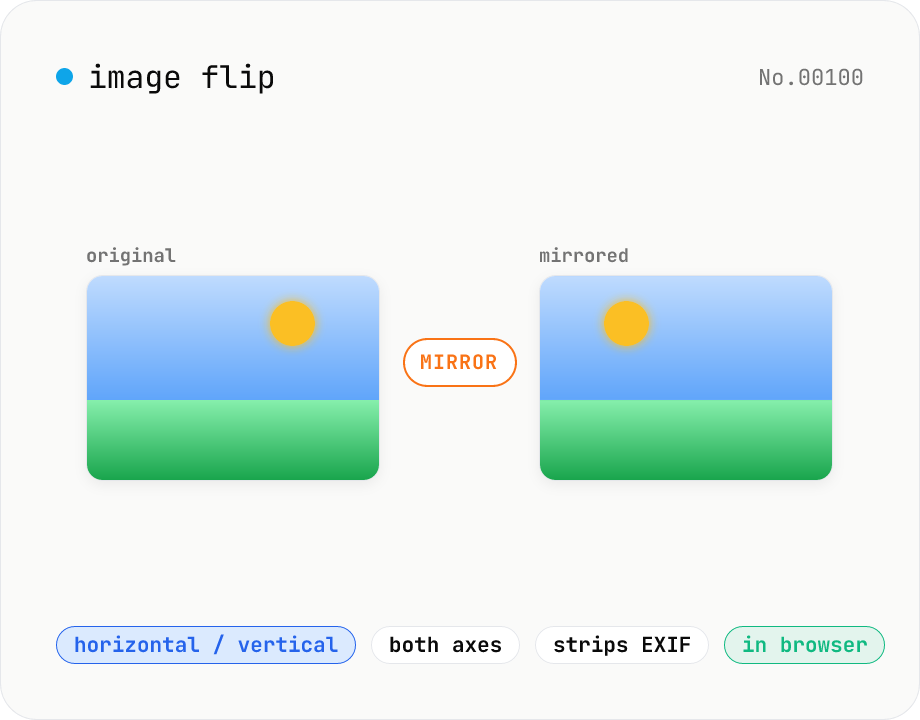
Image flip — mirror horizontally / vertically / both
Mirror JPEG / PNG / WebP images horizontally (left ↔ right), vertically (top ↔ bottom), or both (180° point symmetry). Great for correcting selfies and reflections in mirrors or water. Pick an output format (PNG / JPEG / WebP) with quality control for the lossy formats. Your image never leaves the browser — every step runs locally.
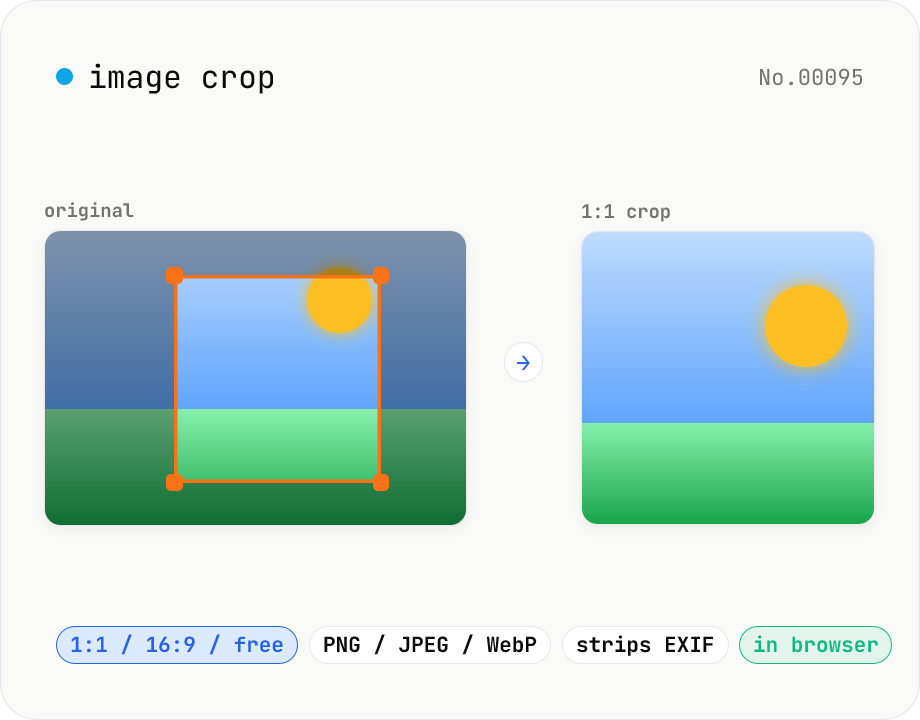
Image crop — drag to trim with free ratio or pixel size
Crop JPEG / PNG / WebP images by dragging directly on the preview. Pick an aspect ratio (free / 1:1 / 16:9 / 4:3 / 3:4 / 9:16) and an output format (PNG / JPEG / WebP) with quality control for the lossy formats. Your image never leaves the browser — every step runs locally.
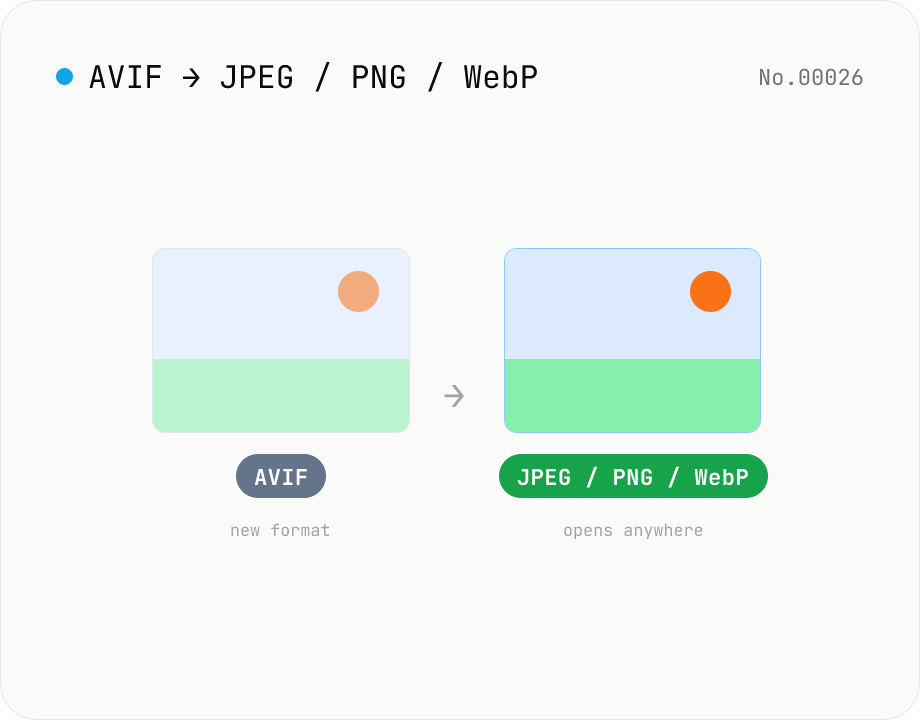
Convert AVIF photos to JPG / PNG / WebP — compatible everywhere
Decode .avif images with the browser-native AVIF decoder and re-encode them as JPEG / PNG / WebP. AVIF is great for the web but older Safari versions, email clients, Slack and Office still can't preview it — convert before sending. Batch conversion with single-click ZIP download is supported. Files never leave your device — everything runs in the browser.
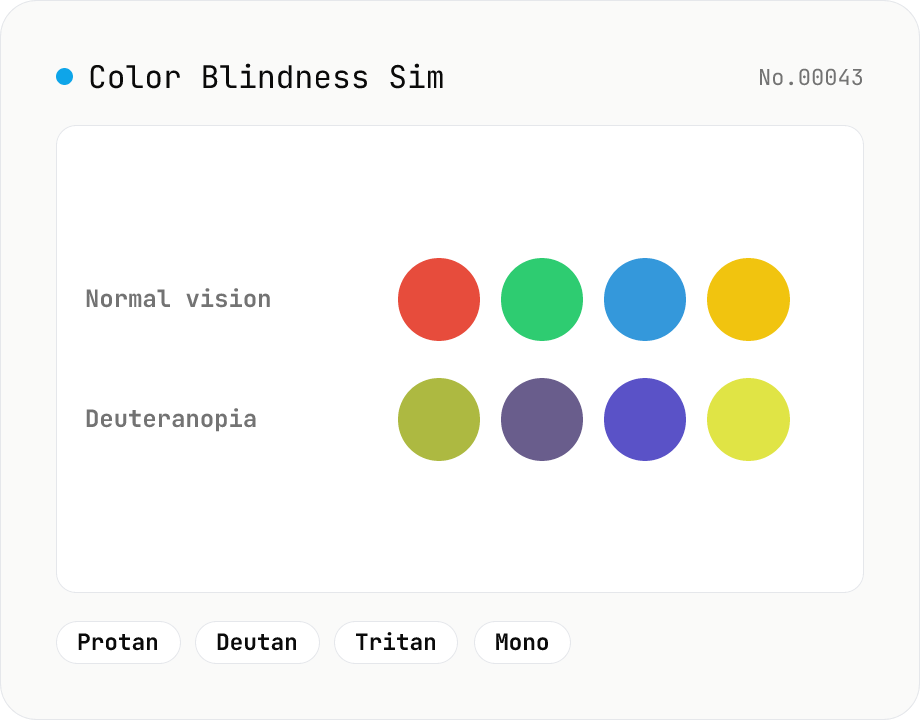
Color Blindness Simulator
Simulate how an image looks under protanopia (red-blind), deuteranopia (green-blind), tritanopia (blue-blind), or achromatopsia. Check whether your design or chart is color-accessible. Runs in the browser with Canvas and transform matrices — your image is never uploaded.