
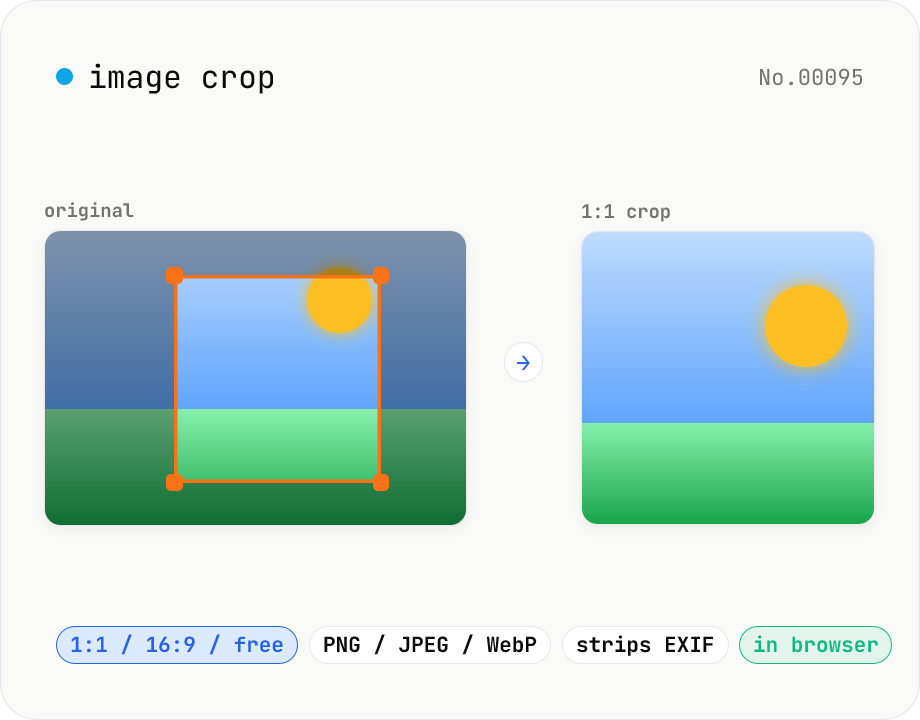
Image crop — drag to trim with free ratio or pixel size
Crop JPEG / PNG / WebP images by dragging directly on the preview. Pick an aspect ratio (free / 1:1 / 16:9 / 4:3 / 3:4 / 9:16) and an output format (PNG / JPEG / WebP) with quality control for the lossy formats. Your image never leaves the browser — every step runs locally.
How to use
Pick an aspect ratio (free / 1:1 / 16:9 / 4:3 / 3:4 / 9:16), then drop or choose an image. Drag on the preview to reposition; use the wheel or slider to zoom. Choose the output format (PNG / JPEG / WebP) and quality (for the lossy ones), then click Crop to download the result. The image is re-encoded through canvas so EXIF / GPS metadata is stripped. Nothing is uploaded — every step runs locally in your browser.
FAQ
- Is my image uploaded to a server?
- No. Files are read locally with FileReader, decoded into a canvas, and re-exported via canvas.drawImage + toBlob. No network traffic is generated at any step.
- Can I change the aspect ratio after starting?
- Yes. Switching the aspect ratio updates the crop box immediately (position and zoom are preserved where possible). Drag again to fine-tune.
- Which output format should I pick?
- Use PNG for lossless output, JPEG for the smallest opaque files, or WebP for a transparent format that's smaller than PNG and JPEG. WebP works in all current major browsers.
- Are EXIF / GPS metadata preserved?
- No. The crop pipeline goes through canvas, which strips orientation tags, GPS data, and other EXIF fields. This is a useful side-effect when posting publicly.
- Which image formats are supported?
- Any format your browser can natively decode — JPEG, PNG, and WebP in practice. For HEIC photos from iPhone, convert them with the HEIC → JPEG tool first.
- Is the output downscaled?
- No. The crop box's position is mapped back to original pixel coordinates, so the output is pixel-accurate at full resolution. Zooming in the UI doesn't reduce output quality.
Related tools
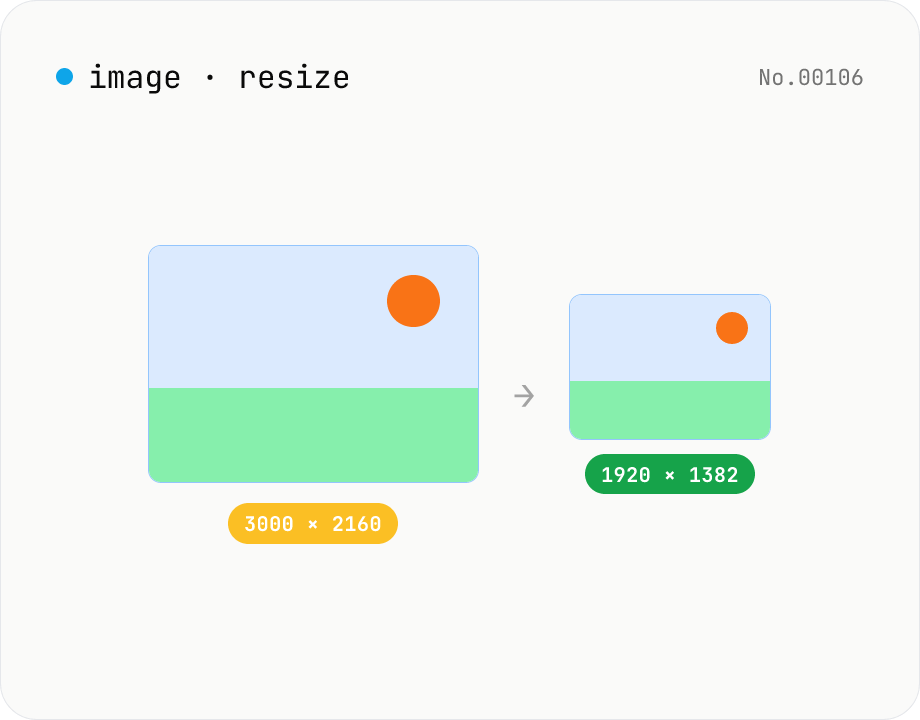
Image resize — by px or %, keep or lock aspect ratio
Resize JPEG / PNG / WebP images by specifying the longer side in pixels — aspect ratio is preserved. Batch process multiple files and download individually or as a ZIP. Runs entirely in your browser.
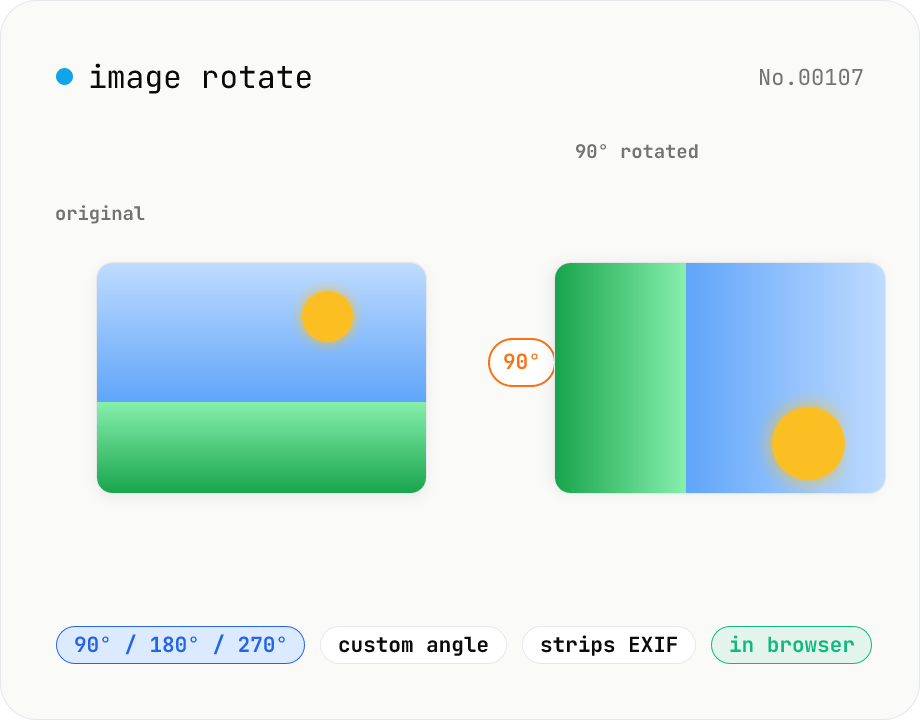
Image rotate — 90° / 180° / 270° presets or custom angle
Rotate JPEG / PNG / WebP images by 90° / 180° / 270° or a custom angle. For custom angles, choose a background color (transparent / white / black) to fill the corners. Pick an output format (PNG / JPEG / WebP) with quality control for the lossy formats. Your image never leaves the browser — every step runs locally.
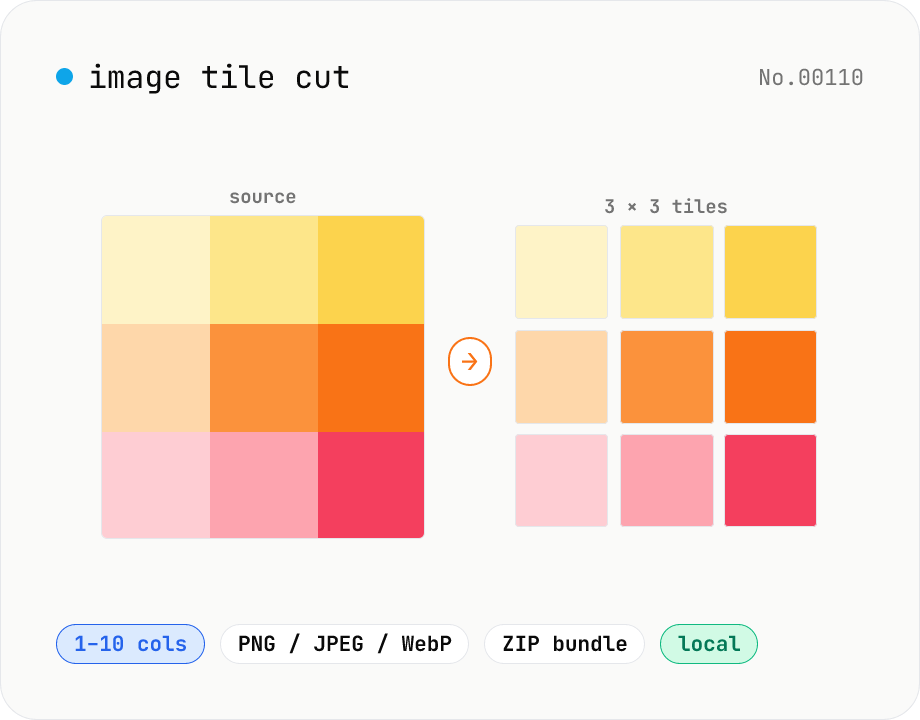
Image tile cut — split into an N×M grid
Cut an image into N columns × M rows of tiles. Canvas slices precisely and exports each tile as PNG / JPEG / WebP. Perfect for Instagram 3×3 grid posts, sticker-board layouts, jigsaw puzzles, or splitting a tall scrolling post into multiple slides. Save tiles individually or download all as a ZIP. Everything runs in your browser — no upload.
Convert AVIF photos to JPG / PNG / WebP — compatible everywhere
Decode .avif images with the browser-native AVIF decoder and re-encode them as JPEG / PNG / WebP. AVIF is great for the web but older Safari versions, email clients, Slack and Office still can't preview it — convert before sending. Batch conversion with single-click ZIP download is supported. Files never leave your device — everything runs in the browser.