
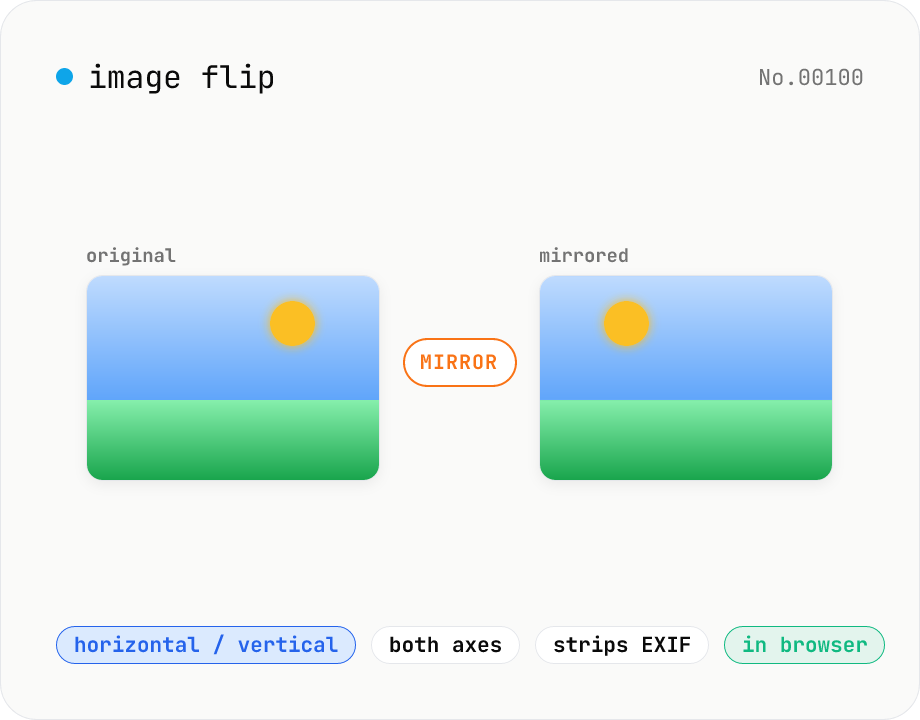
Image flip — mirror horizontally / vertically / both
Mirror JPEG / PNG / WebP images horizontally (left ↔ right), vertically (top ↔ bottom), or both (180° point symmetry). Great for correcting selfies and reflections in mirrors or water. Pick an output format (PNG / JPEG / WebP) with quality control for the lossy formats. Your image never leaves the browser — every step runs locally.
How to use
Pick a flip direction (horizontal / vertical / both), then drop or choose an image. Pick the output format (PNG / JPEG / WebP) and quality (for the lossy ones), then click Flip to download the mirrored image. The image is re-encoded through canvas so EXIF / GPS metadata is stripped. Nothing is uploaded — every step runs locally in your browser.
FAQ
- Is my image uploaded to a server?
- No. Files are read locally with the Image API, decoded into a canvas, mirrored via canvas.scale, and re-exported through toBlob. No network traffic is generated at any step.
- How is 'both' different from a 180° rotation?
- The output is pixel-identical. They're split into two tools because the mental model is different — people looking for a mirror don't search for 'rotate'. Use this tool for mirroring; use the rotate tool for orientation correction.
- Are EXIF / GPS metadata preserved?
- No. Flipping goes through canvas, which strips orientation tags, GPS data, and other EXIF fields. This doubles as a metadata-strip tool before posting publicly.
- Which image formats are supported?
- Any format your browser can natively decode — JPEG, PNG, and WebP in practice. For HEIC photos from iPhone, convert them with the HEIC → JPEG tool first.
- Which output format should I pick?
- Use PNG or WebP to preserve the source's alpha channel. Use JPEG or WebP for the smallest opaque files.
- Does the resolution change?
- No. Flipping only reverses coordinates, so the output pixel dimensions are identical to the input (unlike rotation, which can enlarge the bounding box).
Related tools
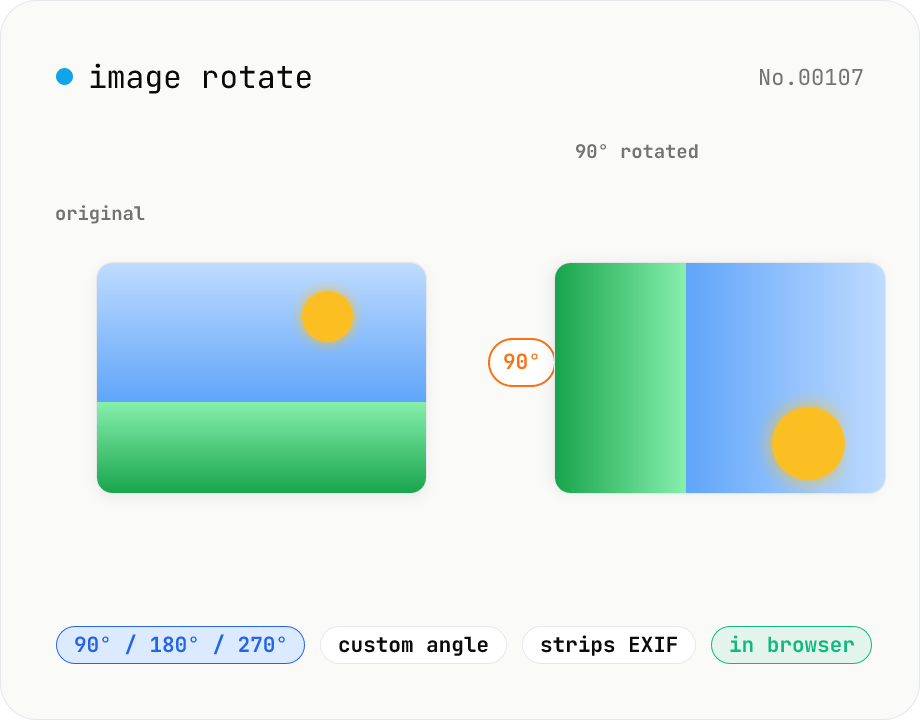
Image rotate — 90° / 180° / 270° presets or custom angle
Rotate JPEG / PNG / WebP images by 90° / 180° / 270° or a custom angle. For custom angles, choose a background color (transparent / white / black) to fill the corners. Pick an output format (PNG / JPEG / WebP) with quality control for the lossy formats. Your image never leaves the browser — every step runs locally.
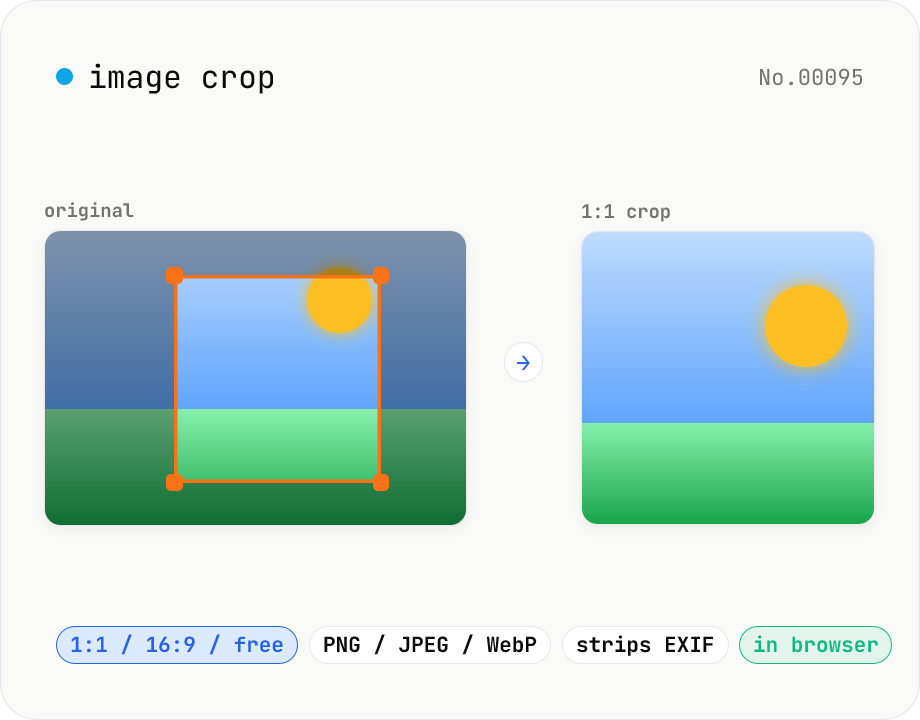
Image crop — drag to trim with free ratio or pixel size
Crop JPEG / PNG / WebP images by dragging directly on the preview. Pick an aspect ratio (free / 1:1 / 16:9 / 4:3 / 3:4 / 9:16) and an output format (PNG / JPEG / WebP) with quality control for the lossy formats. Your image never leaves the browser — every step runs locally.
Convert AVIF photos to JPG / PNG / WebP — compatible everywhere
Decode .avif images with the browser-native AVIF decoder and re-encode them as JPEG / PNG / WebP. AVIF is great for the web but older Safari versions, email clients, Slack and Office still can't preview it — convert before sending. Batch conversion with single-click ZIP download is supported. Files never leave your device — everything runs in the browser.
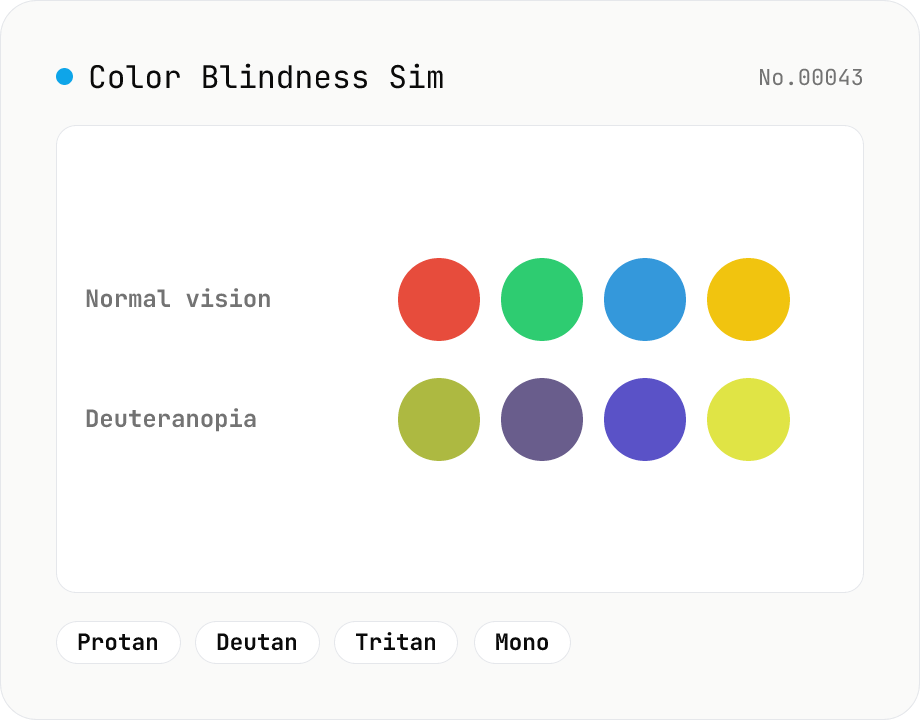
Color Blindness Simulator
Simulate how an image looks under protanopia (red-blind), deuteranopia (green-blind), tritanopia (blue-blind), or achromatopsia. Check whether your design or chart is color-accessible. Runs in the browser with Canvas and transform matrices — your image is never uploaded.