
Color mixer — blend N colors in sRGB / HSL / OKLCH / LAB side by side
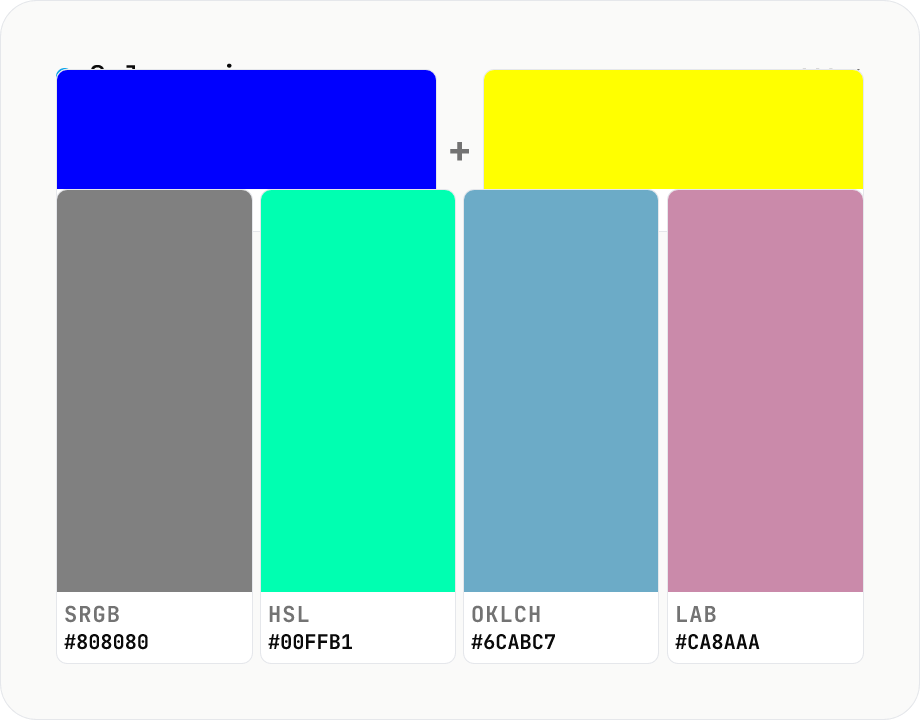
Mix 2 – 8 colors with per-color weights and compare the result across **four color spaces (sRGB / HSL / OKLCH / LAB)** in one view. Mixing blue and yellow in sRGB looks muddy and green-ish; in OKLCH it lands at a vivid neutral — the classic color-science gotcha, visualized. Useful for generating design-token mid-points, brand-color tints / shades, and comparing perceptual deltas between A/B color picks. Adjust per-color weights (0.0 – 1.0) and mix three or more colors at once. Complements `color-blend` (interpolate two colors into an N-step palette); this tool focuses on **N → 1 mix + color-space comparison**. Copy any swatch as HEX / CSS instantly. Runs entirely in your browser — nothing is uploaded.
How to use
Pick colors (HEX) and weights (0.0 – 1.0). Add up to 8 colors. The mix is computed in four color spaces (sRGB / HSL / OKLCH / LAB) and shown side by side. Click any swatch to copy its HEX to the clipboard. Sample buttons demo classic mixes like *Blue + Yellow*, brand trios and sunset 4-tone palettes.
In depth
The mixing calculation you run on brand colors leaves a log trail
Mixing tools get used when you’re blending brand colors to find a midpoint, when you’re computing a hover-state color from a base and surface, or when you’re finding gradient stops inside a design system. In each of those cases, the HEX values you enter describe the brand’s palette strategy.
Running the same calculation through an online service means the server sees ‘user mixed these specific colors at this ratio’ and logs it. It’s easy to underestimate this as a risk, but unreleased color palettes — especially when multiple designers on the same project run variations — can accumulate into a readable signal about a brand’s direction.
Why the ‘right’ midpoint depends on which color space you use
Most online mixing tools return the sRGB channel average and nothing else. But the color humans perceive as ‘halfway’ between two inputs doesn’t always match sRGB arithmetic. Blue (#0000FF) and yellow (#FFFF00) averaged in sRGB gives grey (#808080), while the same inputs in OKLCH produce a color closer to what a person actually perceives as intermediate.
Seeing this difference requires computing in multiple color spaces simultaneously. sRGB / HSL / OKLCH / LAB shown side by side lets you compare and pick the result that fits your specific use case. All four calculations are pure arithmetic in the browser — no external dependency, no request.
Color-space transforms and weighted averages in the browser
The tool computes a weighted average in each of the four color spaces. HSL hue averaging uses the standard complex-number technique — convert each hue to (cos, sin), weighted-average the components, then recover the angle with atan2 — to handle the 0°/360° wraparound correctly. OKLCH and LAB conversions use CIE-standard matrix operations with gamma correction, all implemented in JavaScript.
Every step happens inside browser memory. The HEX values you enter never leave the page. Open DevTools Network while you experiment — the request log stays empty throughout. The source is public on GitHub including the conversion matrices.
Before you commit the mixed color to a design
After finding a midpoint color you like, validate it in context: check that the contrast ratio against its expected background meets WCAG AA / AAA (color-contrast-checker), confirm it remains distinguishable for users with color-vision differences (color-blindness-sim), and verify it harmonises with the original inputs at actual screen size. Which of the four color-space results looks ‘right’ is ultimately a perceptual judgment — the tool gives you four candidates, the eye makes the call. To inspect the chosen mid-point HEX in additional spaces (Oklab, Lab, HCL, named CSS), color-converter expands a single value into five or more representations side by side.
What each color-space formula actually computes
sRGB mixing is the most straightforward: weighted-average each 8-bit channel (0–255). The catch is that sRGB is gamma-corrected for display (roughly a 2.2-power curve), so the arithmetic midpoint between #000000 and #FFFFFF — #808080 — sits slightly darker than the perceptual midpoint. A common workaround is to convert to linear sRGB (undo the gamma) before averaging and convert back, but this tool shows both the naive sRGB average and the perceptually uniform OKLCH / LAB results in parallel so you can choose by use case.
OKLCH is a polar-coordinate variant of Björn Ottosson’s Oklab (2020) — L (lightness), C (chroma / saturation), H (hue) — engineered for perceptual uniformity. CIE LAB (1976) uses orthogonal axes L (lightness), a (green↔red), b (blue↔yellow) approximating the Munsell perceptually uniform color system through a linear transformation of CIE XYZ. Both pass through CIE XYZ via standard matrices using Bradford chromatic adaptation or Hunt-Pointer-Estevez cone basis. HSL’s hue is circular, so averaging requires the (cos H, sin H) vector trick recovered through atan2 — the standard technique from Mardia’s circular statistics — rather than a naive numeric average.
CSS Color Module Level 4 and the color-mix() function
CSS Color Module Level 4 (W3C Working Draft as of 2024) introduces color-mix(in oklch, #ff0000 50%, #00ff00 50%), letting the browser perform perceptually uniform mixing in a specified color space. Supported in Chrome 111+, Safari 16.2+, and Firefox 113+, this is also the foundation for Tailwind v4’s opacity-handling layer.
A practical gotcha: color-mix(in srgb, ...) and color-mix(in oklch, ...) produce visibly different results for the same inputs, so consistency across a design system depends on picking one color space and sticking to it. Tailwind’s opacity utility bg-blue-500/50 mixes in OKLAB internally, which doesn’t match the result of rgba(59, 130, 246, 0.5) composited in sRGB. Comparing the four spaces side by side in this tool before writing color-mix() calls lets you choose the space whose output matches your intended design tone. When you need not a single midpoint but a full N-step interpolated ramp between two colors, color-blend extends the same color-space comparison across an 11-stop scale, which pairs naturally with the midpoint judgments made here.
FAQ
- Why does the result differ by color space?
- Each color space defines "average" differently. Averaging RGB channels in sRGB often gives perceptually muddy results (blue + yellow → dark khaki). OKLCH and LAB are perceptually uniform — they return the colour humans actually perceive as "halfway" (blue + yellow → vivid neutral grey).
- How is this different from color-blend?
- color-blend interpolates two colours into an N-step palette (blue → green in 11 stops). This tool **mixes N colors into a single result** and compares it across color spaces. Use this when you want one mid-point or a weighted average of three or more colours.
- OKLCH vs LAB?
- Both are perceptually uniform. OKLCH (Björn Ottosson, 2020) fixes a few weak spots of CIELAB (blue hue shift, saturation distortion) and is standardised in CSS Color Module Level 4 (`oklch()` is now a valid CSS function). LAB is the older CIE 1976 standard, kept here for academic and legacy comparison.
- What do the weights mean?
- How much each color contributes. Weights 1.0 / 1.0 → 50:50 average; 2.0 / 1.0 → 2:1; 0 → effectively excluded. We normalise weights so they sum to 1.
- How is HSL hue averaged?
- Hue is circular (0 – 360°), so a plain average breaks at the wraparound (avg of 350° and 10° must be 0°, not 180°). We use the standard complex-number trick: convert each hue to (cos, sin), weighted-average those, then `atan2` back.
- Blue + Yellow = Green, right?
- Additively (RGB) blue `#0000FF` + yellow `#FFFF00` = grey `#808080`. The "blue + yellow = green" you remember is **subtractive** colour (paint, ink). This tool does additive (sRGB / OKLCH / LAB) mixing — pigment mixing is a different beast.
- Is anything uploaded?
- No. Everything runs in your browser.
How to verify nothing is uploaded
This tool never sends your input outside your browser. The pages below explain how it works, how to audit it, and how the site is run.
Related tools
Color blend — interpolate two colors into an N-step palette
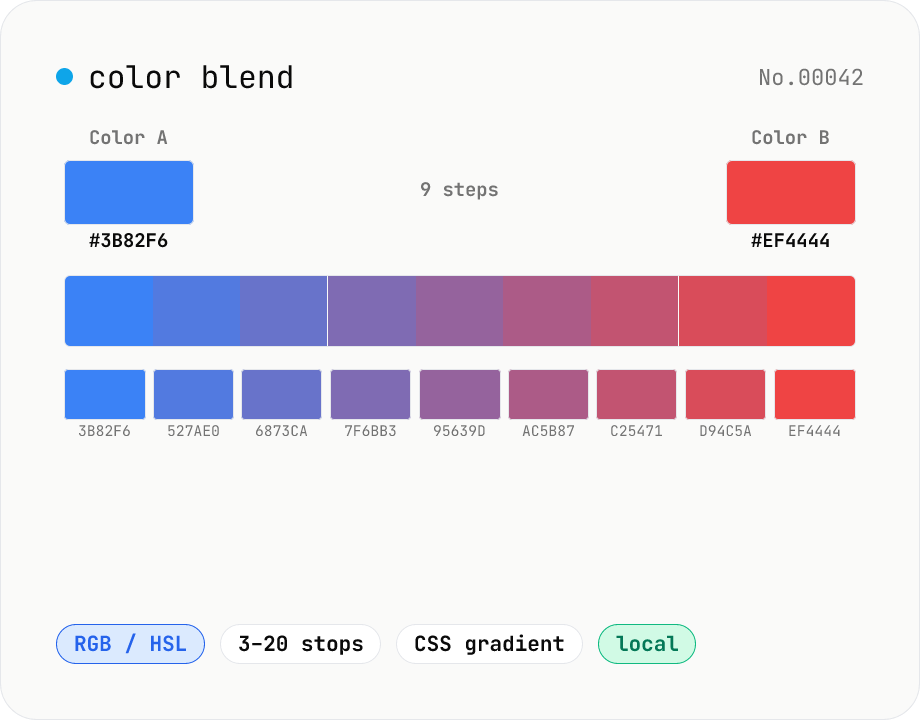
Interpolate between two colors (HEX or CSS names) to build an N-step palette. Two modes: RGB (straight RGB lerp) and HSL (hue traversal via shortest path). Great for Tailwind-style 11-shade scales, design-token shade generation, intermediate samples for `linear-gradient`, or stepped color ramps for accessibility. Click any swatch to copy its HEX; the full CSS `linear-gradient` string is also one click away. Everything runs in your browser.
Color converter — HEX / RGB / HSL / HSV
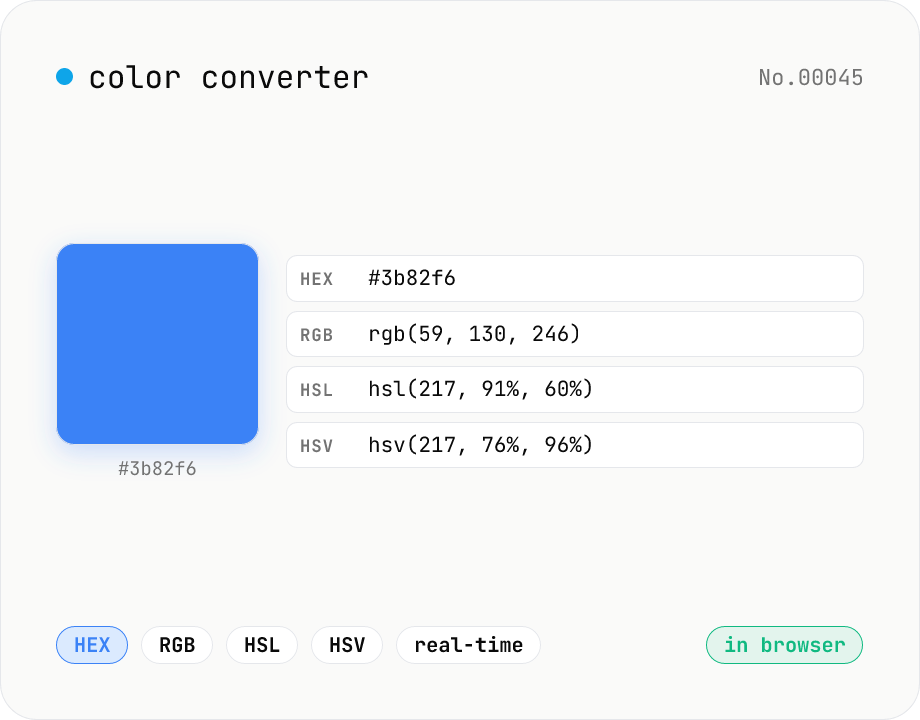
Convert colors between HEX, RGB, HSL, and HSV in real time with a built-in color picker. Edit any field and the other three update instantly. Runs entirely in your browser — your color values never leave the page.
CSS Gradient Builder (linear / radial / conic)
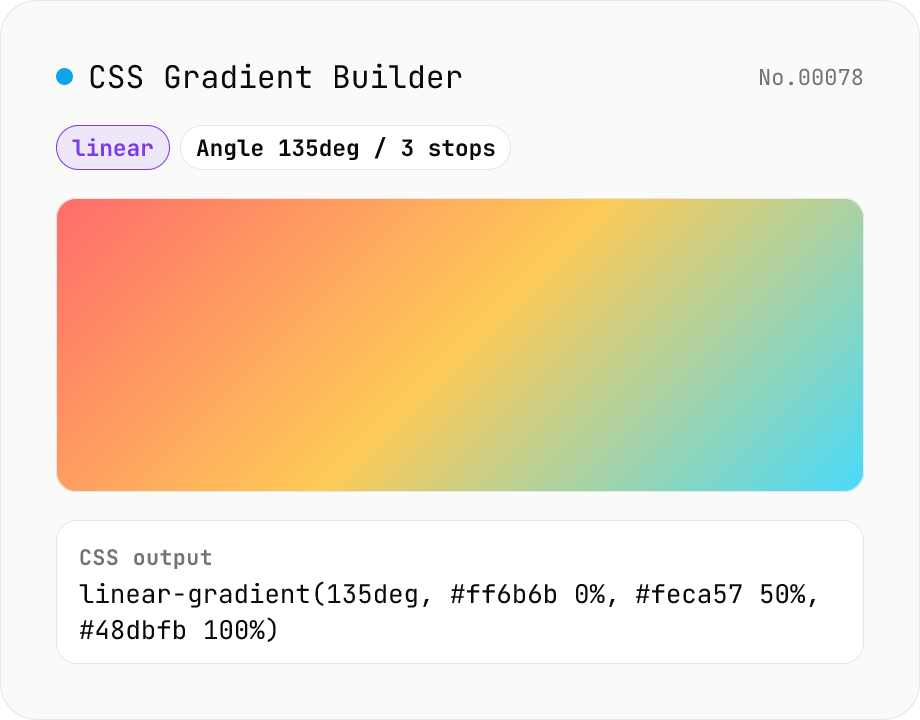
Build CSS linear-gradient / radial-gradient / conic-gradient in the browser with a Mode-first picker. Add or remove color stops with live preview, tweak angle (linear / conic), shape and extent (radial), and center position (radial / conic). Copy as a full `background: …` declaration or just the value — both work straight into Tailwind arbitrary values like `bg-[linear-gradient(...)]`. Everything renders client-side; nothing is uploaded.
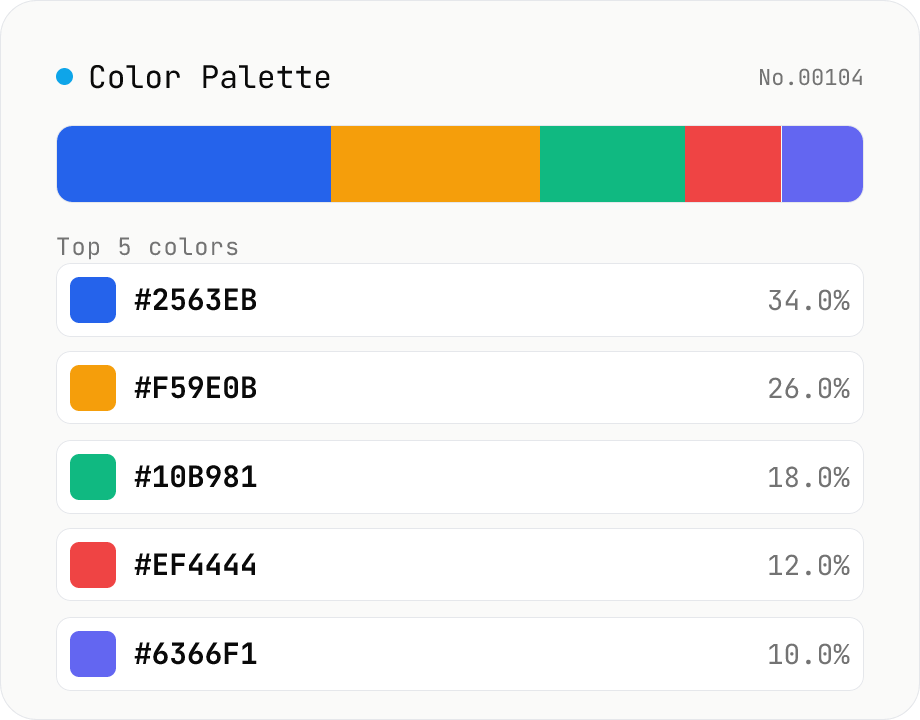
Image Color Palette Extractor
Drop an image to extract its dominant colors via median-cut quantization, with each color's HEX / RGB value and share. Choose how many colors (4–16) and see the balance in a proportional bar. Click a color to copy its HEX, or copy the whole palette as a HEX list, CSS variables, or JSON. Images are analyzed entirely in your browser and never uploaded.