
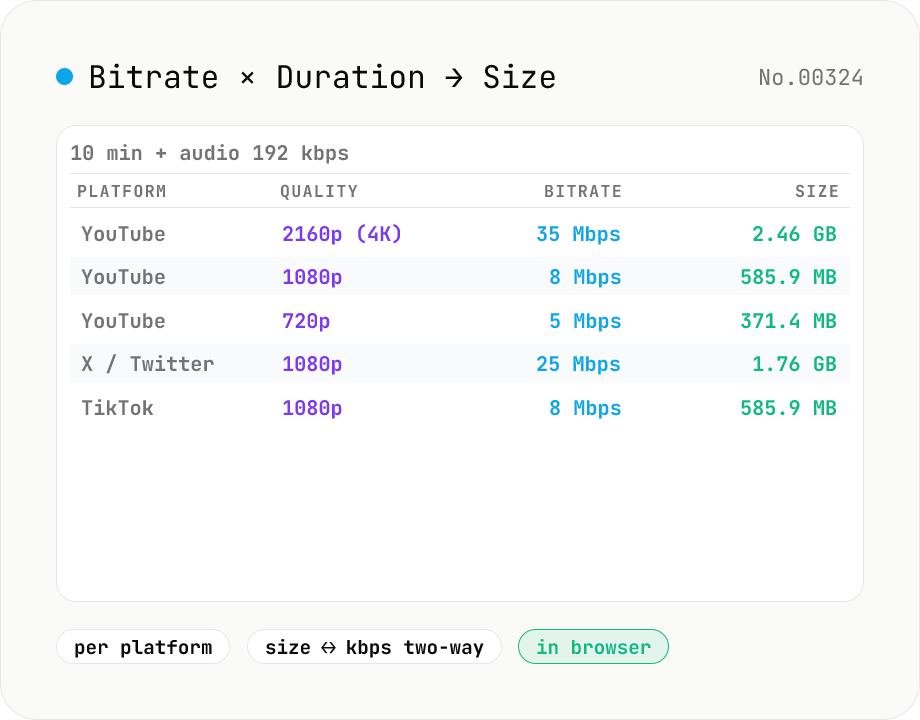
Video File Size / Bitrate Calculator
Predict file size from duration + video bitrate + audio bitrate, or reverse-engineer the required bitrate from a target file size. Side-by-side comparison of recommended bitrates from YouTube SDR (2160p / 1440p / 1080p / 720p / 480p / 360p), X / Twitter, TikTok, and Instagram Reels. Built for video editors and streamers sanity-checking upload sizes.
How to use
**Bitrate → Size** mode: enter the duration (min/sec) and the video / audio bitrates (kbps), and the tool predicts the resulting file size. **Size → Bitrate** mode: enter a target file size (e.g. 100 MB, 8 GB) and a duration, and it solves backwards for the video bitrate that fits. The **platform preset table** lists official recommended bitrates for YouTube SDR (2160p / 1440p / 1080p / 720p / 480p / 360p), X / Twitter 1080p (25 Mbps), TikTok 1080p (8 Mbps), and Instagram Reels (5 Mbps), plus the file size each one would produce for your duration. Use it to sanity-check uploads, pick encoder settings, or make sure your video fits a platform cap (X 2 GB / 140 sec free, Twitter Premium 8 GB).
In depth
Bitrate and file-size calculations describe a live production decision
Bitrate estimation runs when confirming a delivery file will meet a client’s size requirement, checking whether a clip fits a platform’s upload cap, planning storage for a video server, or deciding encoder settings before a long render. The inputs — bitrate, duration, target file size — directly specify the technical parameters of a project in flight.
“What bitrate do I need for a 60-minute video to fit inside 8 GB?” answers with a number, but the question encodes the project’s duration, quality expectations, and delivery constraints. The combination of values is a technical fingerprint of a specific piece of work. Online calculators that accept these inputs via a form and return a result via a server round-trip transmit production specifications they were never meant to hold.
Arithmetic does not require a server
File-size calculation is (video kbps + audio kbps) × 1000 × duration (s) / 8. Reverse calculation is video kbps = (target bytes × 8 / 1000 / duration) - audio kbps. Neither formula involves a lookup, a model, or an API. Platform presets (YouTube, X, TikTok, Instagram recommended bitrates) are public constants that live in the tool’s source code.
Despite this, some online calculators implement the UI as a form submission to a server endpoint. There is no technical reason for the round-trip. It serves the operator’s interests (analytics, ad impressions) at the cost of transmitting the user’s project specification to infrastructure outside their control.
All calculations run as JavaScript arithmetic — zero network requests
This tool computes fileSizeBytes = (videoBps + audioBps) × durationSec / 8 and displays the result in binary MB (1024²). Reverse calculation uses videoKbps = (targetBytes × 8 / 1000 / durationSec) - audioKbps. Platform preset bitrates are hardcoded constants based on their respective public specifications — no external API is called.
Open DevTools Network tab while computing — no request fires beyond the initial tool load. Entered values and results exist only in browser page memory. Source is on GitHub.
Project specifications are business information — calculate them locally
Bitrate planning is part of production decision-making. Keeping it in the browser means client project parameters, delivery constraints, and encode decisions stay on the device where the work is being planned — not in a third-party server’s access logs that had no business receiving them.
CBR / VBR / CRF / ABR and what each rate-control mode is actually optimising
Rate control comes in roughly four flavours. CBR (Constant Bit Rate) holds the bitrate steady across all scenes — required for live streaming and broadcast where the delivery pipe is fixed. VBR (Variable Bit Rate) allocates more bits to busy scenes and fewer to static ones, configured by setting an average and a maximum bitrate. CRF (Constant Rate Factor) is the quality-target mode of libx264 / libx265 / libaom-av1: rather than targeting bitrate, it varies the per-frame quantization parameter (QP) to maintain perceived quality. ABR (Average Bit Rate) sits between CBR and VBR, constraining the average without enforcing a per-second cap.
Two-pass encoding (-pass 1 -pass 2) refines VBR / ABR accuracy: the first pass profiles every frame’s complexity and writes a log; the second pass distributes bits optimally. For the same target file size, two-pass typically yields 10–20% better quality than single-pass at roughly double the encoding time. For premium streaming delivery (Netflix, Amazon Prime Video), two-pass is effectively required, and x264 slow or higher presets are the norm. B-pyramid (hierarchical B-frame referencing) and psy-rd (psycho-visual rate distortion) lift quality further at the same CRF or bitrate, and tuning presets such as -tune film or -tune animation bundle relevant flags together.
Recommended bitrates across major platforms and live workflows
YouTube SDR recommends 35–45 Mbps at 2160p (4K), 16 Mbps at 1440p, 8 Mbps at 1080p, 5 Mbps at 720p, 2.5 Mbps at 480p, and 1 Mbps at 360p. HDR scales by roughly 1.25×. 50/60 fps content asks for 1.5× the table values. These figures buffer against the YouTube re-encode that follows upload; the actual delivery bitrate is adaptive per viewer’s bandwidth.
X / Twitter caps 1080p at 25 Mbps; TikTok runs 9:16 at 4.5–6 Mbps; Instagram Reels recommends 3.5 Mbps. Vimeo recommends a higher 10–20 Mbps for 1080p than YouTube. OBS Studio live streaming sits at 4500–6000 Kbps for Twitch and up to 9000 Kbps for YouTube Live. Theatrical DCP uses JPEG 2000 at 250 Mbps — a different regime entirely. CBR is the right default for live streaming; CRF + two-pass is the right default for on-demand. Once a target bitrate is decided here, video-compress applies it as an actual encode, and video-codec-info is the natural pre-step for reading the current codec / bitrate off a source file before planning the next pass.
FAQ
- Is my input uploaded?
- No. Everything runs in your browser — arithmetic only, no external API.
- What's the file-size formula?
- Size (bytes) = (video kbps + audio kbps) × 1000 × duration (s) / 8, displayed using binary MB (1024²). Example: 60 min @ 8 Mbps video + 192 kbps audio = (8000+192) × 1000 × 3600 / 8 / 1024² ≈ **3.43 GB**. Container overhead (MP4 / MKV metadata) is ignored, so real files run a few percent larger.
- How is the bitrate reverse-calculated?
- Video kbps = (target size × 8 / 1000 / duration) − audio kbps. Example: to fit 60 min into 100 MB → ~233 kbps total. Subtract 128 kbps audio and you get ~105 kbps video (very low quality, thumbnail-grade). Practical 1080p quality needs 5 Mbps or more.
- Where do the YouTube / X / TikTok numbers come from?
- **YouTube (SDR) official**: 2160p 35–45 Mbps, 1440p 16, 1080p 8, 720p 5, 480p 2.5, 360p 1 Mbps. **X / Twitter**: 1080p 25 Mbps (upload cap 2 GB / 140 sec). **TikTok**: ~8 Mbps at 1080p (no public spec, community consensus). **Instagram Reels**: 5 Mbps at 1080p. For HDR or 60 fps, bump 1.5–2×.
- What audio bitrate should I use?
- Standard for music / film: AAC at 192 or 256 kbps. Talk-heavy / voice notes: 96–128 kbps is fine. Social uploads default to AAC 128–192 kbps. Opus delivers the same quality around 80–128 kbps. Leave the audio field at 0 and the tool computes from video alone.
- What are X / Twitter upload limits?
- X (Twitter) caps: file 2 GB (Premium 8 GB), duration 140 sec (Premium 10 min / Premium+ 4 hr), recommended bitrate ~25 Mbps. At 25 Mbps × 140 sec + AAC 192 kbps you land around 423 MB — well within the free tier. Long-form Premium videos can bump up against the 8 GB cap.
How to verify nothing is uploaded
This tool never sends your input outside your browser. The pages below explain how it works, how to audit it, and how the site is run.
Related tools
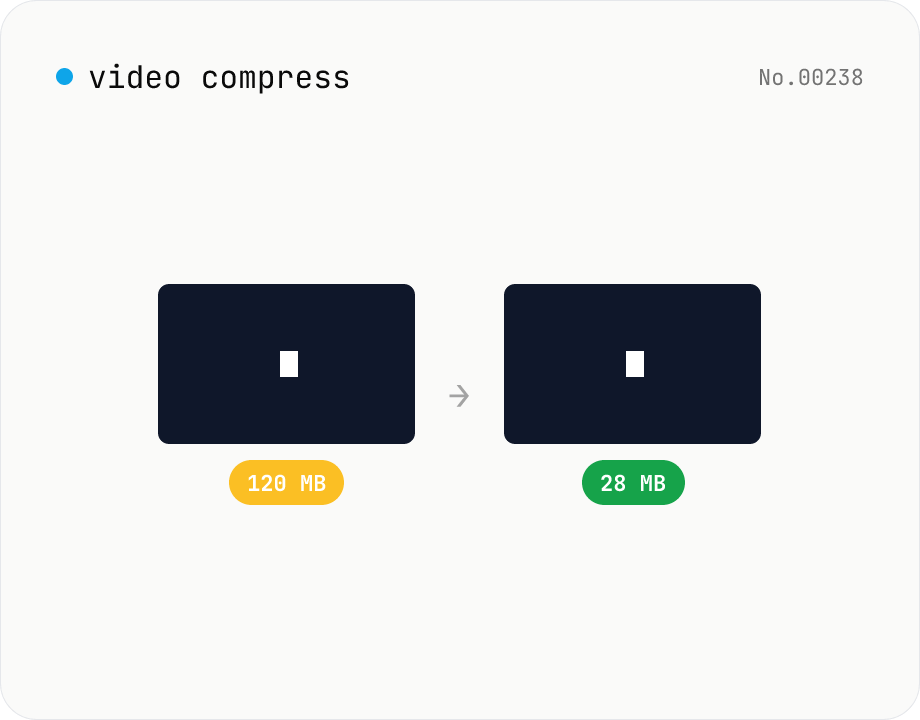
Video compress — shrink size, tune CRF / preset / x264
Re-encode a video with libx264 at the chosen CRF to shrink the file size while keeping the resolution. Pick a preset to trade speed for compression. Output is mp4. Supports batch processing and a single ZIP download.
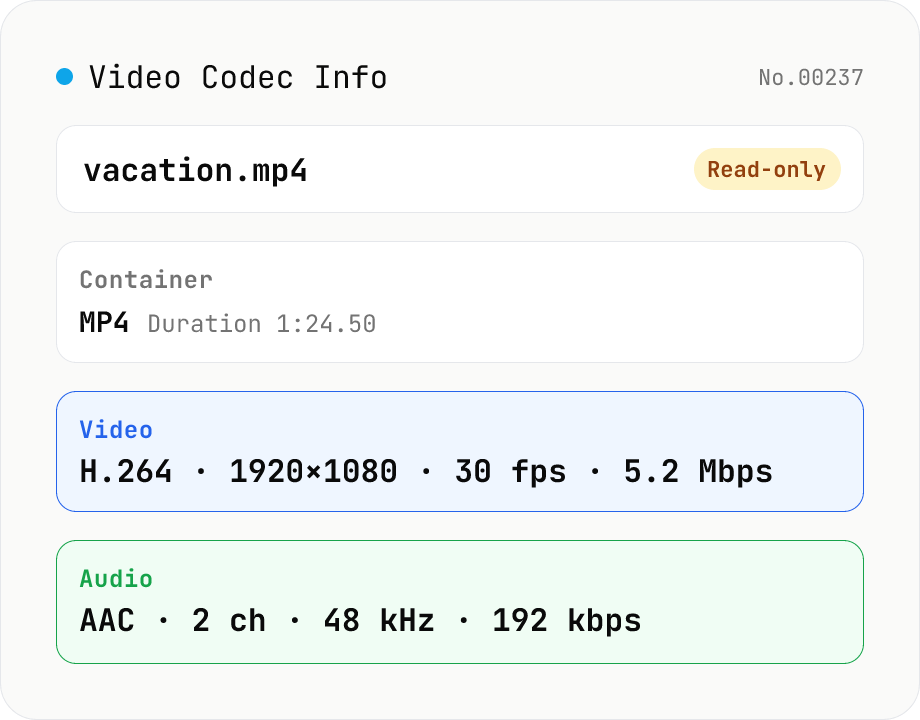
Video Codec Info
Inspect MP4 / MOV / MKV / WebM video files and read out container, codec, resolution, frame rate, bitrate, and audio track information. Read-only, runs entirely in your browser via mediainfo.js (BSD).
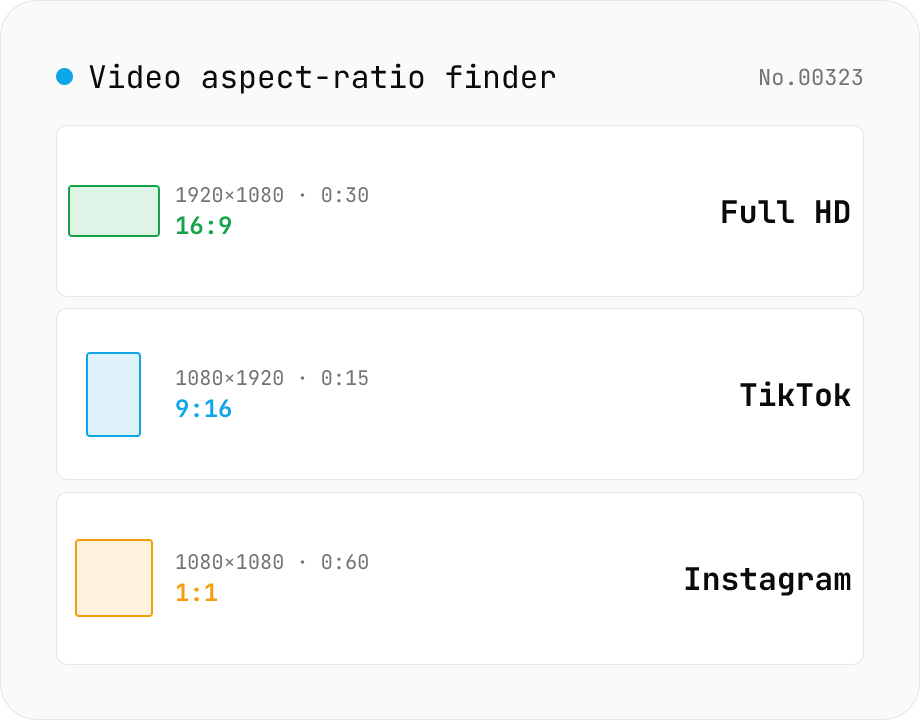
Video aspect-ratio finder — resolution + duration + GCD ratio + 1080p / TikTok match
Drop video files and see each one's resolution (width × height), duration, GCD-reduced aspect ratio (1920×1080 → 16:9, 1080×1920 → 9:16) and the closest matching standard format (Full HD 1080p, 4K UHD, TikTok 9:16, Instagram 4:5, YouTube 16:9, Cinemascope 21:9 — 17 presets). The **video counterpart to `image-aspect-find`** — quickly check whether assets need resizing for social, whether your asset set mixes portrait and landscape, or whether everything matches your timeline's sequence settings. Codec / bitrate / fps deep-dive belongs to `video-codec-info`; this tool focuses on **aspect, resolution and duration only**, so it stays lightweight (uses `HTMLVideoElement` metadata, no wasm). Perfect for pre-publishing checks across Instagram + TikTok + YouTube. CSV export supported. Everything runs in your browser — videos are never uploaded.
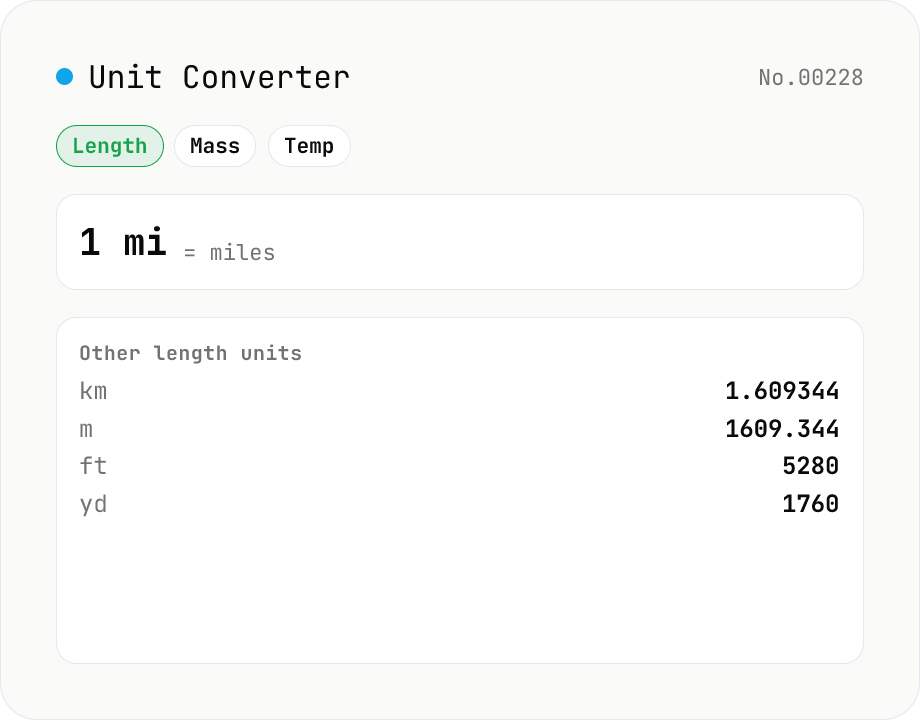
Unit Converter
Convert between length, weight, temperature, volume, area, speed, data size, and time units. Enter one value and see equivalents in every supported unit at once. Runs entirely in your browser — no uploads.