
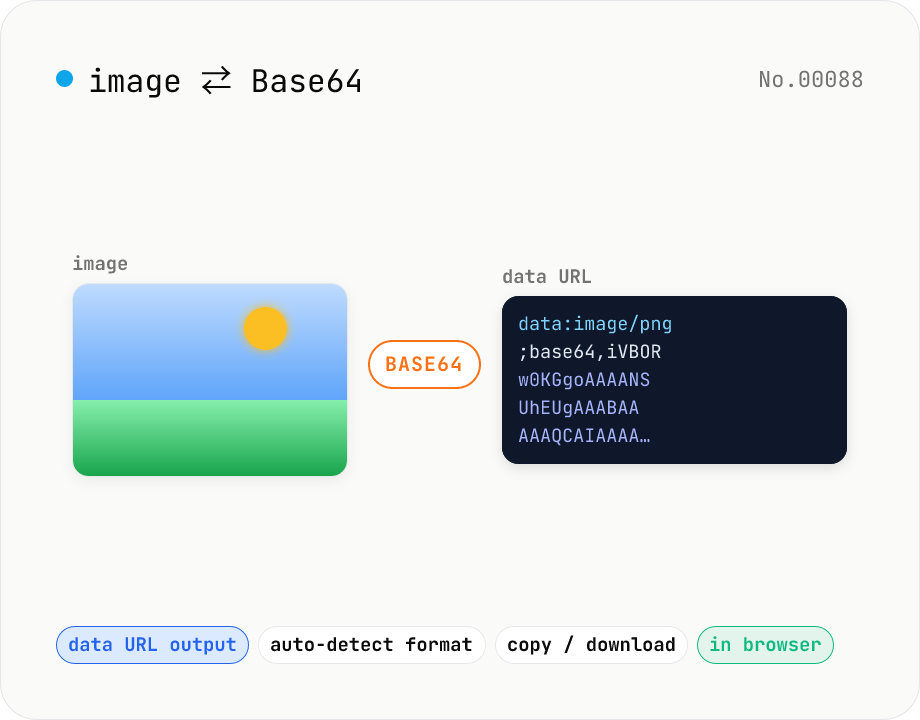
Image ⇄ Base64 — encode to data URL or decode back
Encode an image file into a Base64 string (data URL) or decode a Base64 / data URL back into an image. Handy for embedding in CSS / HTML, stringifying for API payloads, or inspecting a Base64 you received. Toggle the data URL prefix, and decoding auto-detects the image format for preview and download. Your image never leaves the browser — everything runs locally.
How to use
Pick 'Image → Base64' or 'Base64 → Image' at the top. In 'Image → Base64', drop or pick an image and the Base64 string is generated automatically. Turn on 'Include data URL prefix' to get the `data:image/png;base64,...` form (ready to paste into a CSS background or HTML img src), or turn it off for the raw Base64. Use 'Copy' or 'Download' (.txt) to take it. In 'Base64 → Image', paste a Base64 string or data URL and the image is restored with auto-detected format and previewed; 'Download' saves it as an image file in its original format. Images and text never leave the browser — everything runs locally with FileReader / atob / Blob.
FAQ
- Is my image uploaded to a server?
- No. Encoding uses FileReader.readAsDataURL and decoding uses atob and Blob, all in your browser. No network requests are made.
- Should I include the data URL prefix?
- It depends. For embedding directly into `background-image: url(...)` in CSS or an `<img src=...>` in HTML, keep it on (with `data:image/png;base64,`). For putting just the Base64 into an API body or JSON, turn it off to get the raw Base64.
- Which image formats are supported?
- Encoding works for any image file regardless of format (PNG / JPEG / WebP / GIF / SVG / AVIF / HEIC / BMP / TIFF, etc.) — it simply stringifies the raw bytes, so animated GIFs keep all their frames. Some formats like HEIC can't be previewed by the browser, and the generated data URL may not render directly in an img or CSS (the Base64 itself is still correct). For display use, convert to PNG / JPEG first with the HEIC → JPEG / AVIF convert tools, then run it through this tool.
- Can I decode raw Base64 without a data URL prefix?
- Yes. Without a prefix, the format is auto-detected from the leading magic-number bytes (PNG / JPEG / GIF / WebP / BMP / AVIF / SVG). If it can't be determined you'll get an error, so paste with the `data:image/<type>;base64,` prefix when possible.
- How does Base64 affect the size?
- Base64 encodes 3 bytes as 4 characters, so the result is about 33% larger than the original image (plus a few dozen characters for the data URL prefix). It saves HTTP requests but is harder to cache, so it suits small icons and inline embedding.
- Can it read URL-safe Base64 (- _)?
- Yes. On decode, `-` and `_` are converted back to standard `+` and `/` and padding is restored, so URL-safe Base64 can be pasted as-is.
Related tools
Image format convert — JPG / PNG / WebP interchange
Convert images between JPEG / PNG / WebP using the browser canvas — no network. A quality slider is available for JPEG and WebP. Supports batch processing and a single ZIP download.
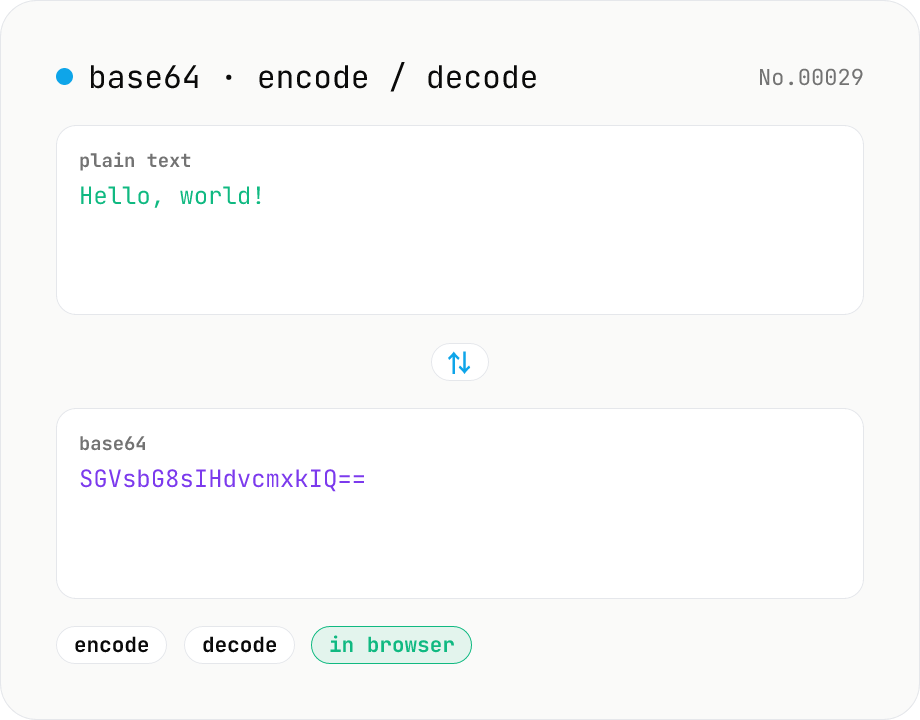
Base64 encode / decode — URL-safe variant supported
Convert between plain text and Base64. Encode with an optional URL-safe variant; decoding accepts URL-safe (- _, no padding) automatically. UTF-8 safe and runs entirely in your browser.
Convert AVIF photos to JPG / PNG / WebP — compatible everywhere
Decode .avif images with the browser-native AVIF decoder and re-encode them as JPEG / PNG / WebP. AVIF is great for the web but older Safari versions, email clients, Slack and Office still can't preview it — convert before sending. Batch conversion with single-click ZIP download is supported. Files never leave your device — everything runs in the browser.
Convert HEIC / HEIF photos to JPG / PNG / WebP batch
Decode iPhone HEIC / HEIF photos inside the browser via libheif-js (WASM) and re-encode them as JPEG or PNG. Supports batch conversion and a single ZIP download. Nothing leaves your device.