
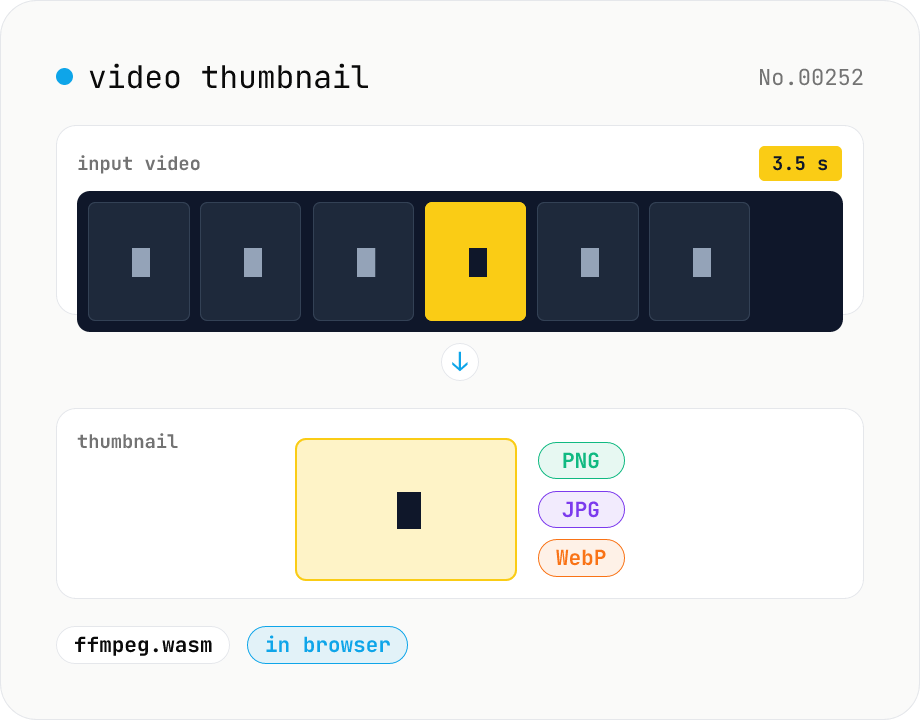
Video thumbnail extractor — grab a frame at any second as PNG / JPG / WebP
Pull a single frame from any second of a video file and save it as PNG, JPG, or WebP. ffmpeg.wasm processes the file inside your browser. Supports MP4 / MOV / WebM / MKV / AVI and more. Batch processing and one-click ZIP download. Videos never leave your device.
How to use
Drop or pick video files. Once each video's duration is detected, pick the second to extract (slider or numeric input), choose a format (PNG / JPG / WebP), then click Extract thumbnail. Multiple videos can be processed in one batch — download them individually or all together as a ZIP. Both the source videos and the extracted thumbnails stay in your browser.
FAQ
- Are my videos uploaded?
- No. ffmpeg.wasm (the WebAssembly build of ffmpeg) runs entirely inside your browser, so neither the source video nor the thumbnail leaves your device. The first run downloads ~30MB of ffmpeg.wasm itself — that's the tool code, not your video.
- Which video formats are supported?
- Anything ffmpeg can decode: MP4, MOV, M4V, WebM, MKV, AVI, FLV, WMV, 3GP for containers; H.264 / H.265 / VP8 / VP9 / AV1 / MPEG-2 and more for codecs.
- Which output formats are available?
- PNG (lossless, larger), JPG (lossy, smaller), and WebP (lossy, balanced, recommended on modern browsers). JPG and WebP use ffmpeg's default quality. Pick JPG / WebP for OG cards on social media; pick PNG for logo extraction or anything that may need transparency later.
- What if I pick a timestamp past the video's end?
- ffmpeg can't render a frame and the file is marked as error. Each card shows the duration — keep the timestamp between 0 and (duration − 0.1) or so to be safe.
- What resolution does the thumbnail have?
- Exactly the same as the source video. An FHD (1920x1080) clip yields a 1920x1080 image; a 4K (3840x2160) clip yields 4K. Resize with image-resize or image-compress afterwards if you need a smaller size.
- Can I process multiple videos at once?
- Yes. Drop several files at once and use the Download ZIP button to grab all thumbnails in a single archive. Timestamps are picked per file.
Related tools
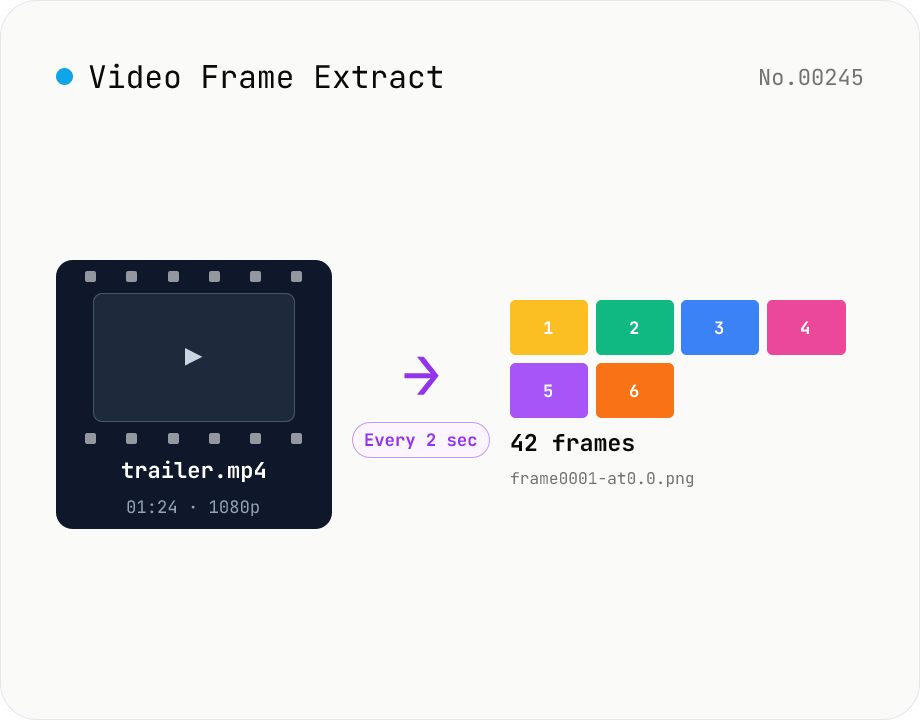
Video Frame Extract — interval or evenly-spaced PNG sequence export
Extract multiple frames from a video as a PNG sequence — either every N seconds or N evenly-spaced frames. The multi-frame sibling of video-thumbnail (which grabs a single frame). Useful for storyboards, video analysis, and asset capture. ffmpeg.wasm runs inside your browser and supports MP4 / MOV / WebM / MKV / AVI and more. Two modes: 'interval' (every N seconds) and 'count' (M evenly-spaced frames). Per-video ZIPs and a combined ZIP are both available. Files are named `<source>-frame<NNNN>-at<seconds>.png`. Nothing is uploaded.
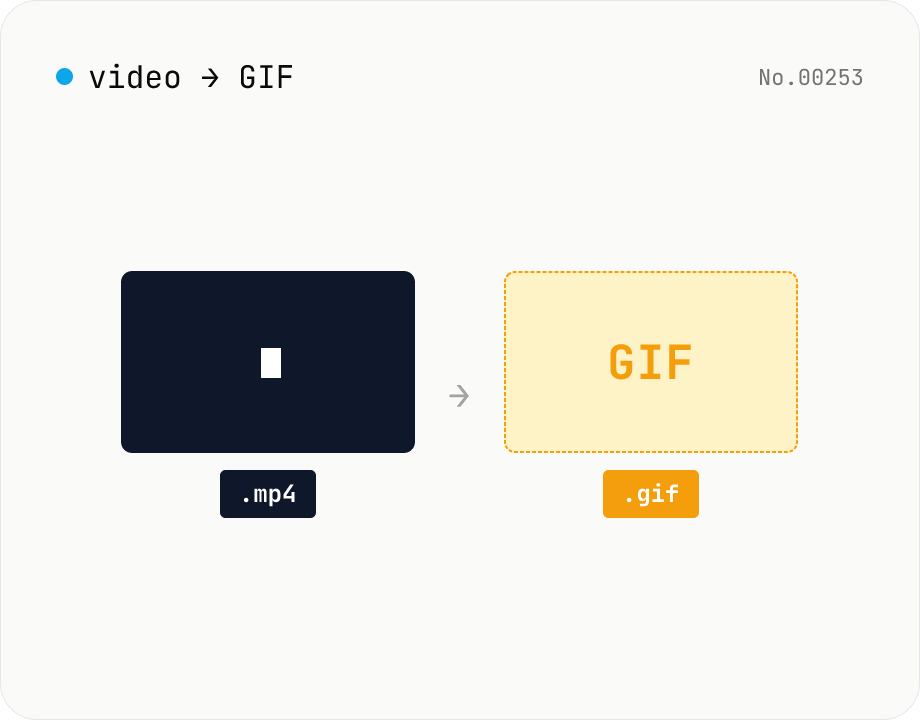
Video to GIF — palettegen with fps / width / trim range
Convert videos to GIFs in your browser. Uses ffmpeg.wasm's two-pass palettegen + paletteuse for better color fidelity and lets you set fps, width and a trim range. Supports batch processing and a single ZIP download.
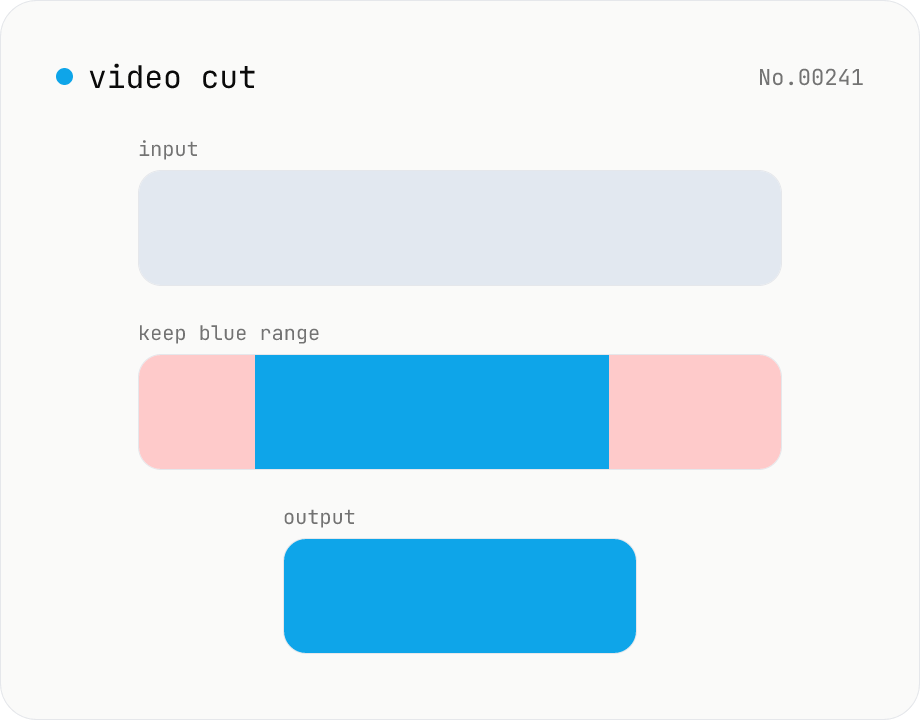
Video cut — trim by range with stream copy, no quality loss
Trim a video to a chosen range with ffmpeg.wasm using stream copy — no re-encoding, no quality loss, original codec and extension preserved. Cut points snap to the nearest keyframe so the start may shift slightly. Supports batch processing and a single ZIP download.
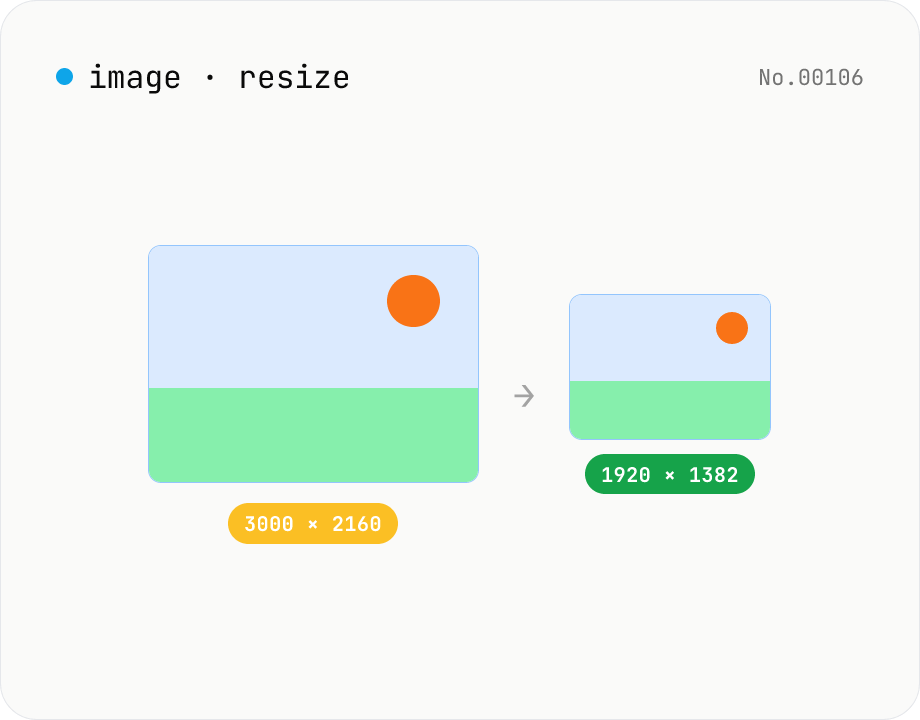
Image resize — by px or %, keep or lock aspect ratio
Resize JPEG / PNG / WebP images by specifying the longer side in pixels — aspect ratio is preserved. Batch process multiple files and download individually or as a ZIP. Runs entirely in your browser.