
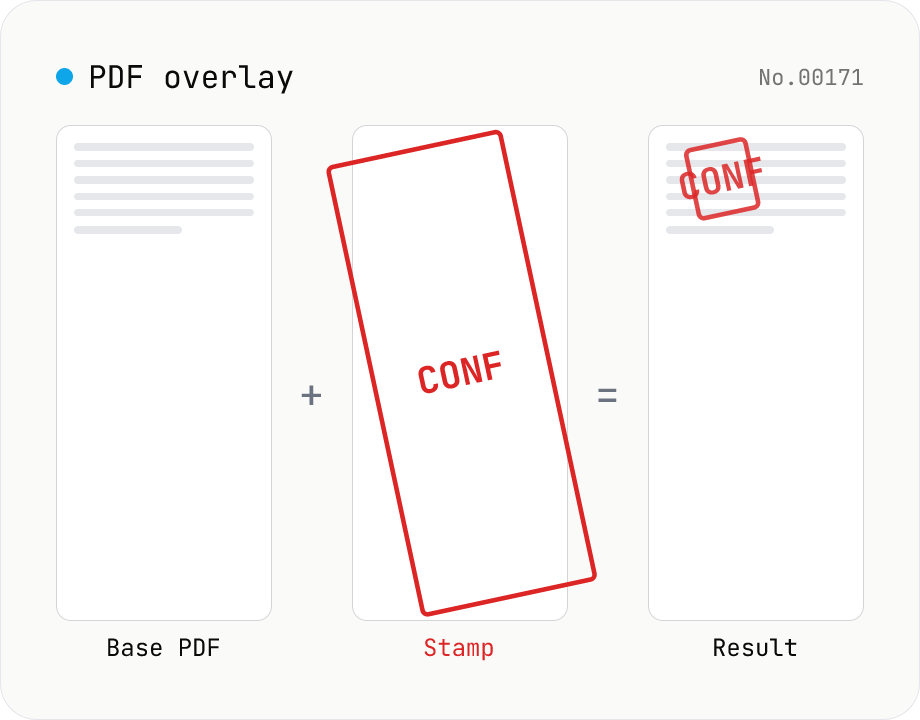
PDF overlay — stamp a PDF onto every page of another
Layer the first page of one PDF (the stamp) on top of every page of another (the base). Perfect when your watermark, company seal, 'Confidential' badge, or boilerplate cover sheet is already a PDF. Choose a 9-grid position or custom XY offset, set scale / rotation / opacity, and the same stamp is baked into every base page. Powered by pdf-lib's embedPdf + drawPage. Multiple base PDFs can be processed at once and downloaded as a ZIP. Nothing leaves the browser.
How to use
Drop one or more base PDFs (the documents being stamped) and pick a single stamp PDF in the second field. Pick a 9-grid position + margin, set the scale as a percentage of the base page width, and tweak opacity, rotation, and which pages get the stamp. Press Overlay and every selected page of every base PDF gets the stamp PDF's first page baked into it — ideal for layered company seals, 'Confidential' / 'Draft' marks, or boilerplate cover sheets that already exist as PDFs. Multiple base PDFs can be processed in one batch and downloaded individually or as a ZIP.
FAQ
- Are uploaded PDFs sent anywhere?
- No. pdf-lib runs in your browser; neither the base PDFs nor the stamp PDF leave your machine.
- How is this different from pdf-watermark?
- pdf-watermark stamps text or raster images (PNG / JPEG / WebP). pdf-overlay stamps an actual PDF, preserving vector outlines, multi-font layouts, and complex artwork. Use overlay when your company seal or watermark is already a PDF.
- What if the stamp PDF has multiple pages?
- Only the first page is used. If you need a different page, split the stamp PDF with pdf-split first.
- What if the base PDFs are different sizes?
- The percentage scale is interpreted against each base page's width. 30% scale → ~178pt on an A4 page (595pt) but ~252pt on an A3 page. Margins follow the same percentage.
- What about stamps with transparency?
- PDF vector transparency in the stamp is preserved. The Opacity setting in this tool is an extra alpha layer applied on top of the embedded PDF — it stacks with any in-PDF transparency.
- How do I specify which pages get stamped?
- `all` (the default) hits every page. Use comma/range lists like `1-3,5,7` for specific pages. Out-of-range or non-positive numbers are silently ignored; empty also means `all`.
- Can it handle password-protected PDFs?
- No — strip the password first with pdf-unlock, then re-upload.
Related tools
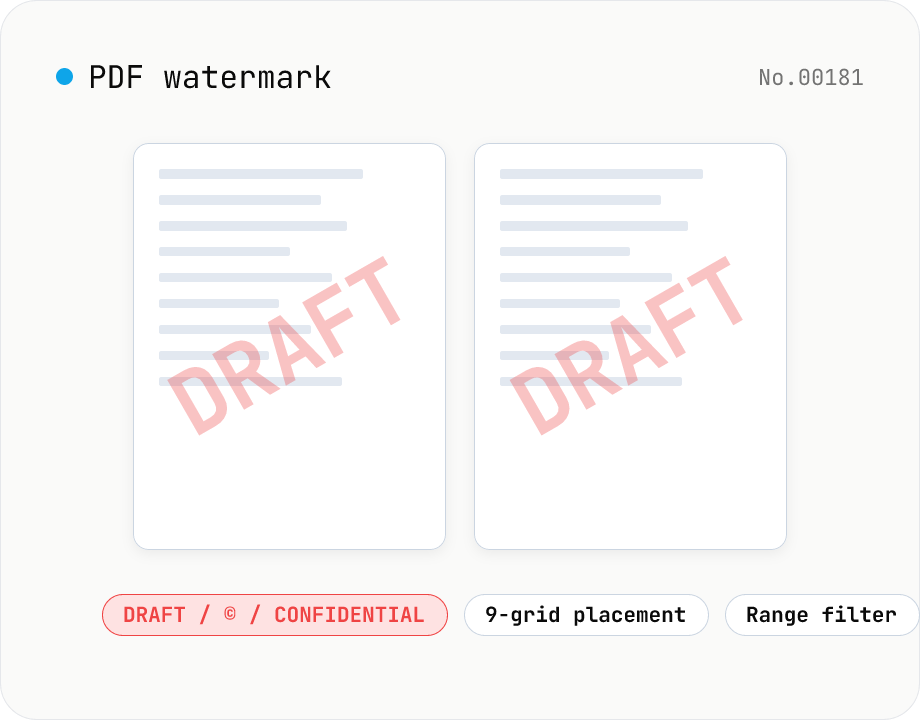
PDF watermark — text or image overlay
Stamp every page of a PDF with text (DRAFT / CONFIDENTIAL / © ...) or an image logo. Pick from a 9-grid placement, adjust opacity, size, rotation, and restrict to specific page ranges. Runs entirely on pdf-lib in the browser — your files never leave the device. Batch processing and ZIP download supported.
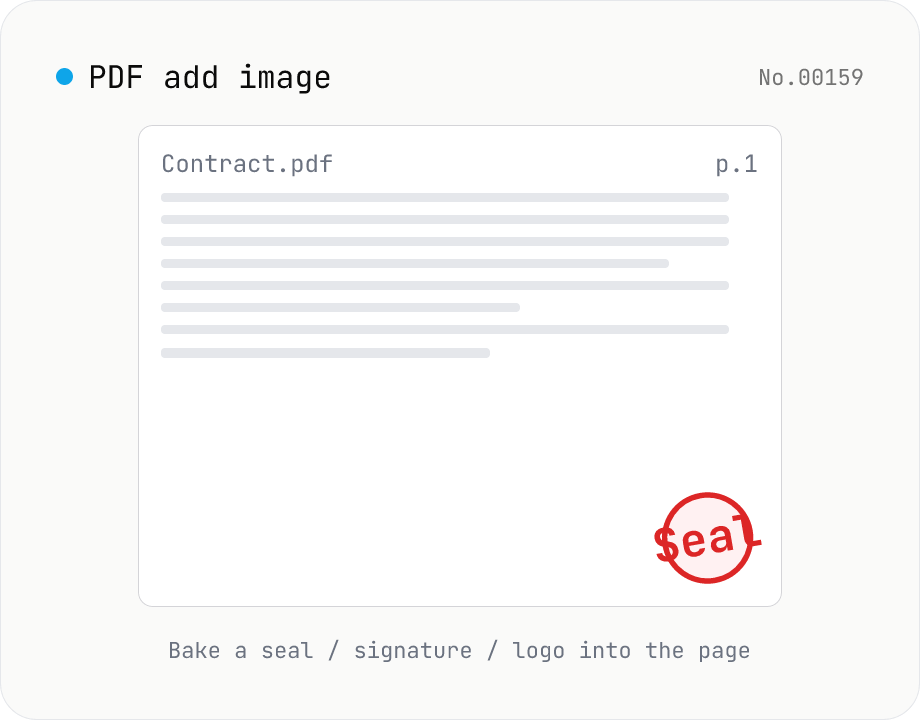
PDF add image — bake a signature / seal / logo into a page
Drop an image (PNG / JPEG / WebP) onto a chosen page of a PDF — perfect for adding a personal seal, scanned handwritten signature, or company logo just before sending the document back. Pick a 9-grid position with margin, set the image size as a percentage of page width, and tweak opacity, rotation, and which pages get the image. Powered by pdf-lib's embedPng / embedJpg. Batch multiple PDFs and download as a ZIP. Files never leave your browser.
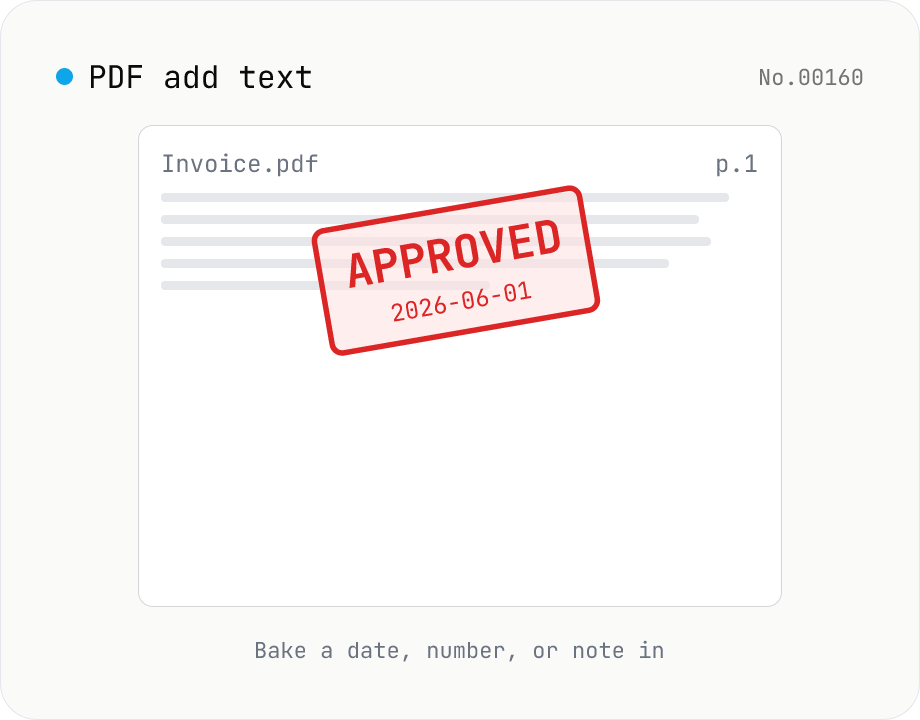
PDF add text — bake dates, notes, or labels into a page
Drop a text annotation onto a chosen page of a PDF — perfect for date stamps, file numbers, contractor names, or any quick label that just needs to look right. Position via 9-grid + margin, set font size / color / rotation / opacity, and pick which pages. Uses pdf-lib's built-in Helvetica (Regular / Bold / Oblique), so the text is ASCII / Latin only. For Japanese, build a stamp PNG with stamp-jp and place it with pdf-add-image. Multiple PDFs can be batched and downloaded as a ZIP. Files never leave your browser.
PDF merge — combine multiple PDFs into one
Drag and drop multiple PDFs, reorder them, and merge into a single PDF. Runs entirely in your browser.