
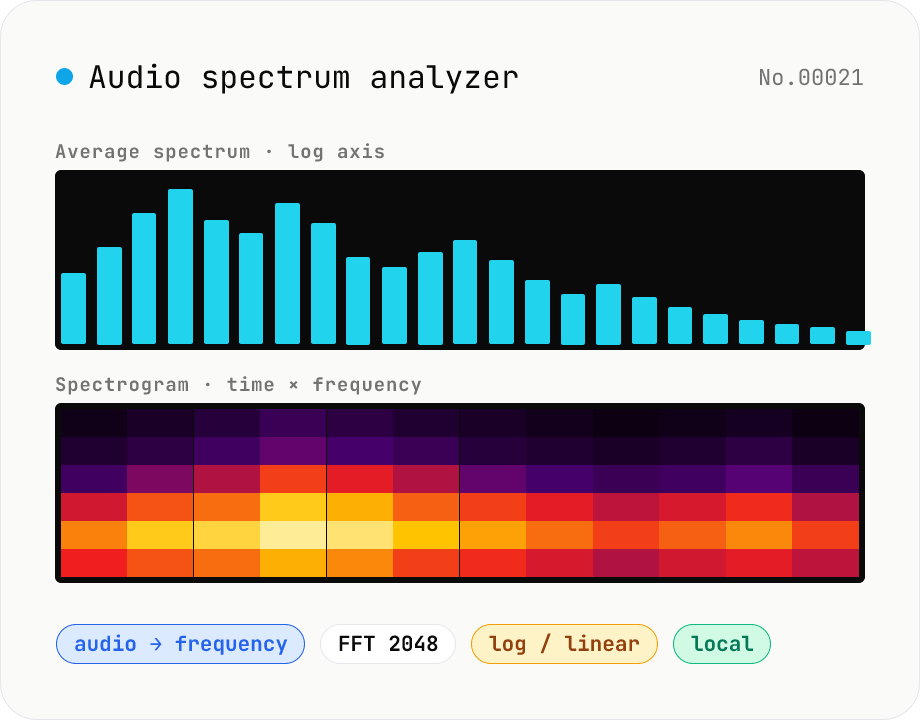
Audio spectrum analyzer — visualize frequency content
Drop an audio file (MP3 / WAV / M4A / FLAC / OGG / Opus) to run an in-browser FFT analysis and visualize its frequency content. A Mode toggle switches between the average spectrum (frequency vs. amplitude over the whole file) and a spectrogram (time × frequency × amplitude). Pick the FFT size (512 / 1024 / 2048 / 4096) and the frequency axis (linear / log). Useful for checking the low end before mastering, locating noise bands, inspecting an instrument's harmonic structure, or sanity-checking the S/N ratio of a lecture recording. Download the canvas as PNG, or export the average spectrum as CSV. Everything runs in your browser — no upload.
How to use
Drop or pick one or more audio files (MP3 / WAV / M4A, etc.). Pick a mode: average spectrum (frequency vs. amplitude) or spectrogram (time × frequency × amplitude). Tweak the FFT size (512–4096) and frequency axis (log / linear) if needed. Analysis starts automatically and renders to a per-file canvas. Download the canvas as PNG, or export the average spectrum as CSV (frequency Hz, amplitude dB).
In depth
Spectral analysis is typically performed on unreleased music
Frequency spectrum analysis is a mixing and mastering tool, not a post-release one. You run it to check the low-end balance before finalising EQ, to look for masking problems between instruments, or to verify that the high-frequency rolloff is where you intended it. At this stage the audio is almost by definition not yet public.
The spectrogram is worth thinking about separately. An FFT image captures the time-frequency structure of a recording in enough detail that someone reading it could identify the rhythm, the instrumentation, and the dynamic shape of the work. It's a fingerprint of the audio. On a server, that fingerprint stays even if the original file is eventually deleted.
What cloud spectrum analysers receive — and log
Server-side analysis tools receive the audio file, run the FFT, and return a visualisation. Changing the FFT size or switching between modes triggers a new request, which means a new file transfer. For long iterative sessions — comparing different EQ decisions, checking multiple mix revisions — the same recording can be transferred many times.
Access logs at the server level typically record timestamps, file sizes, and sometimes derived features. Even without retaining the raw audio, the server knows that a file matching certain characteristics was processed on a given date. Terms of service for free tools often permit this kind of logging with broad scope.
In-browser FFT via decodeAudioData and a custom Radix-2 DIT implementation
The tool decodes audio with the Web Audio API's `decodeAudioData`, sums L/R to mono, then runs a Radix-2 Cooley-Tukey DIT FFT on non-overlapping frames (size configurable from 512 to 4096). In average spectrum mode, amplitudes are averaged across all frames and plotted on a canvas. In spectrogram mode, per-frame power spectra are stacked on the time axis and rendered with a dB-to-brightness colour mapping (-120 to 0 dB).
FFT size changes and log/linear axis switches re-run against the already-decoded sample data in memory — no re-download, no new request. Open DevTools Network while adjusting settings: no audio requests appear after page load. The FFT implementation is in the GitHub source.
Using spectrum analysis as a pre-delivery checkpoint
The PNG export from a spectrogram or average-spectrum view serves as a snapshot of the mix at that point in time — useful documentation if questions about a deliverable come up later. Running a quick spectrum check before sending to a distributor takes about as long as dropping the file and looking at the result.
Pair this with audio-loudness-lufs to get both the frequency profile and the loudness reading without any uploads. Together they cover most of what mastering engineers look at before signing off on a release — all from inside the browser, with the file staying on your machine.
FAQ
- Which FFT size should I pick?
- For music-wide tonal balance, 2048 or 4096 works well. For drum transients or click analysis, 512 or 1024 trades frequency resolution for sharper time resolution.
- Log vs. linear — what's the difference?
- Log matches human hearing: it stretches the low end and compresses the high end, giving a musical view. Linear spreads frequencies evenly up to Nyquist, which suits ultrasonic or harmonic analysis.
- How are stereo files handled?
- L/R is summed to mono before FFT. If you want per-channel views, run audio-channel-split first and analyze each file separately.
- What does the colour mean in the spectrogram?
- Brighter cells mean higher amplitude (-120 dB to 0 dB mapped from black to white). Dark cells are silence or very small signals, bright cells are peaks.
- Is the audio uploaded anywhere?
- No. We use the Web Audio API (decodeAudioData) plus an in-browser FFT — nothing leaves your machine.
How to verify nothing is uploaded
This tool never sends your input outside your browser. The pages below explain how it works, how to audit it, and how the site is run.
Related tools
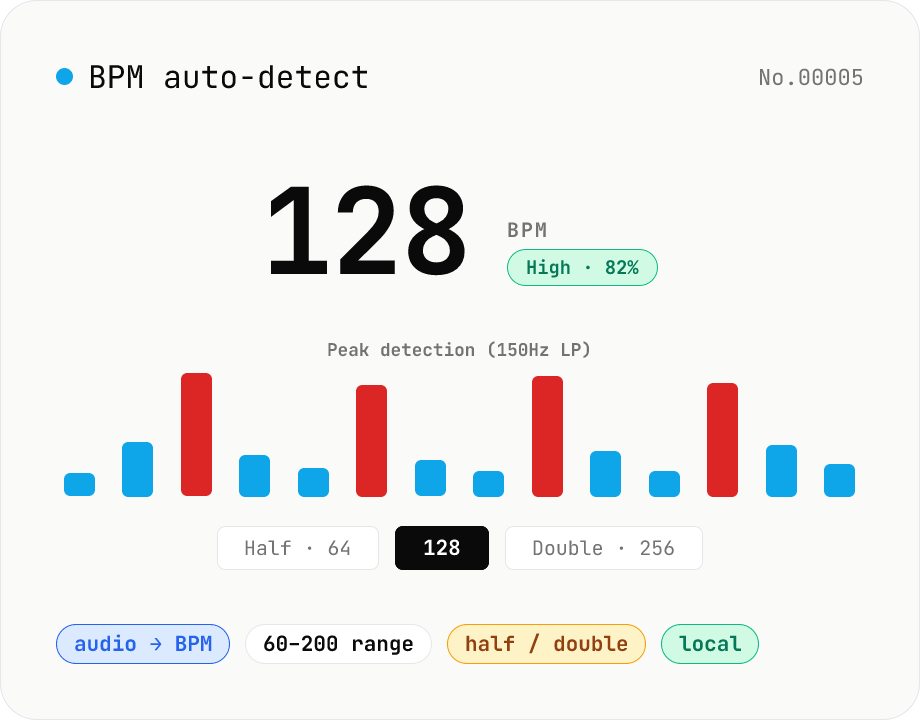
BPM auto-detect — estimate the tempo of an audio file
Drop an audio file (MP3 / WAV / M4A / FLAC / OGG) and we estimate the BPM in-browser using a low-pass filter + peak picker + histogram. Great for finding the tempo of a DJ partner track, checking sample packs, matching dance / running cadence, or grabbing a source BPM before running bpm-time-stretch. Half-tempo and double-tempo candidates are also shown so you can override 4-on-the-floor misreads (60 vs. 120). Everything stays in your browser.
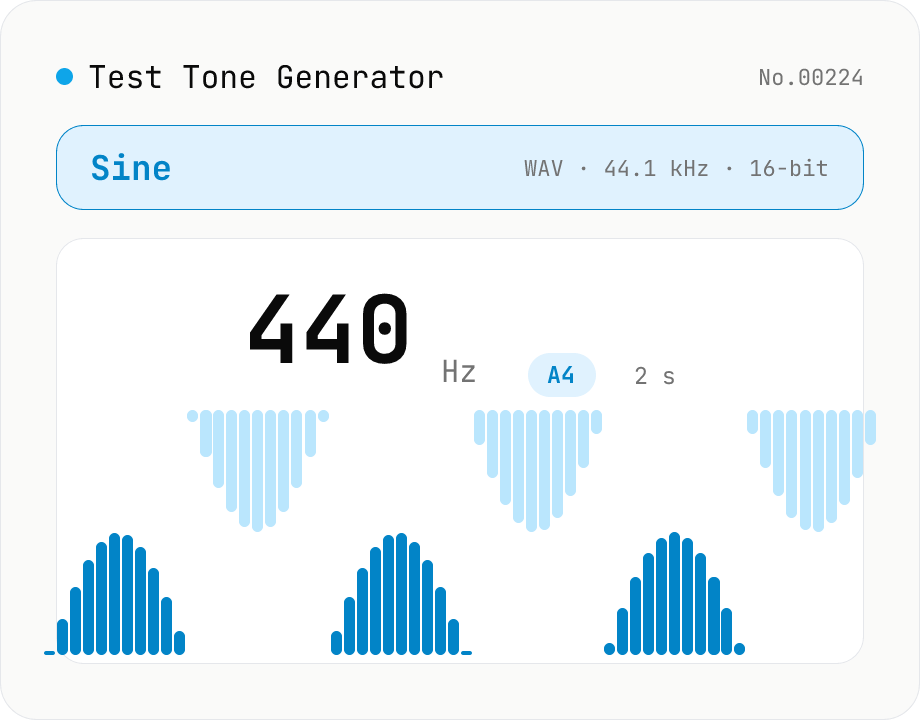
Online Tone Generator — Sine, Square, Triangle, Sawtooth (Hz)
Free online sound tone generator. Play and download test tones at any frequency between 20 Hz and 20 kHz using the Web Audio API. Choose sine, square, triangle, or sawtooth wave, preset A4 (440 Hz) / 1 kHz / 10 kHz, with live note name and cents offset. Fade in/out avoids click noise. Export as WAV (44.1 kHz / 16-bit / mono). Useful for instrument tuning, speaker channel checks, hearing tests, and reference signals. Synthesized in your browser — nothing uploaded.
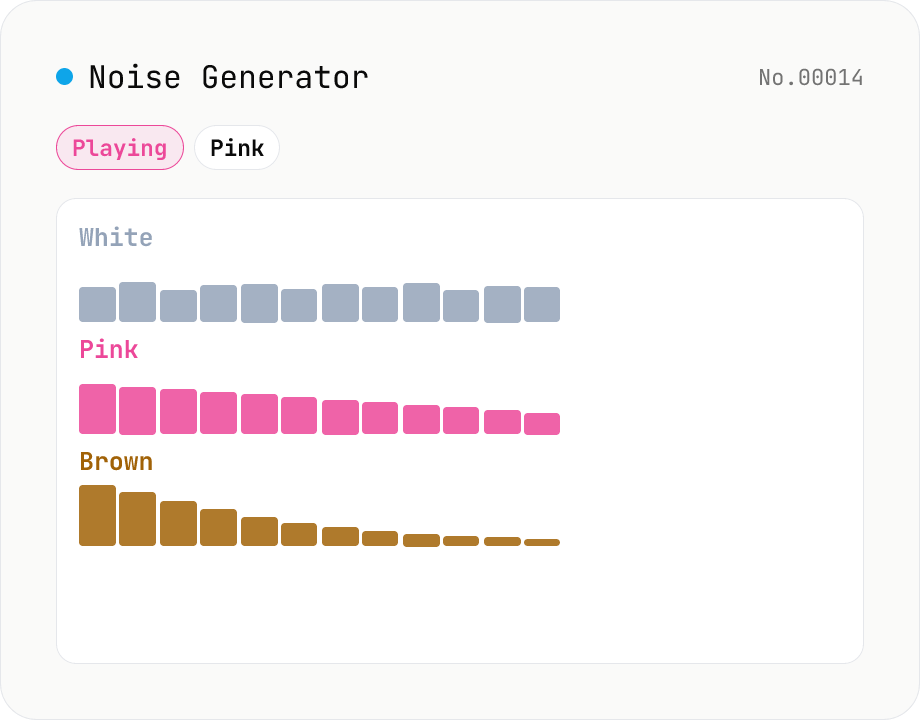
Noise Generator (White / Pink / Brown)
Synthesise white, pink and brown (red) noise in your browser with live playback and WAV download. **White** has flat energy across frequency (sounds bright). **Pink** has flat energy per octave (1/f spectrum, close to many natural sounds). **Brown** falls off at -6 dB/octave for a deep, ocean-like sound. Useful as a focus-aid masking track, infant sleep aid, tinnitus relief, or as a test signal for audio equipment. Download any duration from 0.5 s to 60 s as 44.1 kHz / 16-bit / mono WAV. Runs entirely in your browser — nothing is uploaded.
Audio format convert — MP3 / WAV / M4A / OGG / FLAC
Convert audio files to mp3 / wav / m4a / ogg / flac. ffmpeg.wasm picks an encoder based on the chosen extension and re-encodes the file entirely in your browser. Supports batch processing and a single ZIP download.