
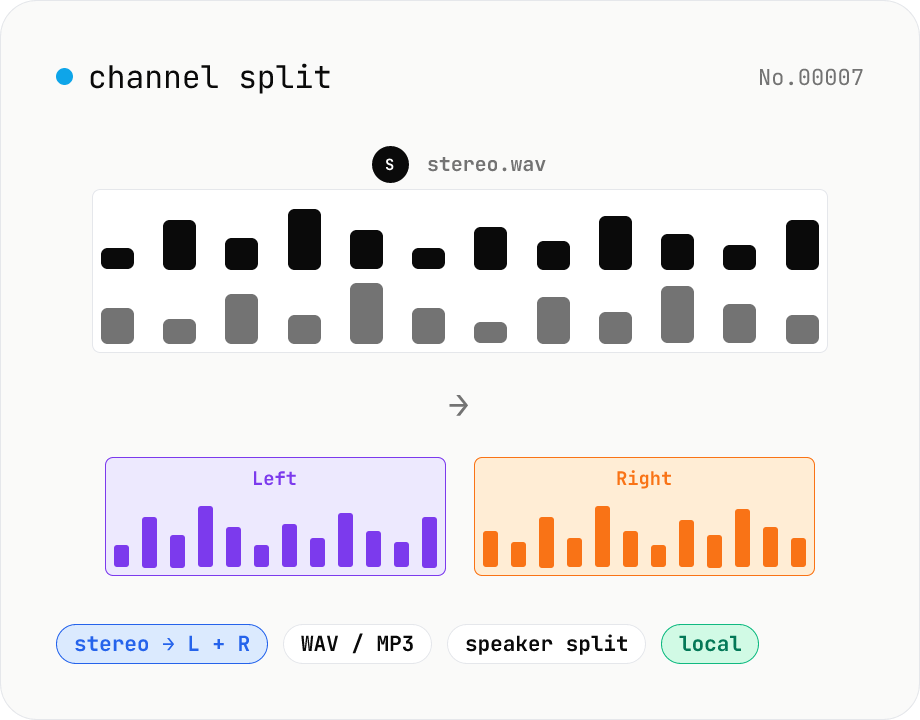
Audio channel split — stereo to two mono files
Split a stereo audio file (MP3 / WAV / M4A / FLAC / OGG) into separate left and right mono WAV / MP3 files. Useful for interview / dictation / Zoom recordings captured with one speaker per channel, isolating noise on one side, or pulling a single channel into your DAW. Mono input passes through as a single file. Everything stays in your browser.
How to use
Drop or pick one or more stereo audio files (MP3 / WAV / M4A, etc.). Choose the output format (WAV / MP3). For MP3 you can pick a bitrate. Click Split channels to write the left and right channels as separate mono files. Save each file individually or grab everything as a ZIP. Mono input passes through as a single file (format conversion still runs).
FAQ
- Which channel is L vs. R?
- L = Left (channel 0), R = Right (channel 1). If an interview was recorded with Speaker A on the L mic and Speaker B on the R mic, you'll get A in the left file and B in the right file.
- How are files named?
- We append `-left.wav` / `-right.wav` (or `.mp3`) to the original filename. Example: `interview.wav` → `interview-left.wav` + `interview-right.wav`.
- What about mono input?
- We skip the split and write a single file (format conversion still runs). Handy for unifying MP3s as WAVs.
- Does it support 5.1 / 7.1 multichannel?
- No — this tool covers stereo → two mono files and mono passthrough only. For surround, use a DAW (Reaper / Logic) or ffmpeg's `-filter_complex channelsplit`.
- Is anything uploaded?
- No. Decoding runs via the Web Audio API and MP3 encoding uses a JS port of LAME (lamejs) — all local.
Related tools
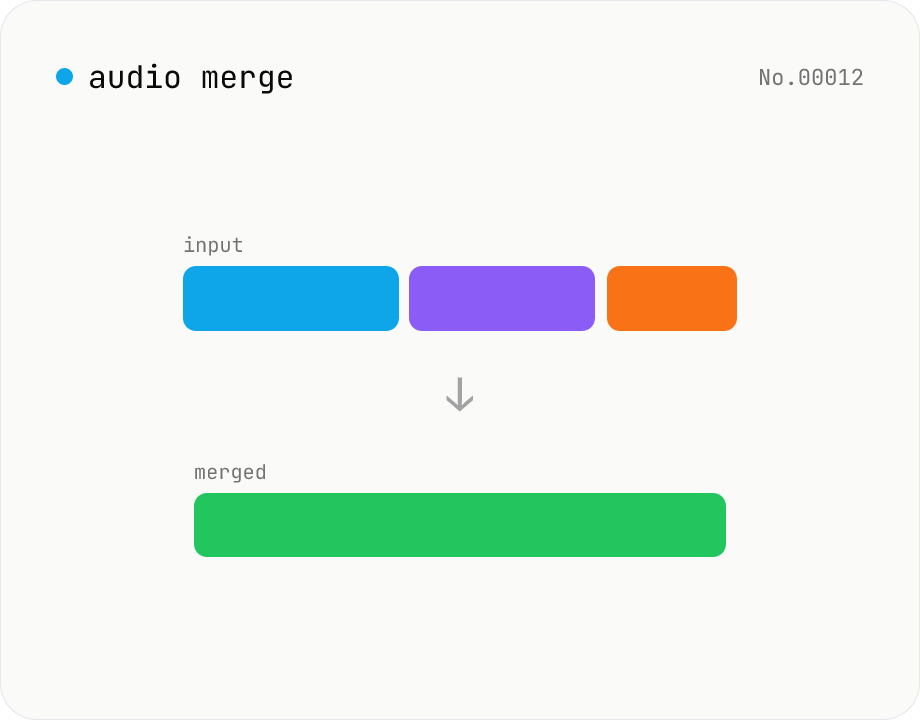
Audio merge — concat multiple files into one
Concatenate multiple audio files via the ffmpeg.wasm concat demuxer. Reorder by drag. Stream copy keeps codec untouched, but all inputs must share the same codec and sample rate.
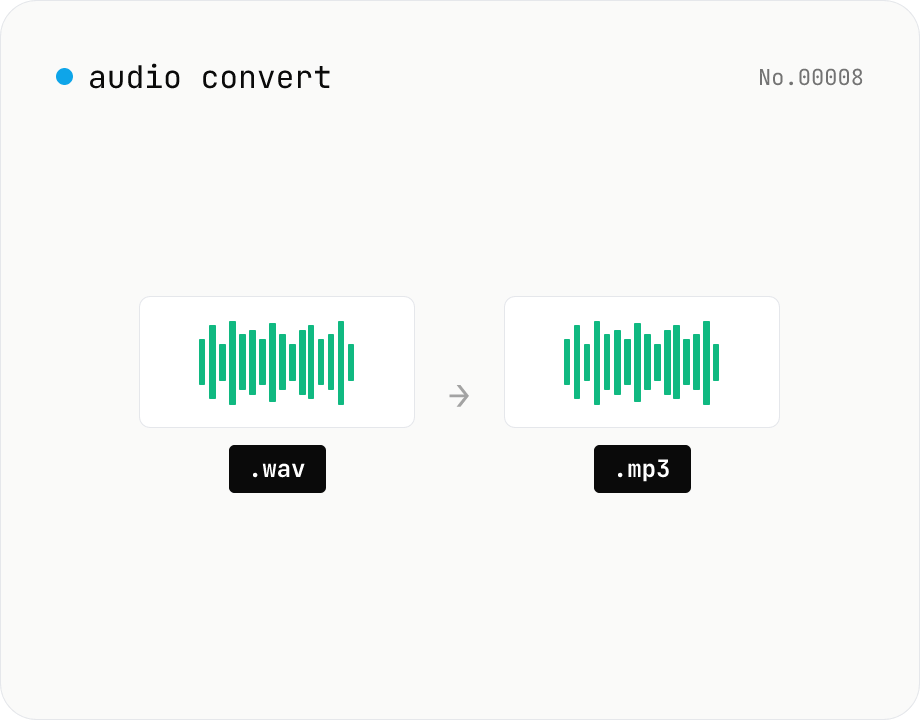
Audio format convert — MP3 / WAV / M4A / OGG / FLAC
Convert audio files to mp3 / wav / m4a / ogg / flac. ffmpeg.wasm picks an encoder based on the chosen extension and re-encodes the file entirely in your browser. Supports batch processing and a single ZIP download.
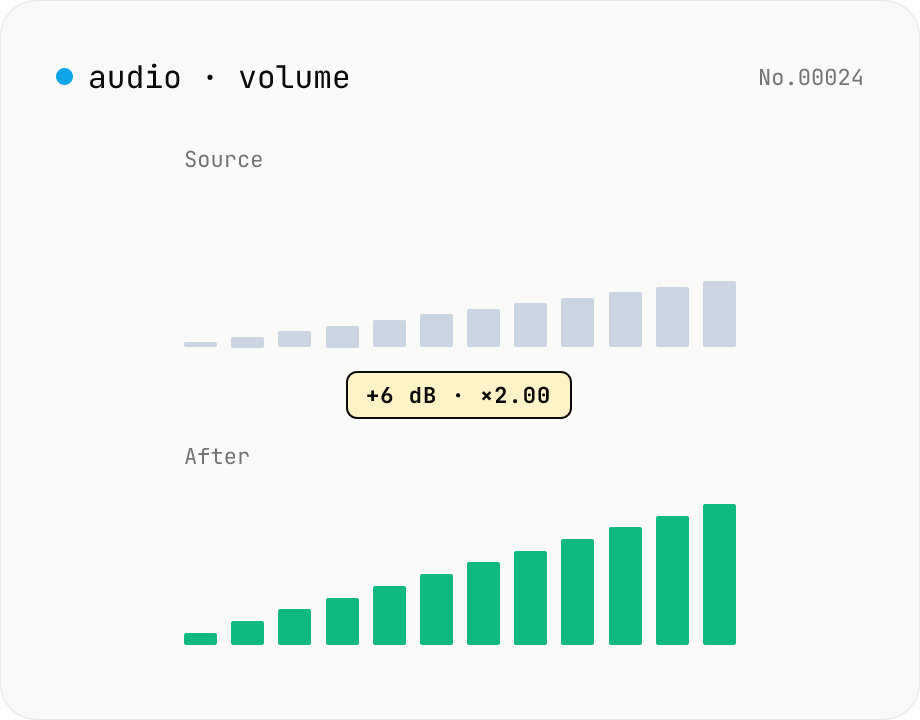
Audio volume — adjust by dB or linear multiplier
Adjust the loudness of audio files in bulk via ffmpeg.wasm's volume filter. Use the dB slider (-30 to +30 dB) or the linear multiplier (×0.03 to ×31.6). +6 dB ≈ 2x, -6 dB ≈ half. To avoid clipping, try negative values first and compare. Supports batch processing and a single ZIP download. Runs entirely in your browser — audio never leaves your device.
Voice recorder — record mic to MP3 / WAV
Record from your mic and download as MP3 / WAV. Everything runs in your browser.